CDESK 3.2.11 brings significant enhancements to communication, request management and day-to-day operations. The biggest new feature is the new VoIP integration with Zadarma, which allows you to make calls directly from CDESK without external applications, including call recording, AI transcription and Supervisor mode for overseeing operators.
The version also features a redesigned Kanban board with real-time updates, a new CDESK Pro desktop application for Windows and Mac, improvements to the Calendar, and a host of other practical features and enhancements.
Content
New VoIP integration with Zadarma
With version 3.2.11, CDESK is switching to a new VoIP service provider. The previous VIPTEL solution is being replaced by Zadarma.
What does this mean for CDESK users?
The aim of the integration was to simplify communication with customers. For phone calls, we are eliminating the need for external software (such as MicroSIP, which was used until recently). Calls are fully managed via native applications in the web, desktop and mobile versions.
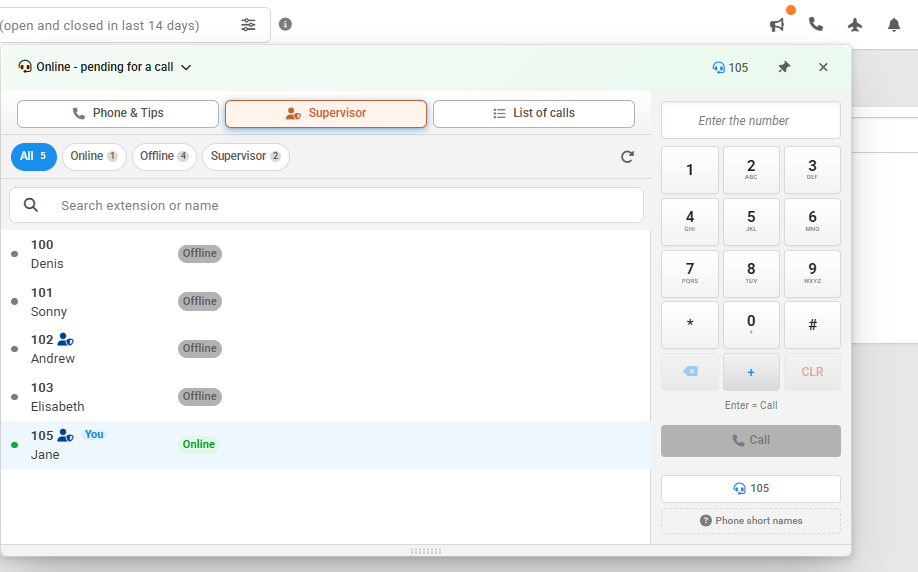
Clients can now make and receive calls directly within CDESK without the need for external software. Calls can also be recorded, transcribed using AI, or linked to requests.
What are the further improvements?
- New Supervisor Mode: Supervisors can view ongoing calls, join them, listen in, or communicate with the operator only. They can also view written notes and caller information.
- Movable dialling widget with current extension
- Filtering by incoming/outgoing calls
- Quick creation of fulfilments and requests from calls
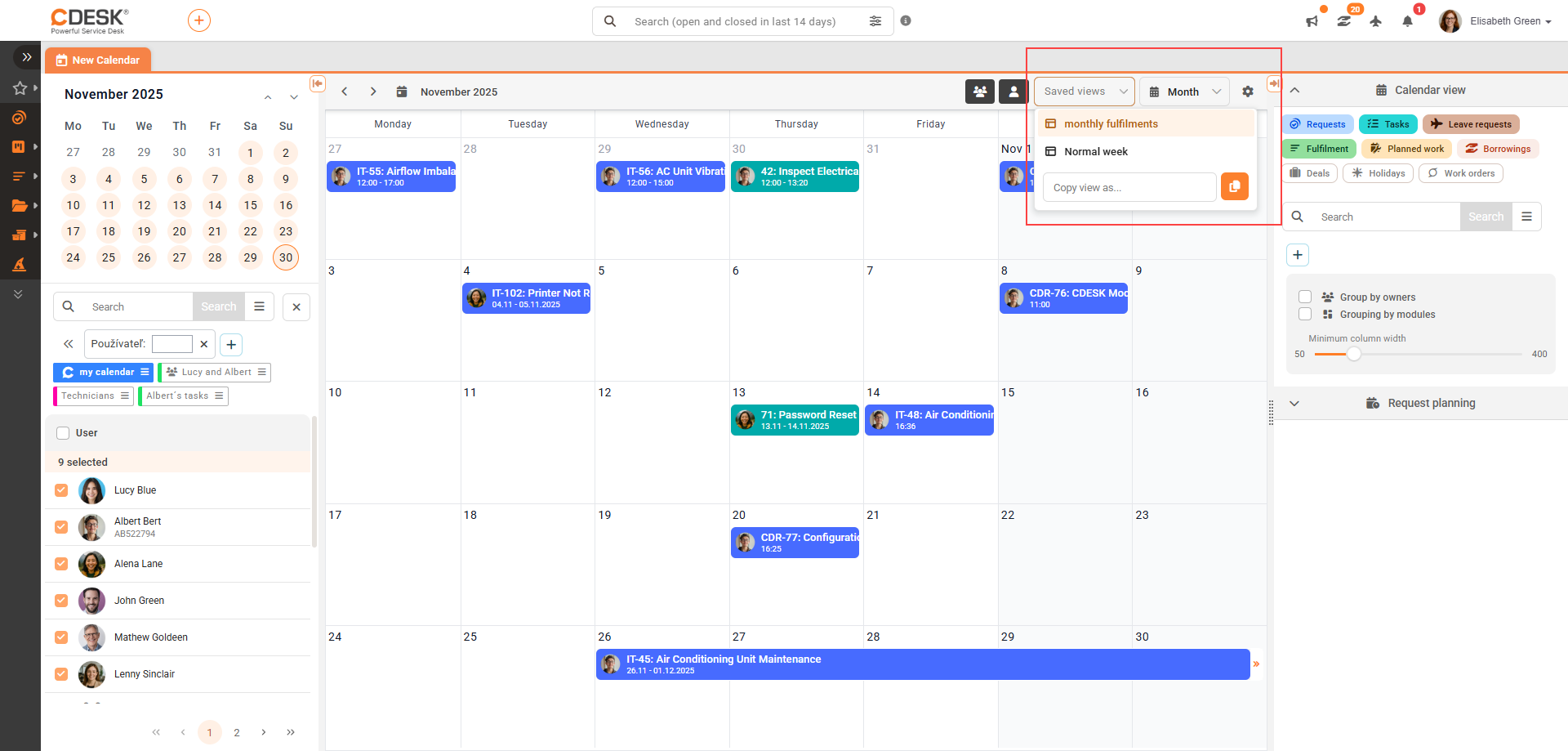
With the new version, users can save their calendar configuration – account selection, chosen modules, filters and view modes (monthly, weekly, etc.)
Significant improvements to the Calendar
With the new version, users can save calendar configurations — selection of accounts, chosen modules, filters, and display modes (monthly, weekly, etc.).
Saving is simple and you can switch between saved views.
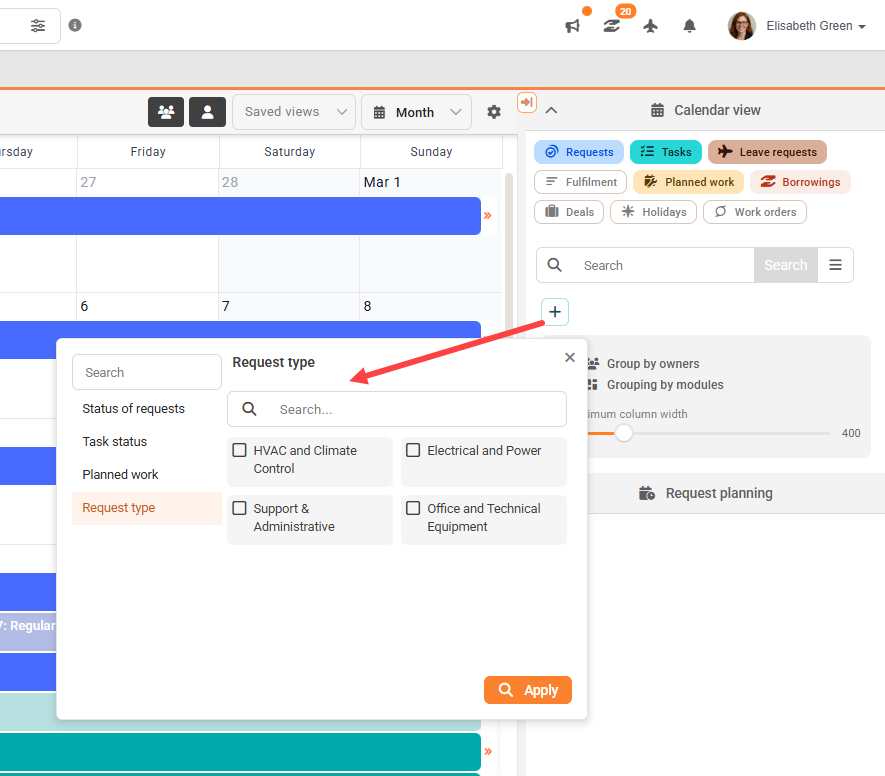
Added filtering of requests by type
When filtering objects in the Calendar, you can now also filter by request type. Previously, the Calendar only allowed filtering by request status, task status and planned work.
By dragging a request in the Calendar, its Resolve From and Resolve To dates are immediately set according to the SLA settings.
Improvements and optimisation of Kanban
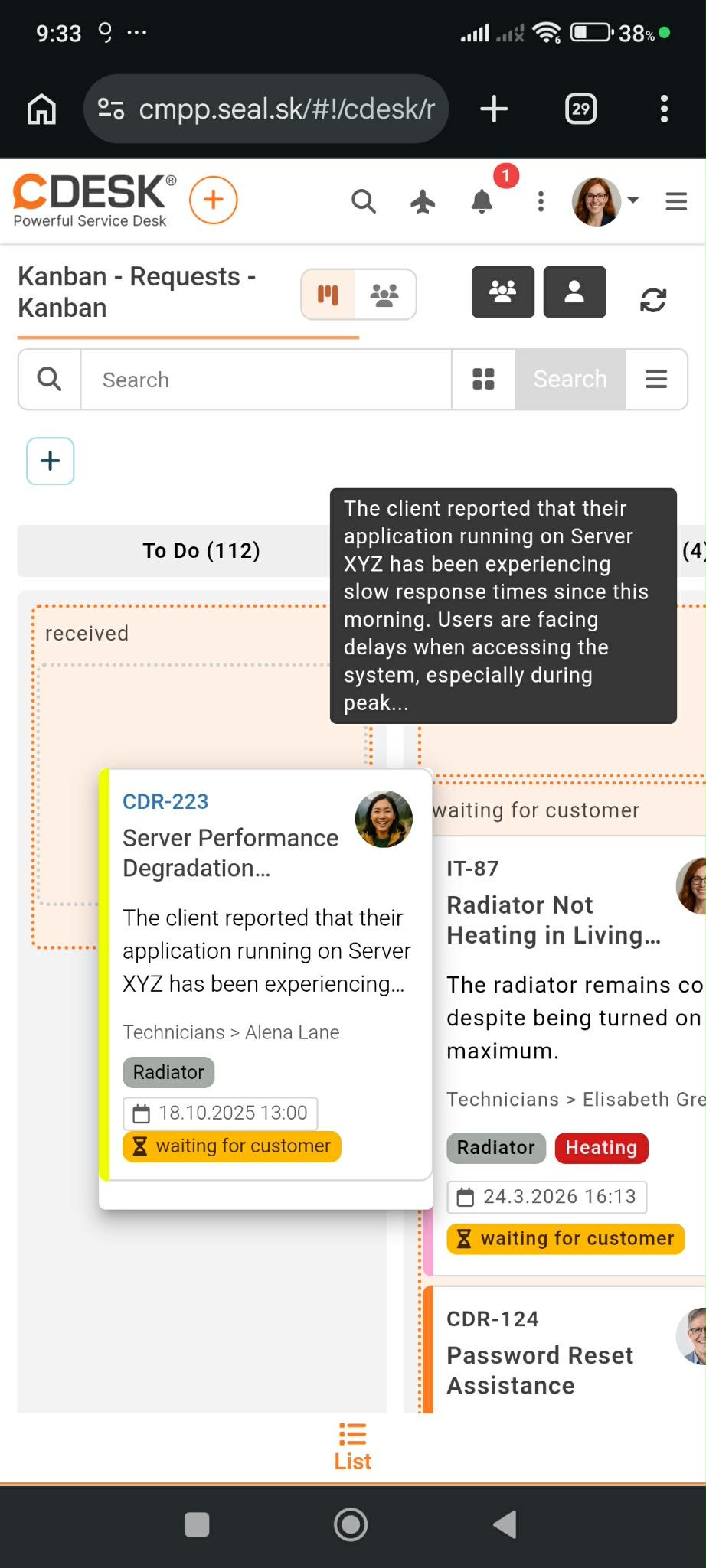
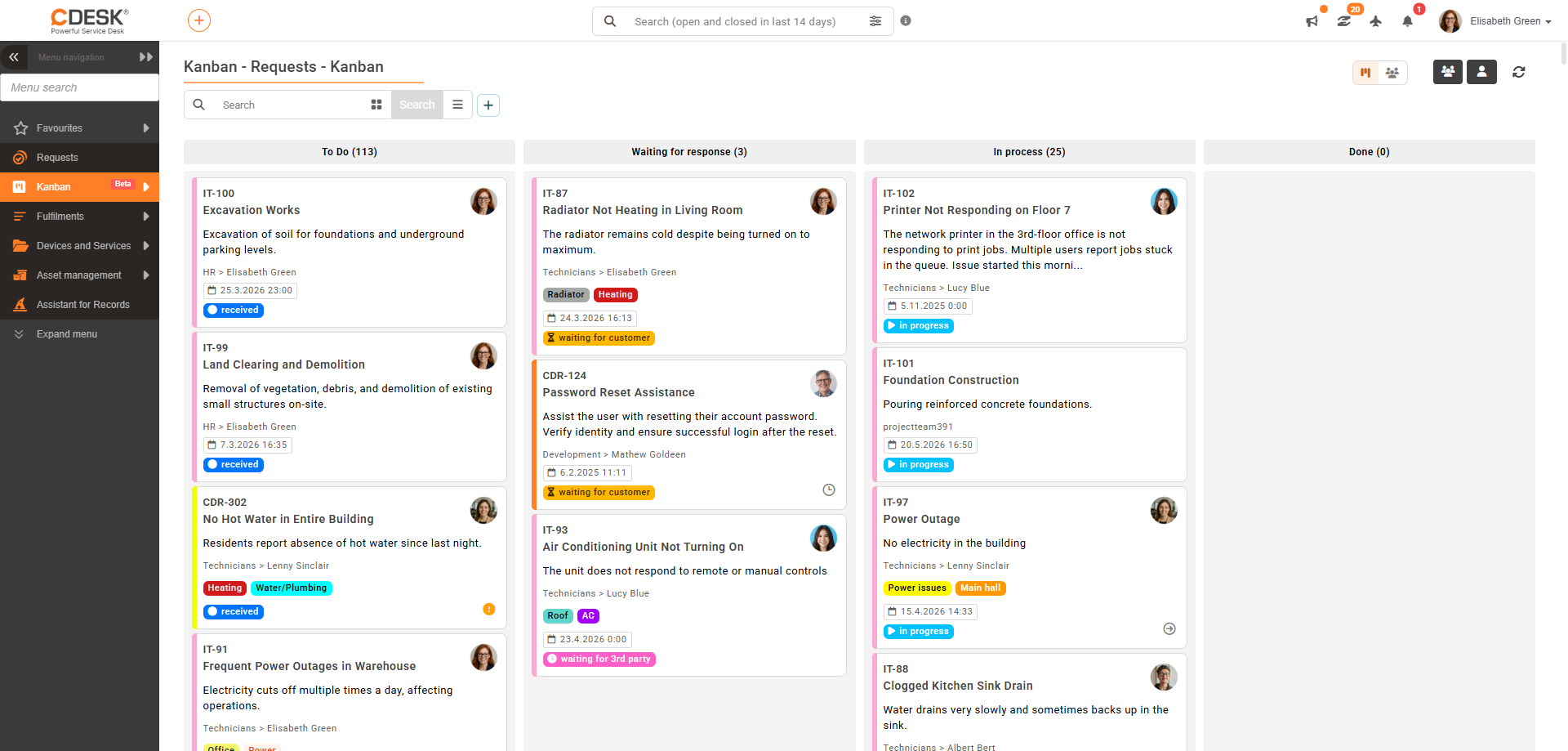
Kanban has undergone significant improvements in CDESK, focused on speed, clarity, and usability in everyday work.
Real-time updates
The most important change is the fast, real-time data updates. Changes to requests (e.g. status, assignee) are now reflected directly in the open Kanban board without the need to manually refresh the page. New or modified records are automatically displayed in the relevant columns.
Controls
Working with Kanban is easier thanks to a clearer filter layout, more efficient use of workspace, and faster access to important information.
Adaptation for mobile devices
Kanban has also been adjusted for better use on various devices:
- Responsive display for tablets and mobiles
- Smooth horizontal scrolling between columns
- Customised controls for touch devices
New CDESK Pro desktop application for Windows/Mac
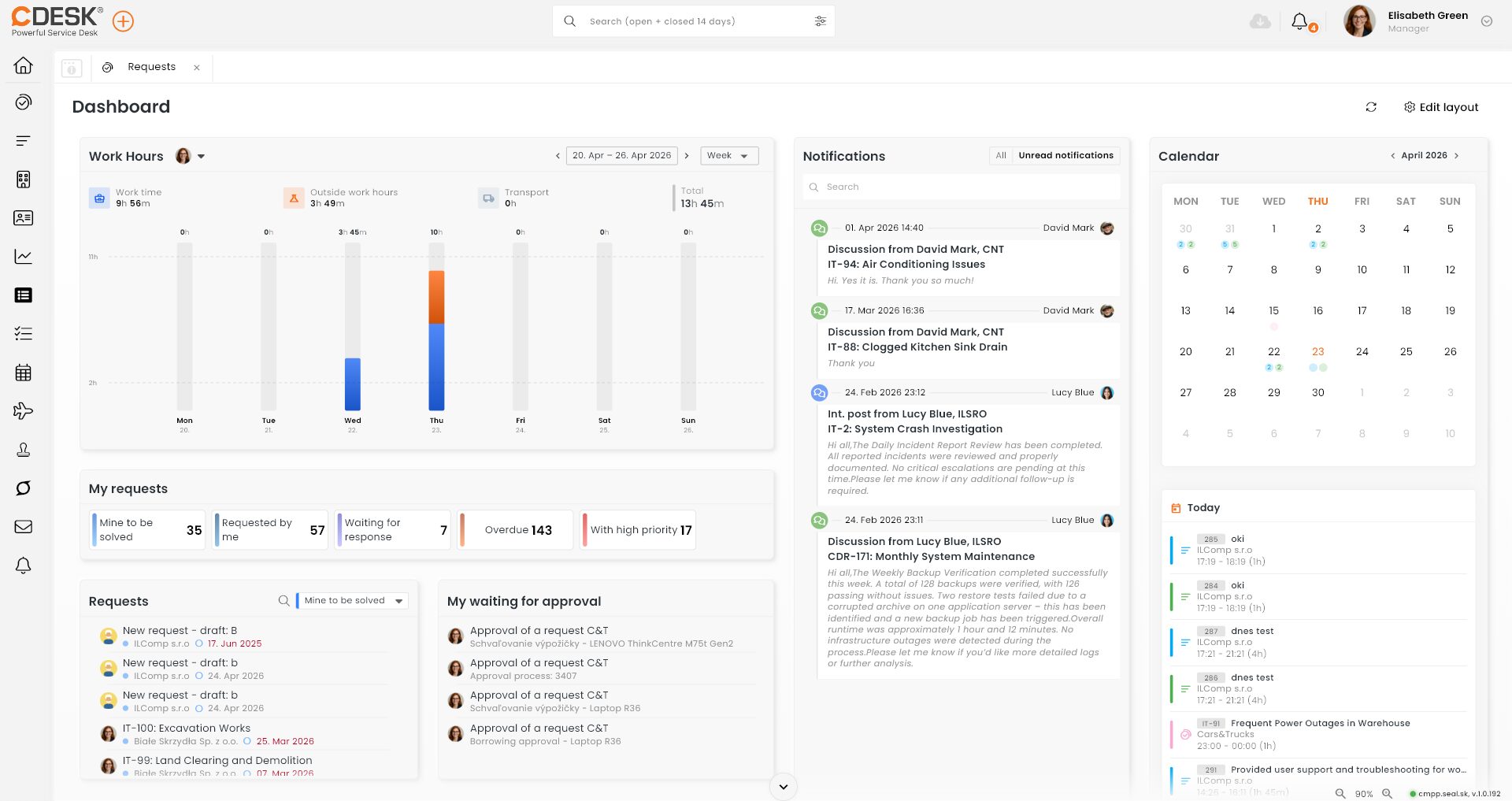
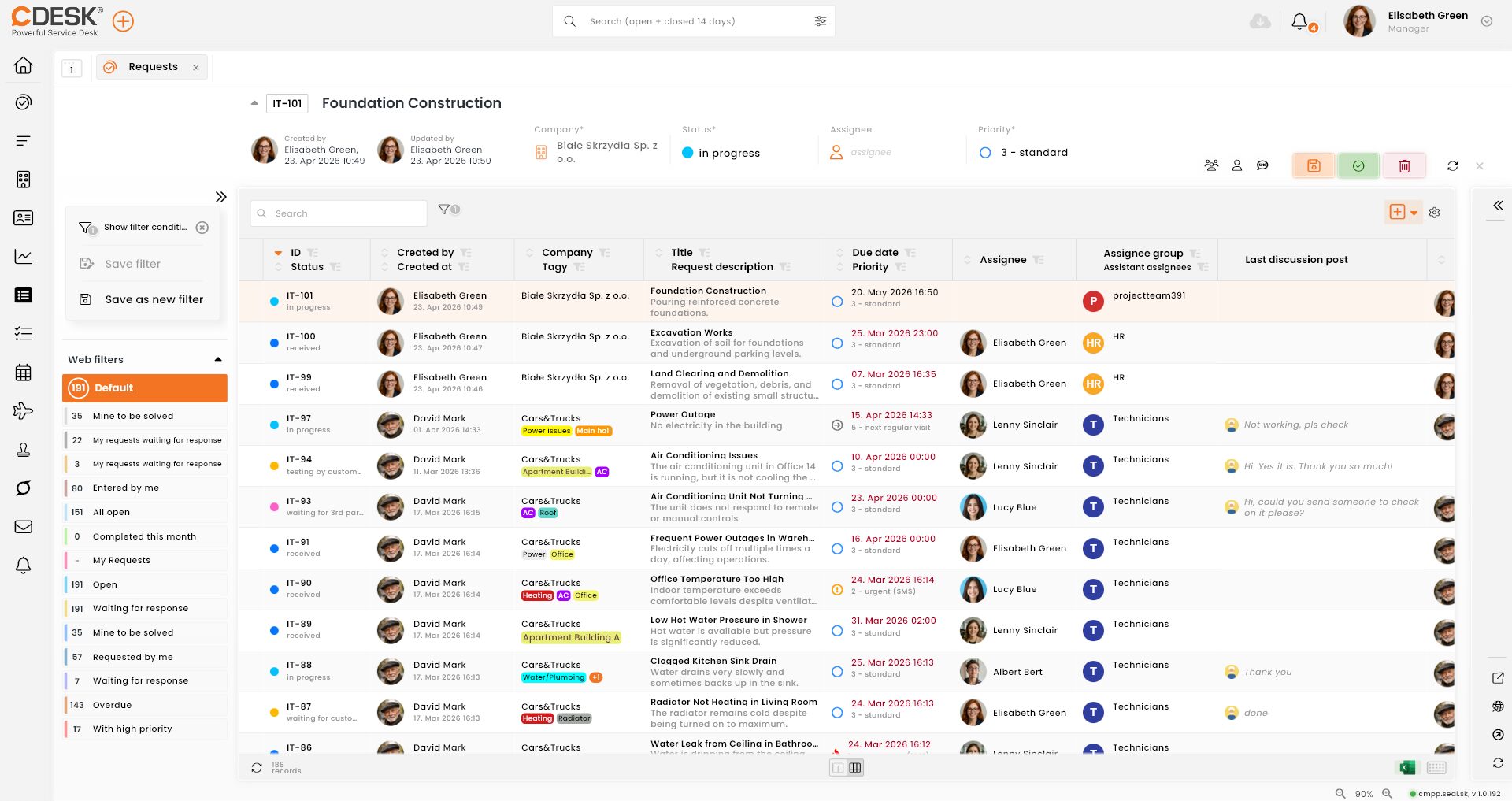
Faster, more compact, more intuitive. Those three words sum up the new version of the CDESK Pro desktop application.
The application is built on a completely new platform, which has brought new possibilities. The result is that users have a faster, more stable application with a new UX, and greater control over what they see and where on the screen.
There is also a significant change in how you work with requests, where you start with a tile view. Requests are arranged in tiles one below the other. You can narrow this list by swiping left, and use the right-hand side to view linked objects, fulfilments and discussion posts. You can switch to the classic table view of records by moving the mouse.
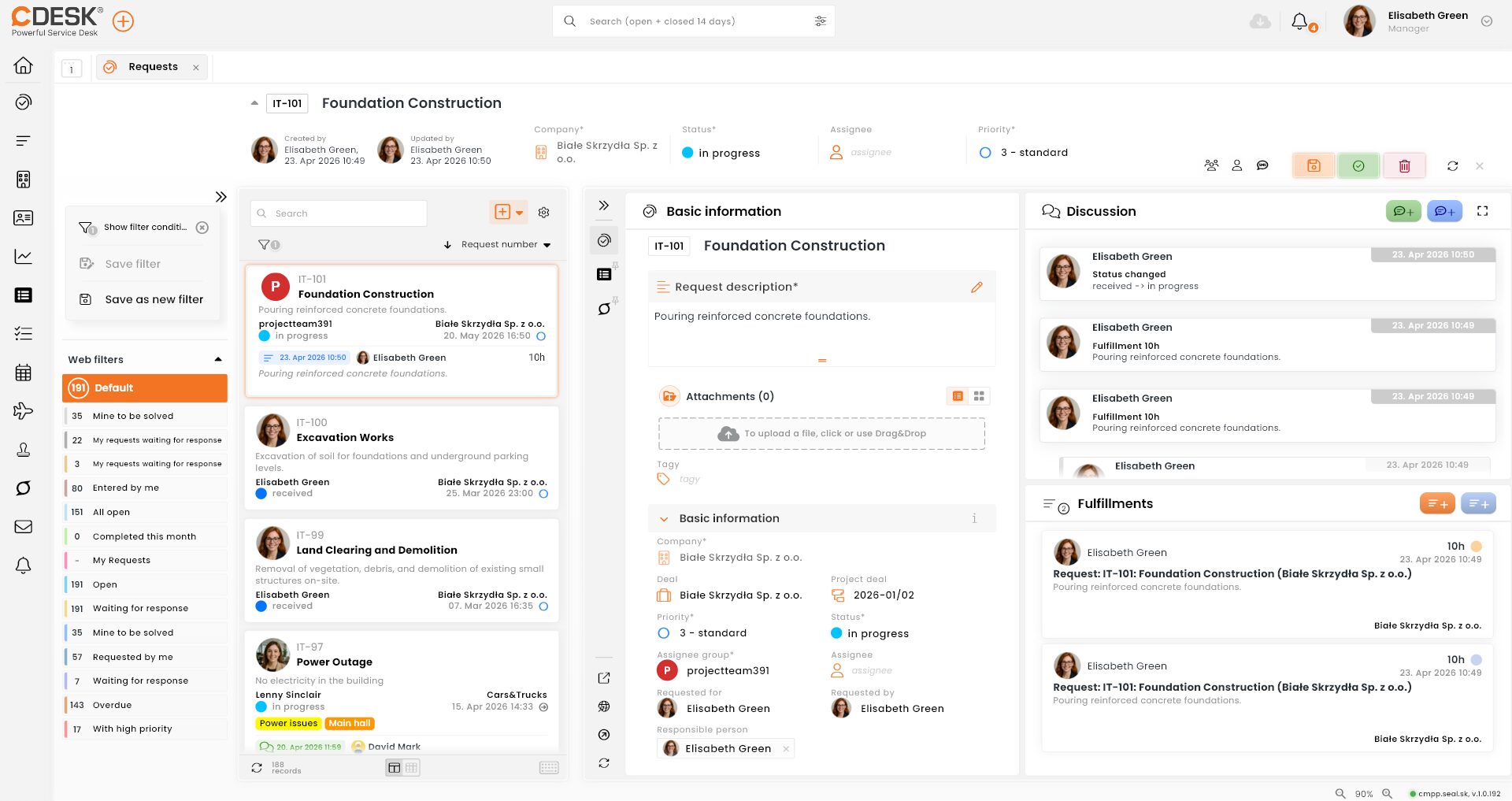
Requests
Visualisation of request status workflow in the template
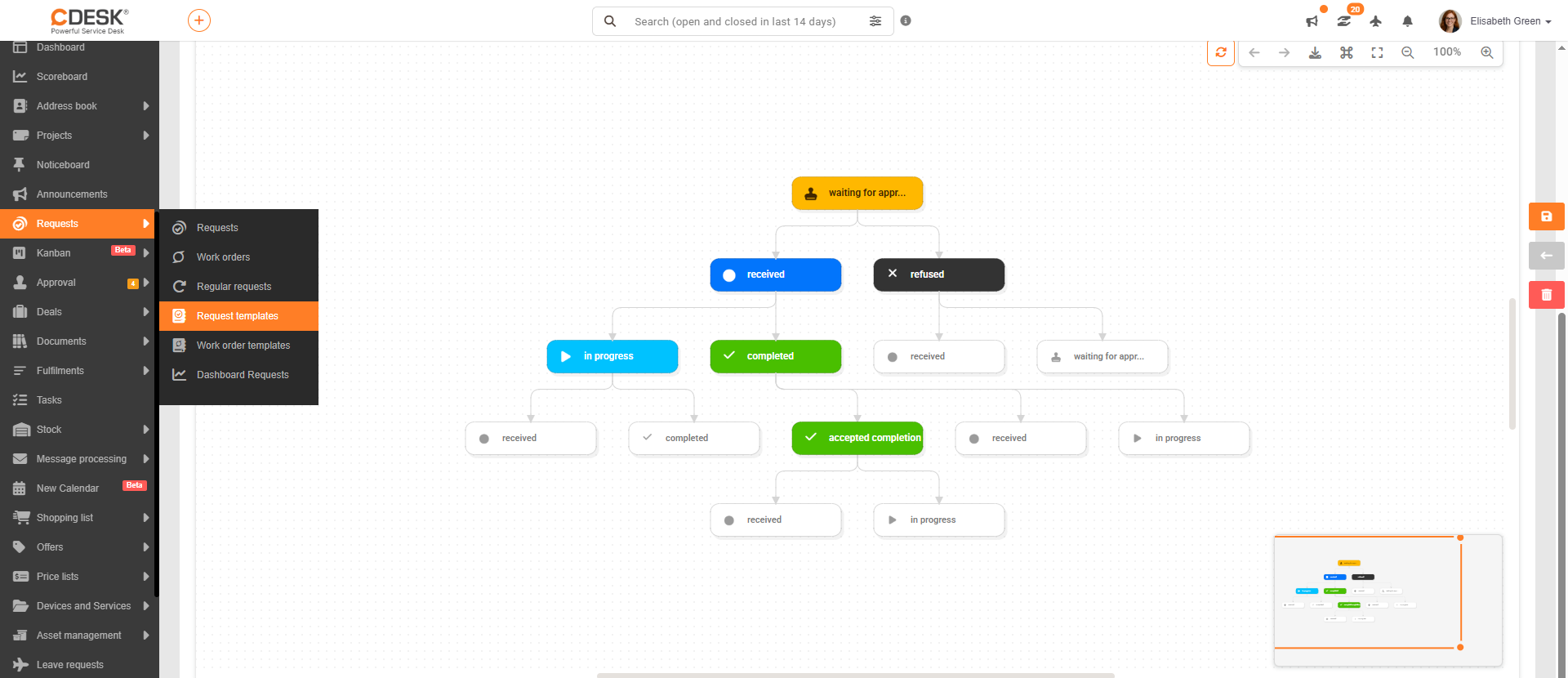
The configuration of status transitions for requests in a template is now clearer. In the Status Transitions tab in the template detail, the workflow is displayed as a visual diagram of statuses and transitions between them.
In this tab you can:
- see which status transitions are permitted
- configure and restrict transitions between statuses
- arrange the display of statuses using drag & drop
Option to merge multiple requests under a primary request
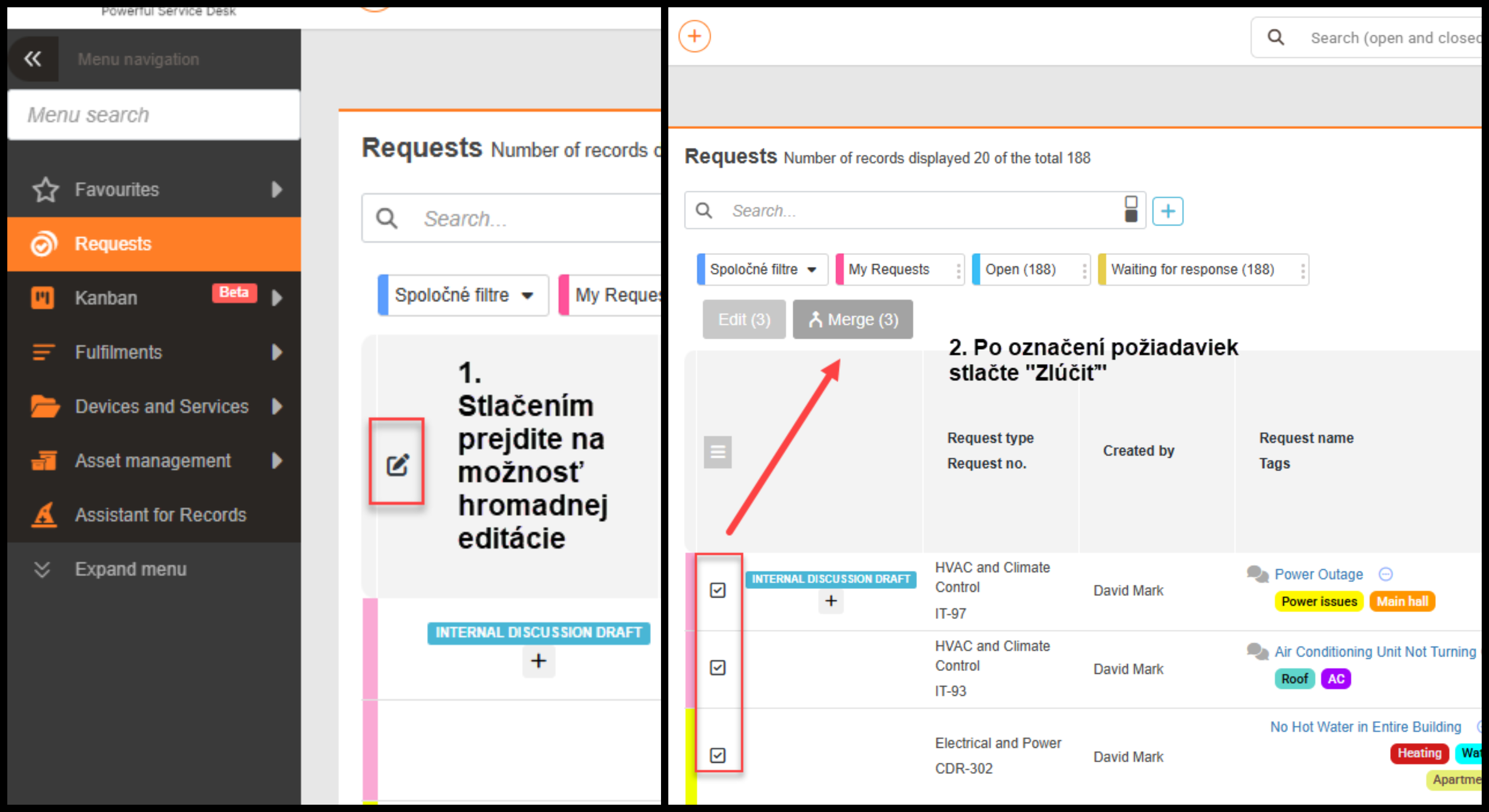
The request merging function is ideal in cases of duplication, where multiple requests relate to a single issue.
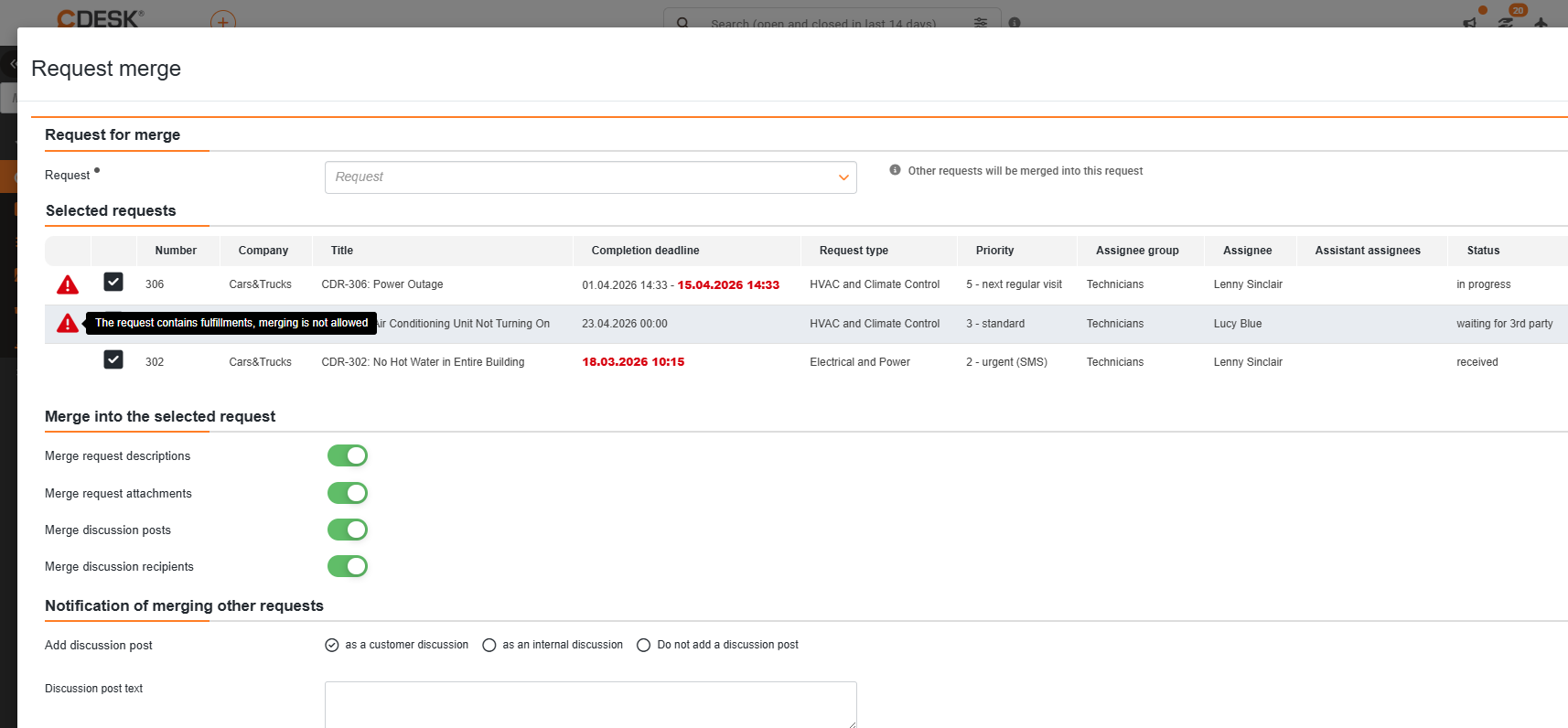
By selecting multiple requests in the list, a Merge button appears. As part of the merge, the user selects one primary request, which takes over the discussions and descriptions of the merged requests.
The primary request can also take over the discussion recipients. In that case, the original recipients from the merged requests will also be notified when a new discussion post is added to the primary request. This option is not mandatory. The system also allows a merge notification to be sent.
Note: Merging requests is an irreversible step. Merging requests that contain fulfilments is not possible.
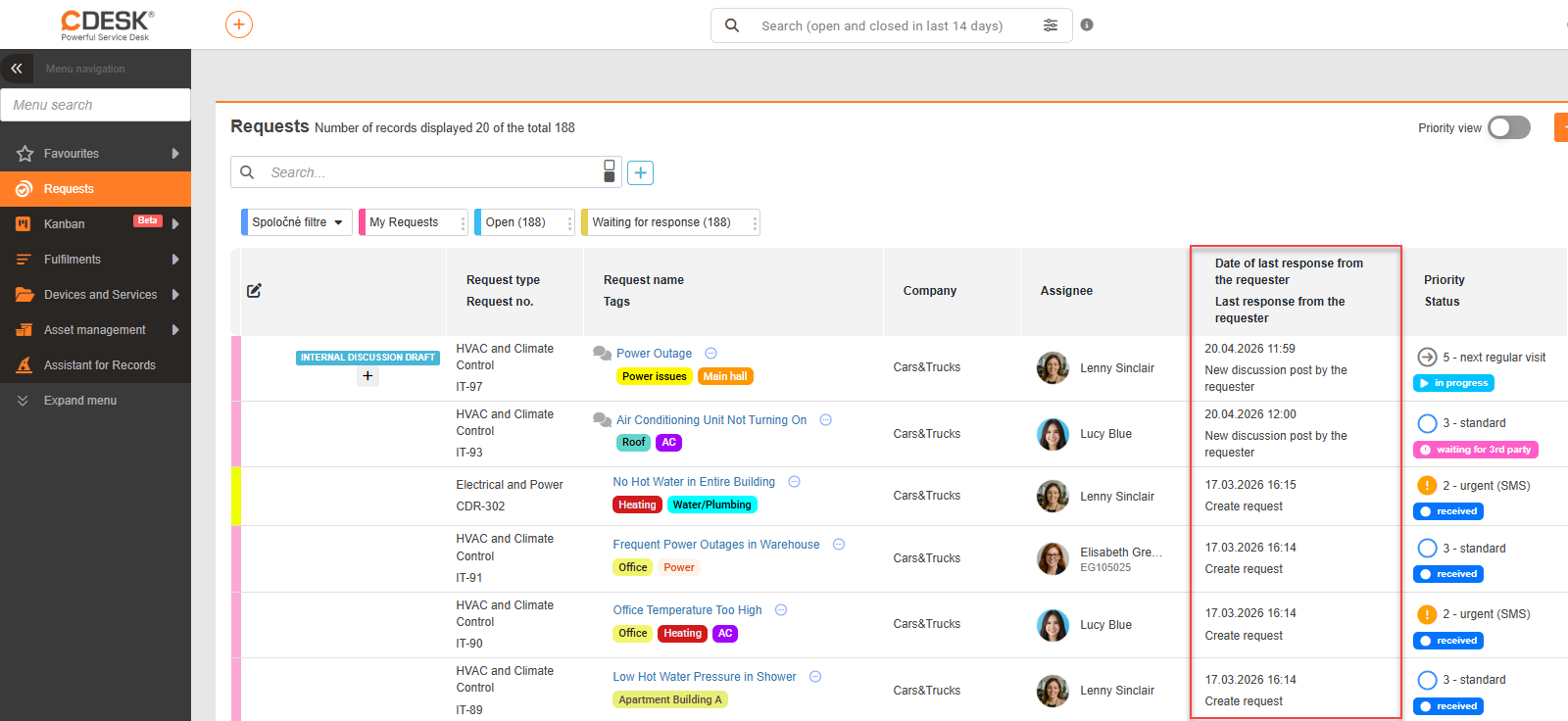
Sorting requests by last response (requester/assignee)
In the request list, it is now possible to sort requests by the last activity of the requester or solver. CDESK thus enables faster identification of requests awaiting a response. Records in the column can be sorted by date.
The following columns are available:
• Date of last response from the requester
• Date of last response from the assignee
• Date of last response (from either party)
• Last response from the requester (text)
• Last response from the assignee (text)
These columns can be combined (e.g. date + content of the last response), giving you an overview of when and what the last communication on a request was.
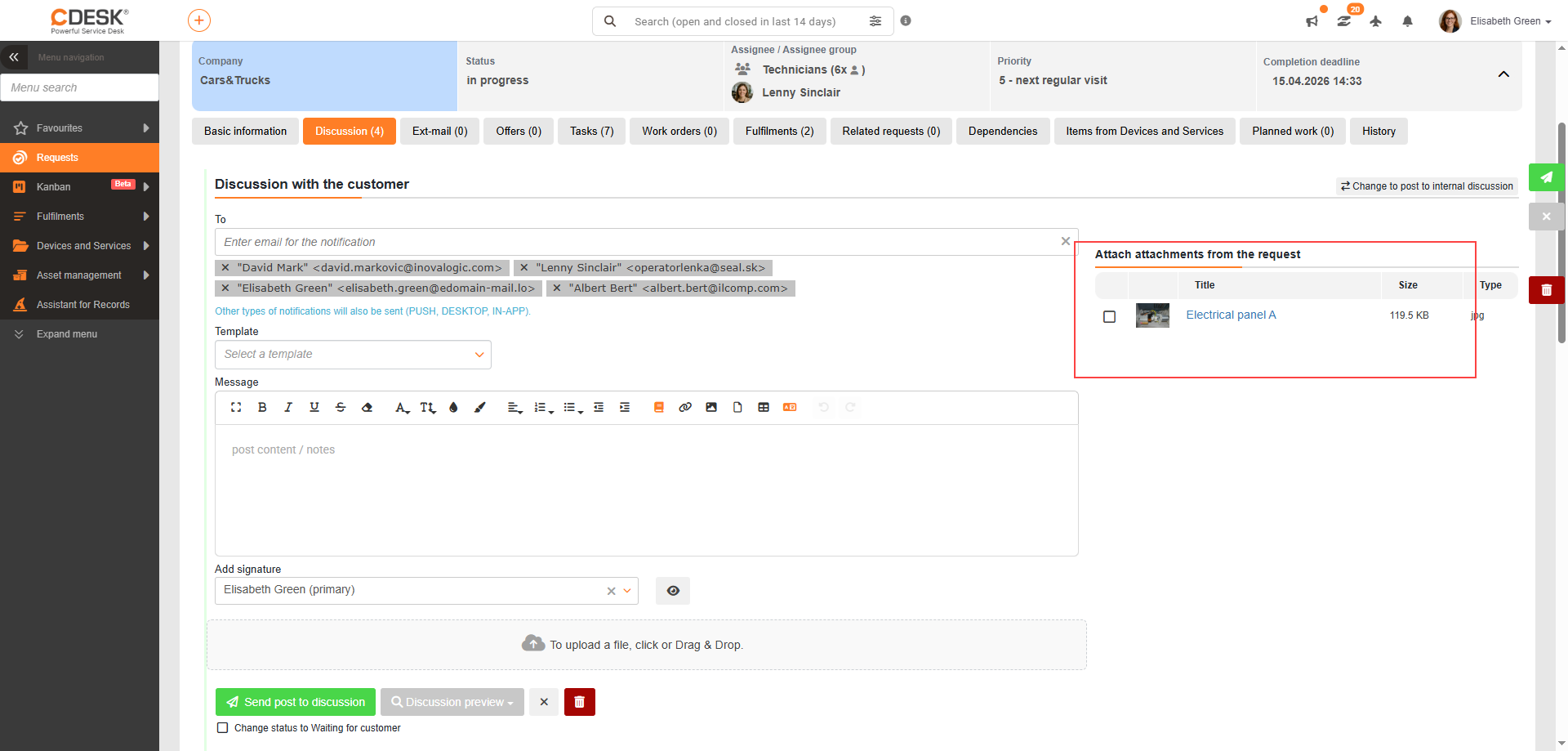
Quick addition of attachments from a request to the discussion
It is now possible to add attachments linked to a request directly into the discussion. When writing a post, the list of attachments is available in the right-hand panel. Previously, files had to be uploaded again to the discussion.
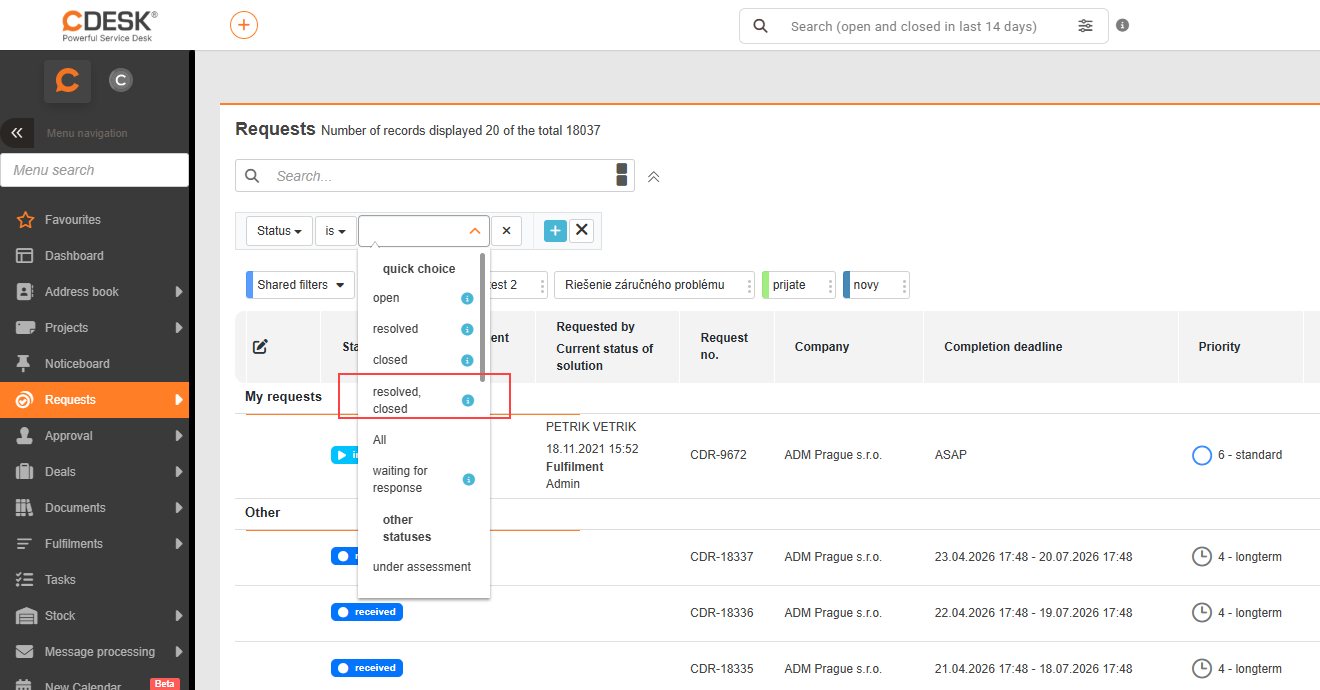
Simpler filtering of “completed” and “accepted” requests
If you previously wanted to filter requests that are in a completed (resolved) or accepted/rejected (closed) state, you had to build the advanced filter from two conditions. The advanced filter in the request list has therefore been extended with a single filter condition — “Resolved and closed” — allowing you to display completed, accepted/rejected requests in one step.
Configuration management database (CMDB)
Archive of deleted configuration items with option to restore
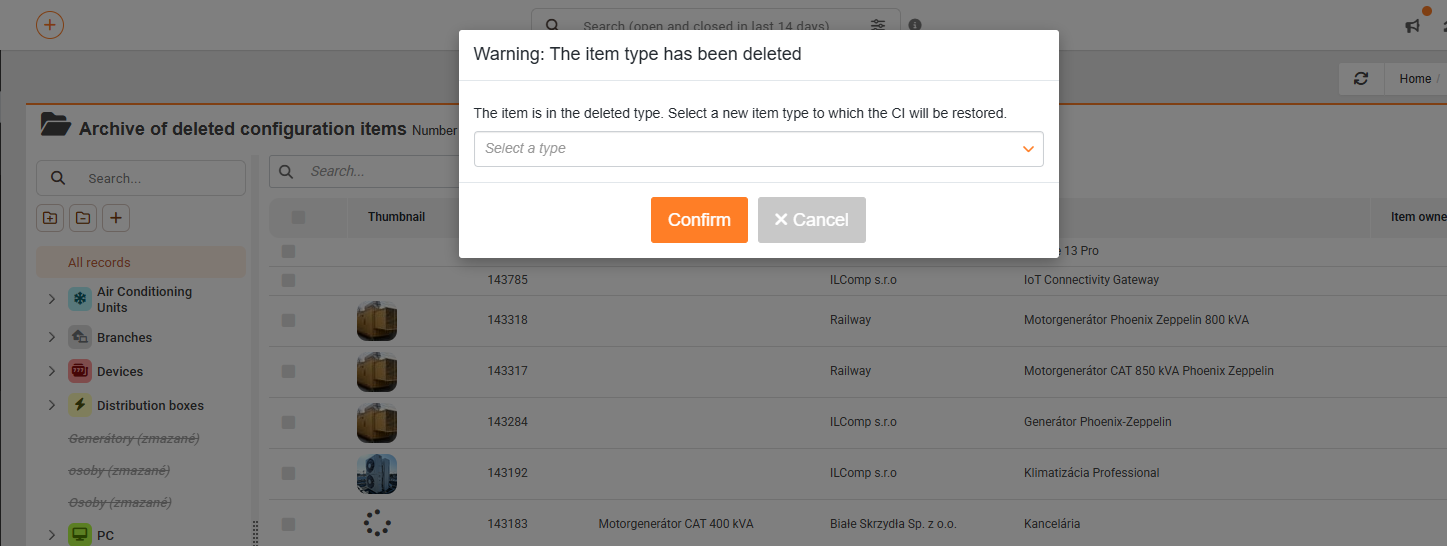
The archive of configuration items (CIs) has been expanded to include the option to restore items that were deleted along with their type (CI Type). Previously, it was only possible to restore CIs whose type still existed. Now, it is also possible to restore CIs from deleted types.
If the original item type exists, the CI will be restored to that type. If the type has been deleted, the user must select a new type to which the deleted item will be restored.
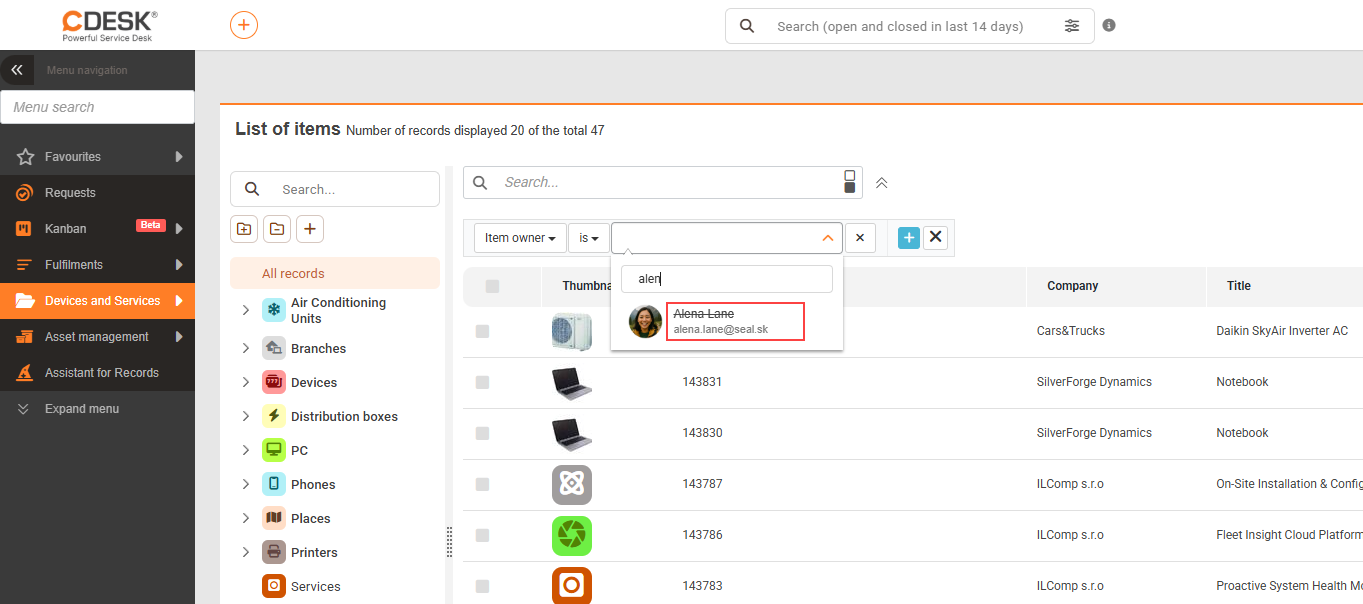
Disabled users can now be entered in the item owner filter
The filter has been extended with the option to search for items by disabled users who are set as their item owner. Such users are marked during filtering — their name is shown with a strikethrough.
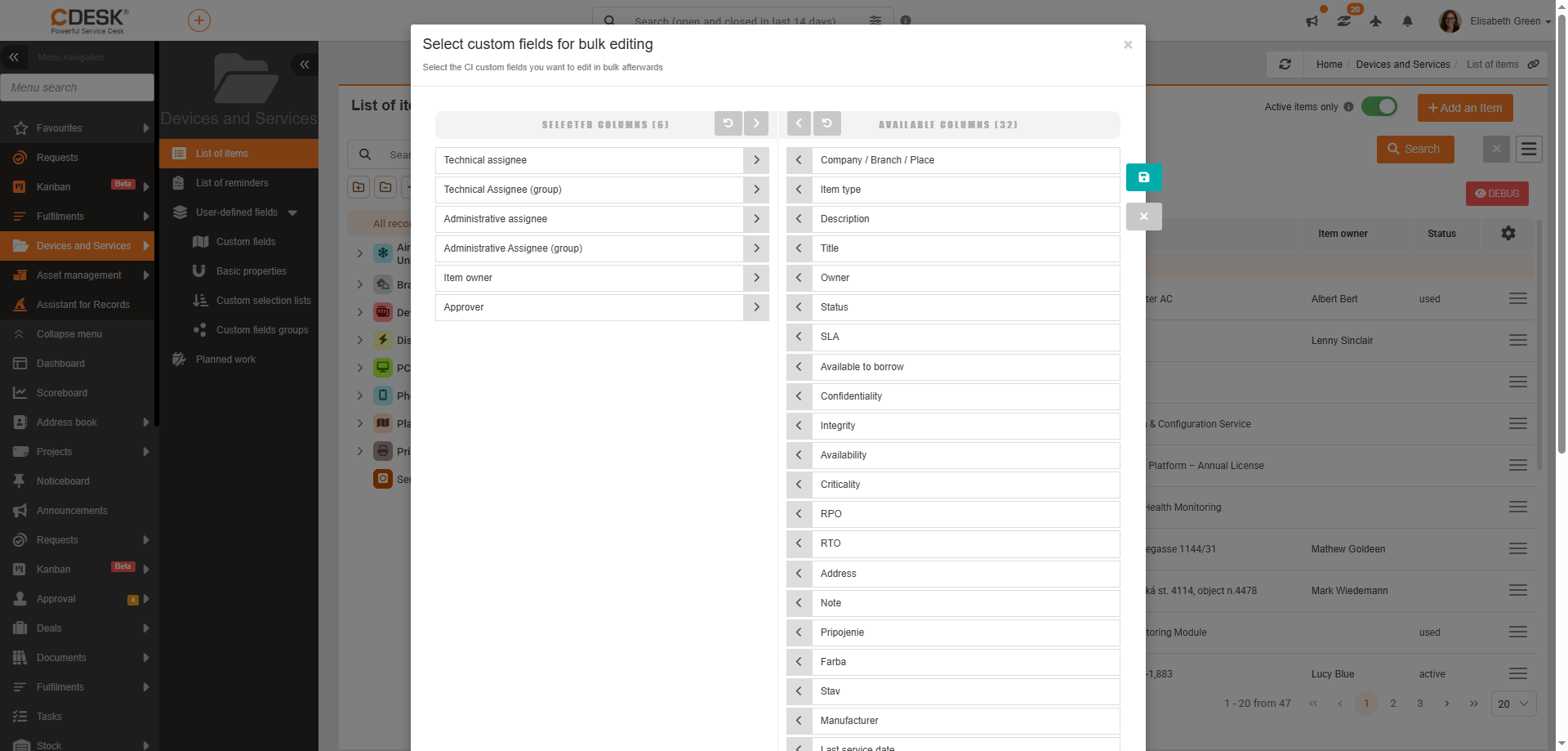
Addition of role selection Technical Assignee, Approver, Administrative Assignee and Item Owner to bulk editing
New bulk editing options for configuration items have been added. With version 3.2.11, the following can be changed in bulk:
- Technical Assignee (including group)
- Administrative Assignee (including group)
- Item Owner Approver
- Approver
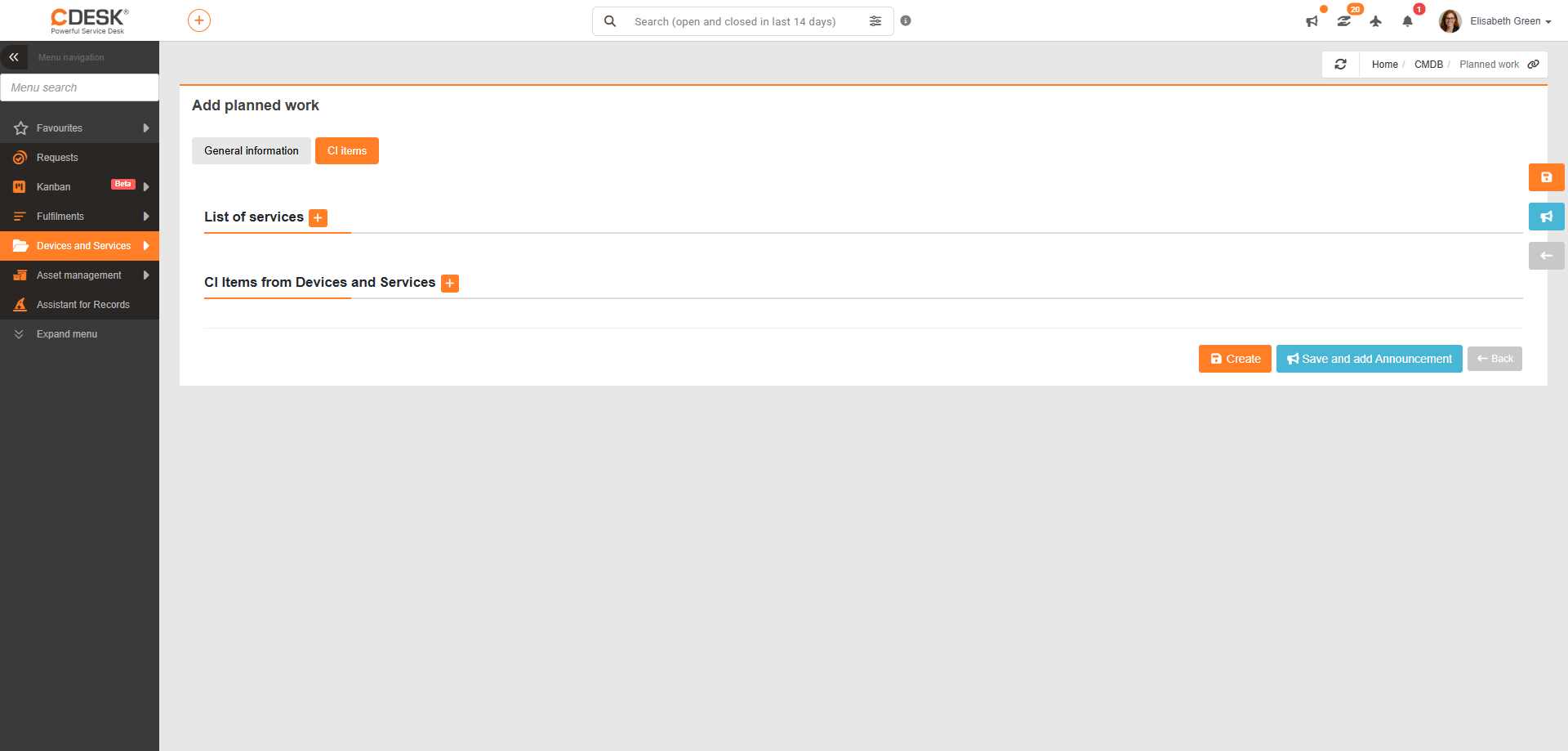
Adjustment of available item levels in planned work
The selection of items in planned work has been updated to better reflect their category. You now select directly from 2 categories:
- List of services
- CI items from CMDB
Asset management
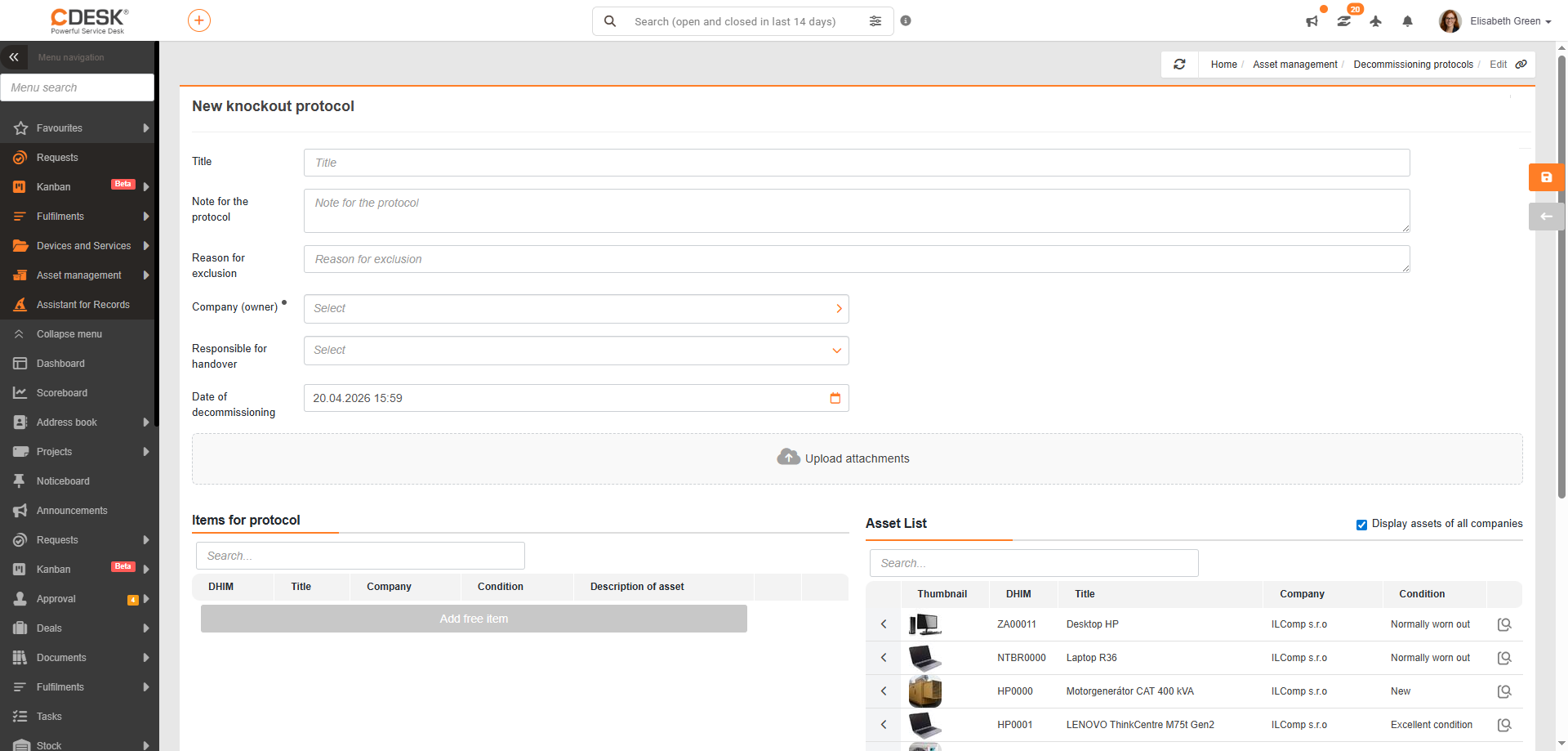
Option to issue a decommissioning protocol
CDESK is introducing decommissioning protocols — the formal removal of assets from records. Like handover protocols, decommissioning protocols have their own section in the main menu under Asset Management.
The protocol contains:
- Protocol name
- List of decommissioned items
- Notes field
- Reason for decommissioning
- Company (mandatory field)
- Person responsible for handover
- Date of decommissioning
The list of available items for decommissioning is displayed only after a company has been selected (or by ticking the option to display assets from all companies). Attachments may also be included in the protocol.
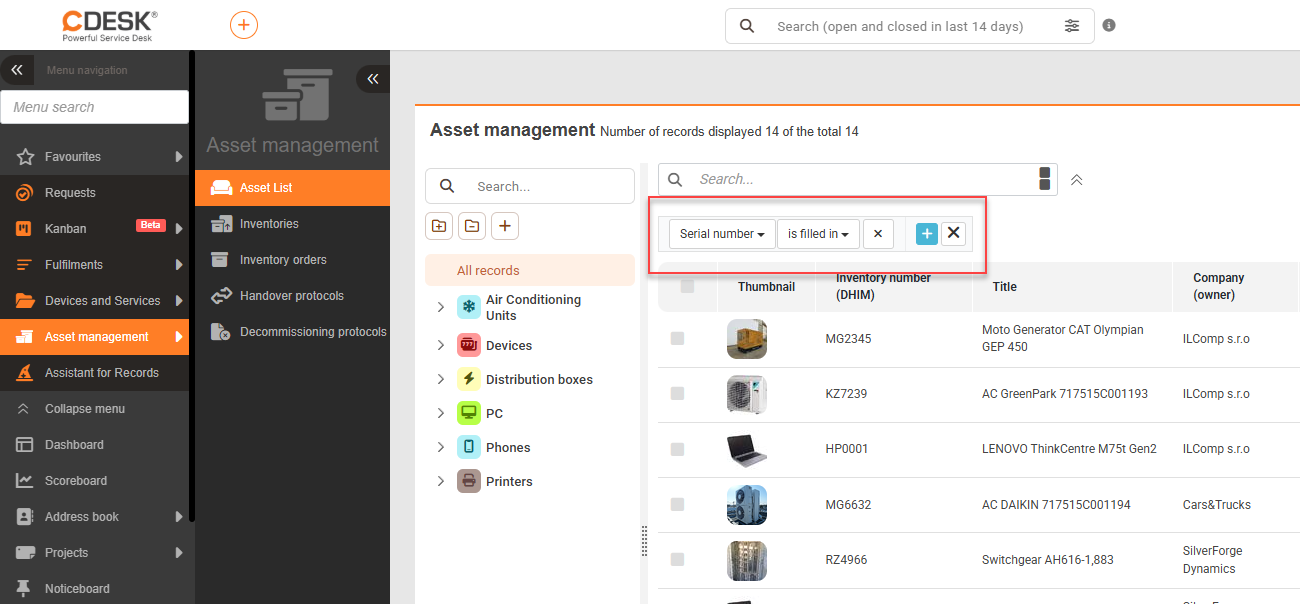
Addition of advanced filtering
From version 3.2.11, the Asset Management module offers the option to use the advanced filter. Its function is the same as elsewhere in CDESK.
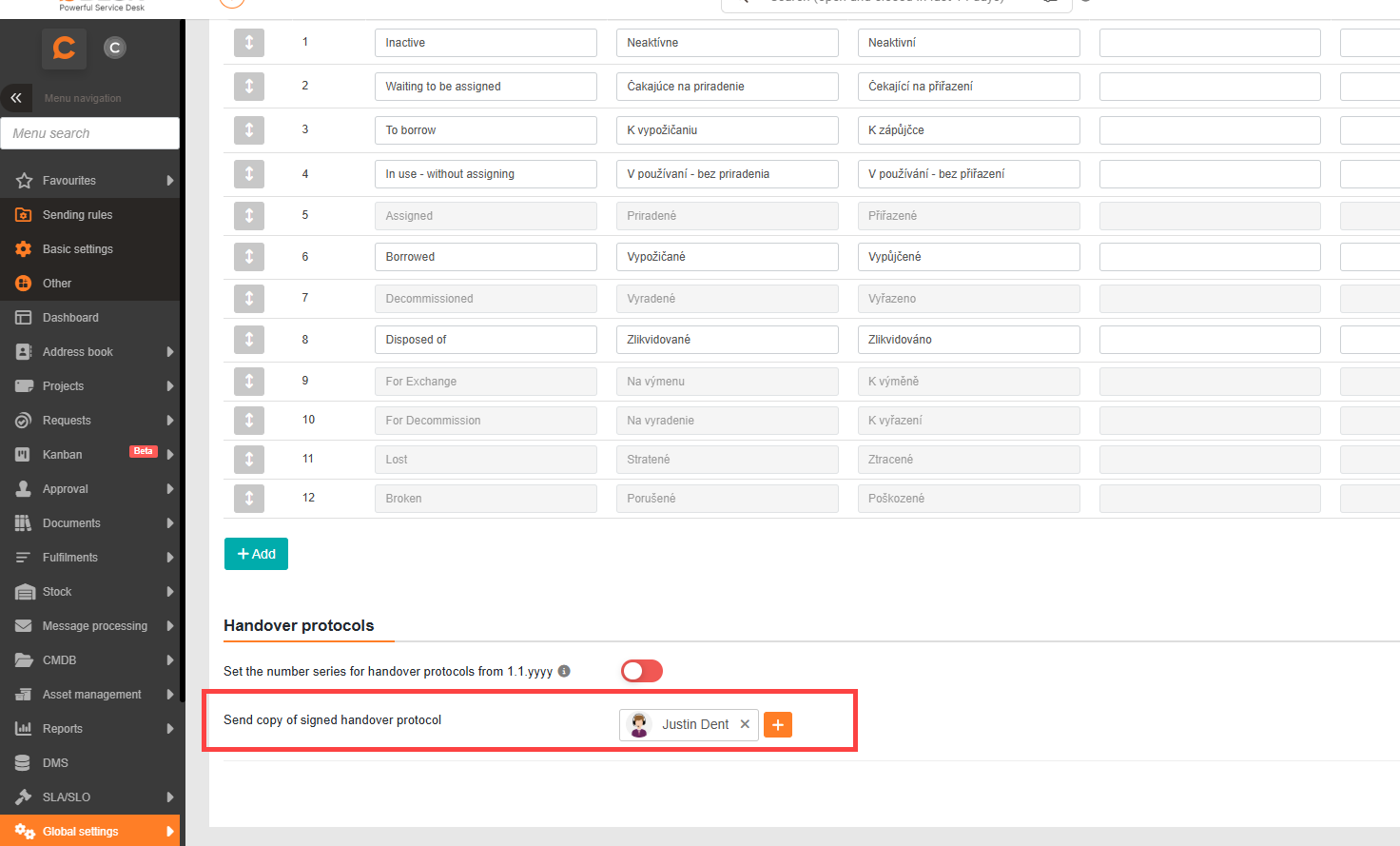
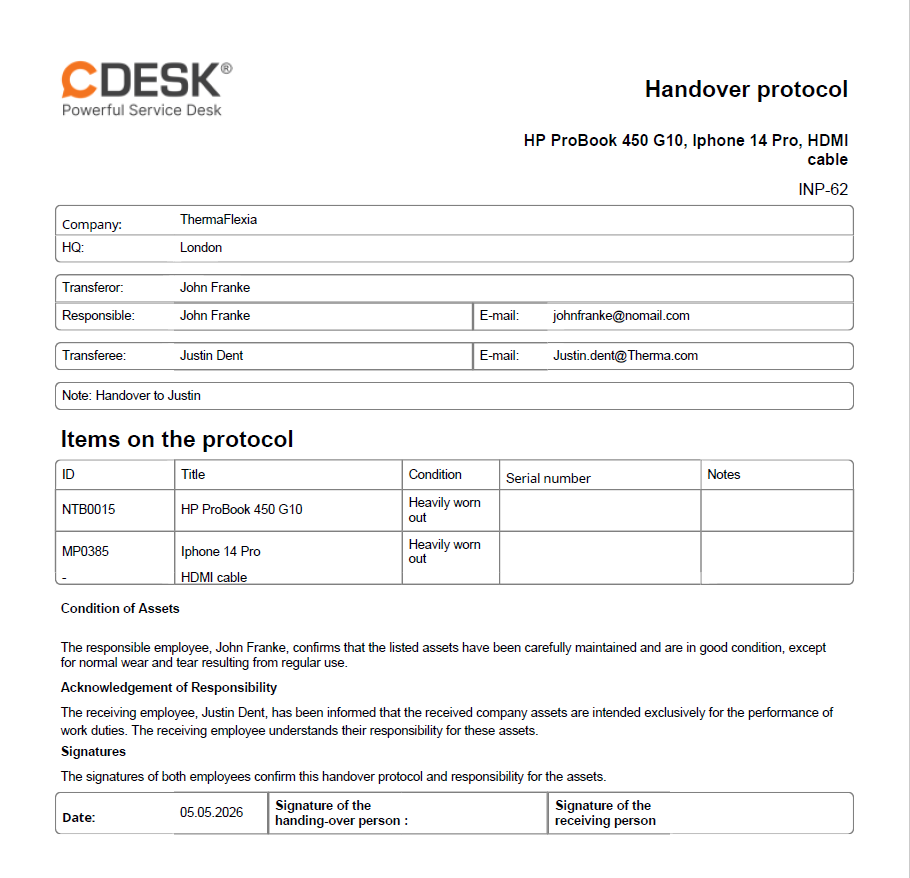
Sending a PDF copy of the handover protocol after signing
By enabling this feature, a PDF copy of the signed handover protocol will be sent to selected users as an e-mail notification attachment.
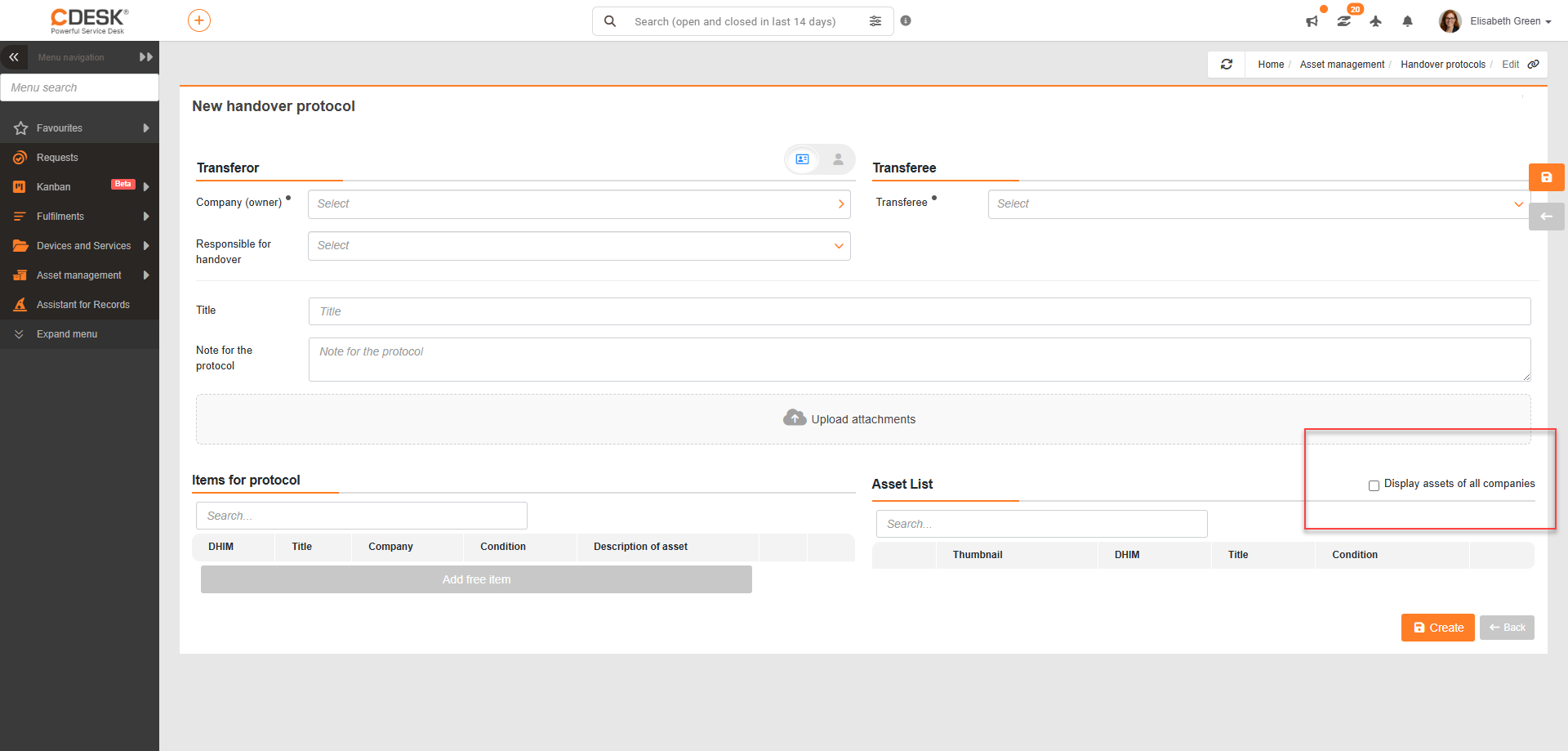
Handover protocols – option to select assets outside the selected company
When creating a new handover protocol, it is possible to display assets outside the currently selected company. This is done via a checkbox above the list of available items.
Fulfilments
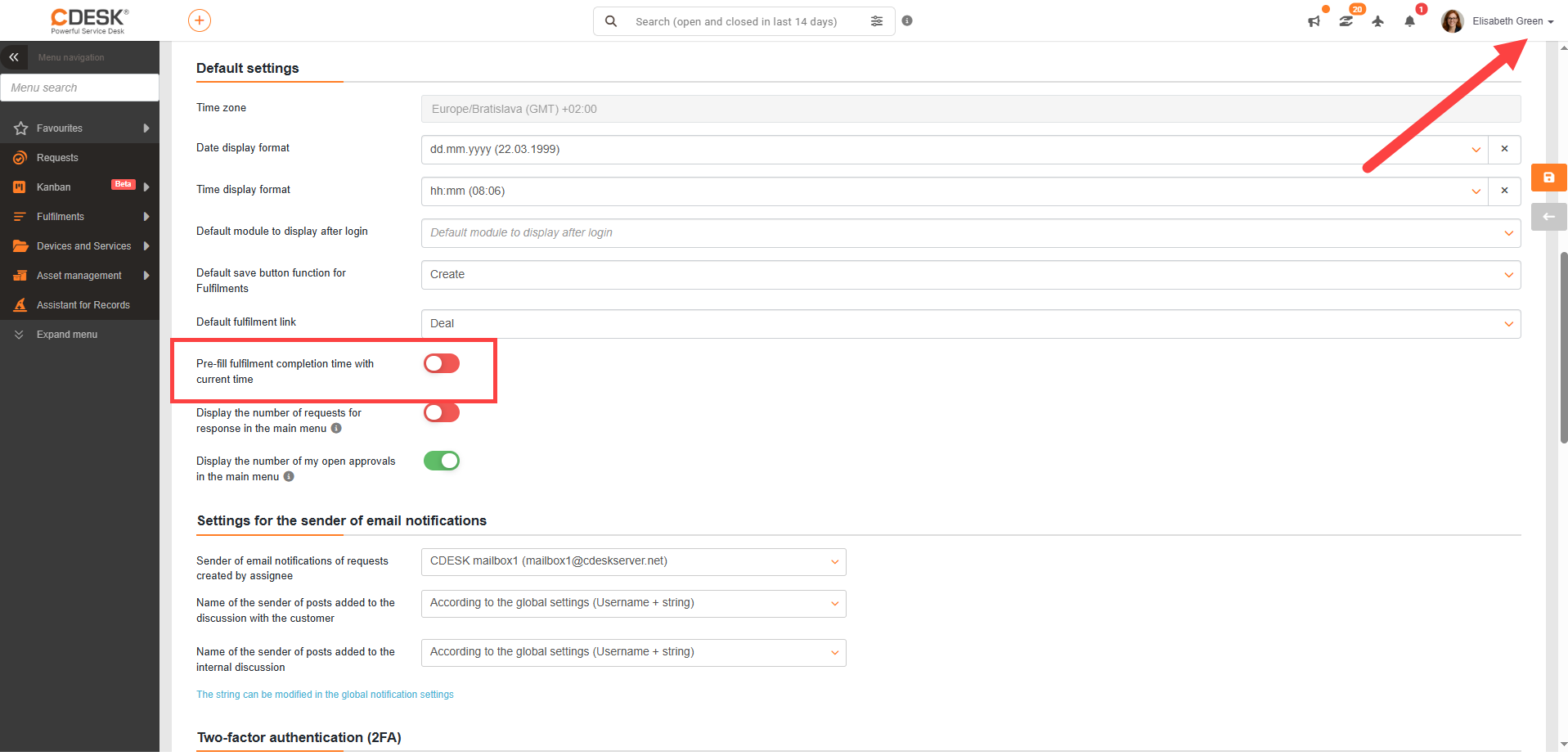
Pre-filling the fulfilment completion time with the current time
For users who like to record fulfilments immediately upon completion, we have added a feature that sets the current time as the fulfilment completion time (in this case, the user must record the fulfilment in the from-to format, rather than hours worked).
This feature can be enabled in the profile settings.
Text templates for fulfilment description
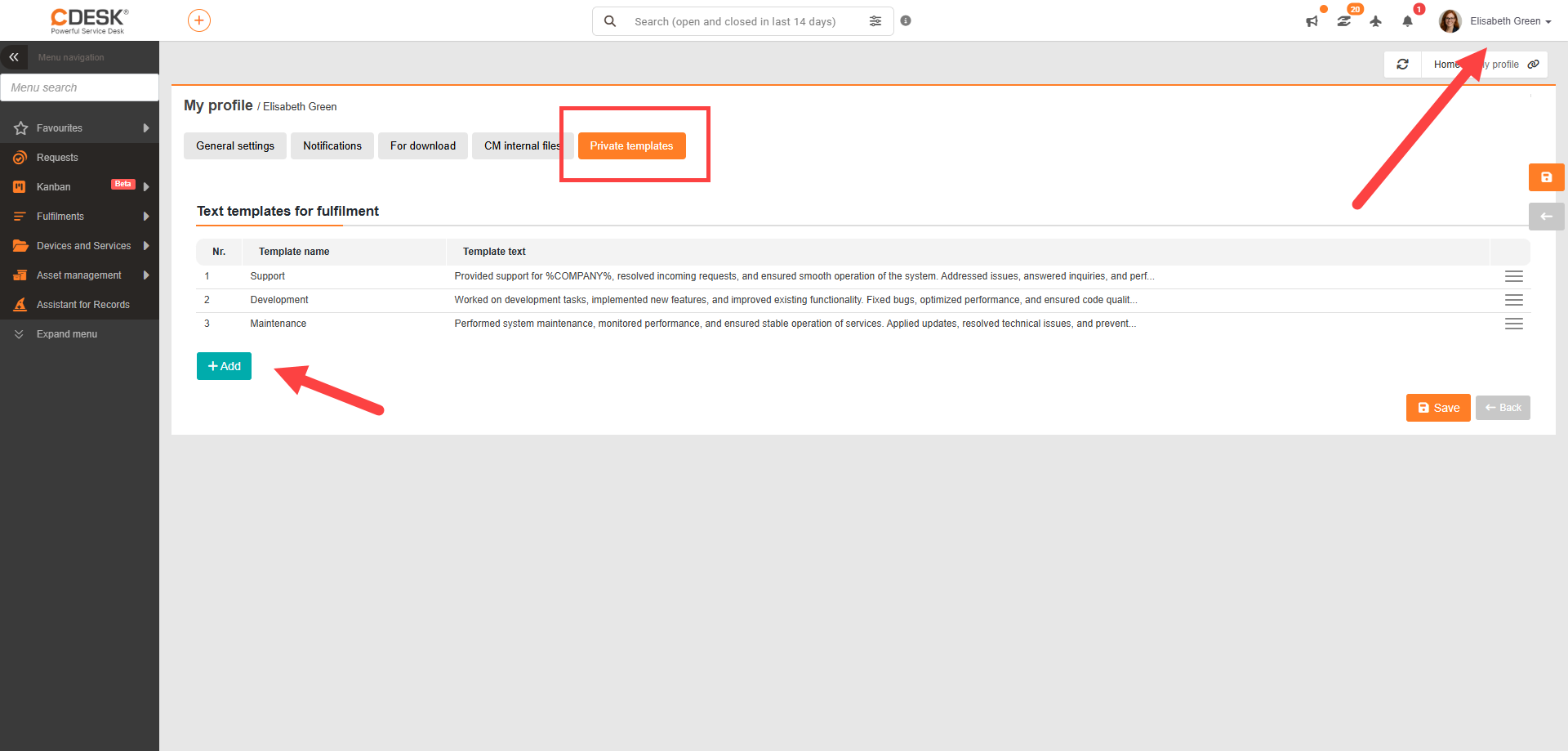
It is now possible to create fulfillment descriptions using text templates. Templates simplify the repeated entry of similar texts and help maintain a consistent form of communication.
Custom templates can be created in the profile settings, under the Private Templates tab.
Available options:
- private templates – available only to a specific user,
- global templates – shared across the system.
Private Templates tab
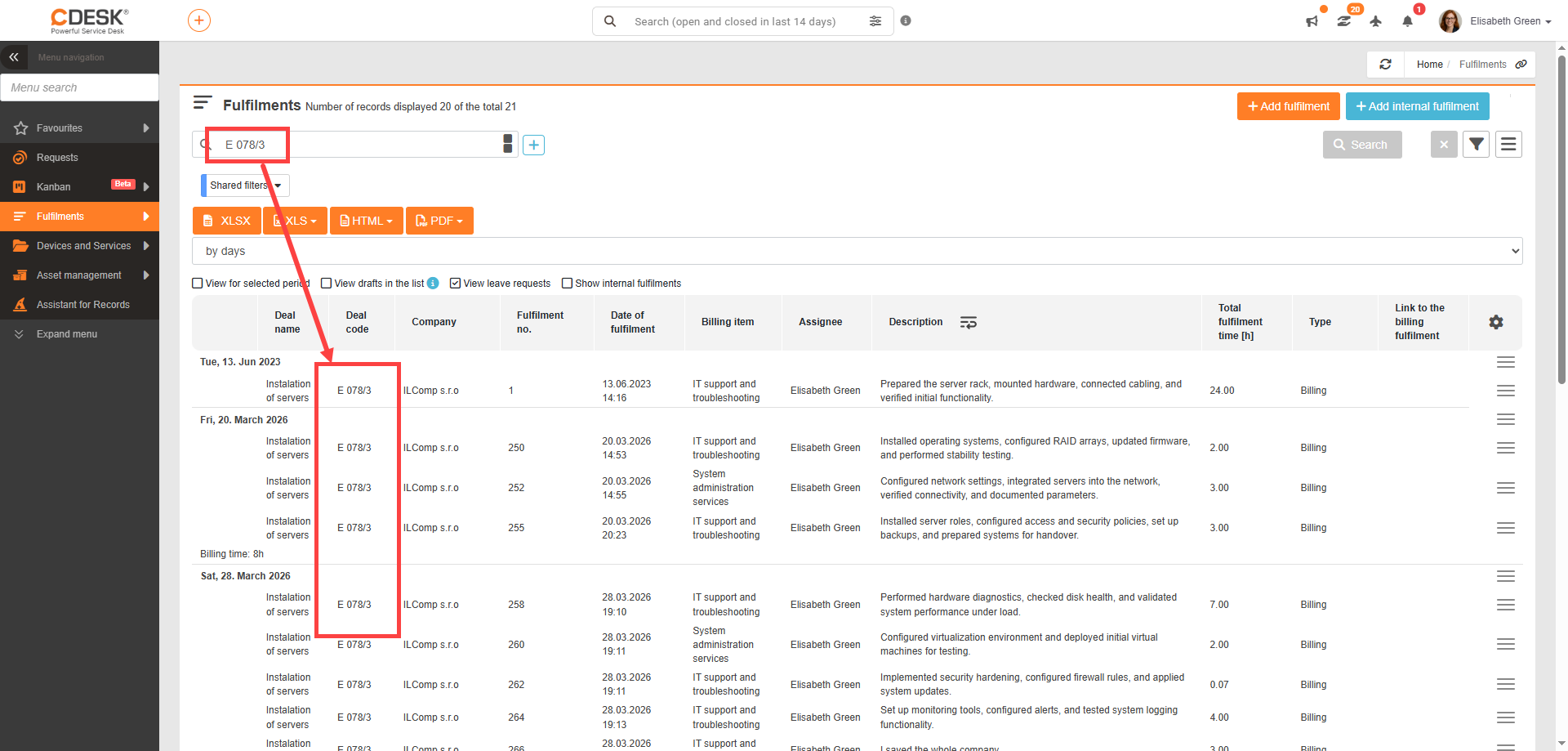
New filtering options in the fulfilment list: by deal code and company alias
Searching in the fulfilment list and fulfilment approval has been extended with new options. It is now possible to search by deal code (e.g. S 0153/25) or by company alias.
Entering a deal code into the search field displays all fulfilments linked to that deal, regardless of its name or ID.
Addition of time options for filtering the duration of billing fulfilments
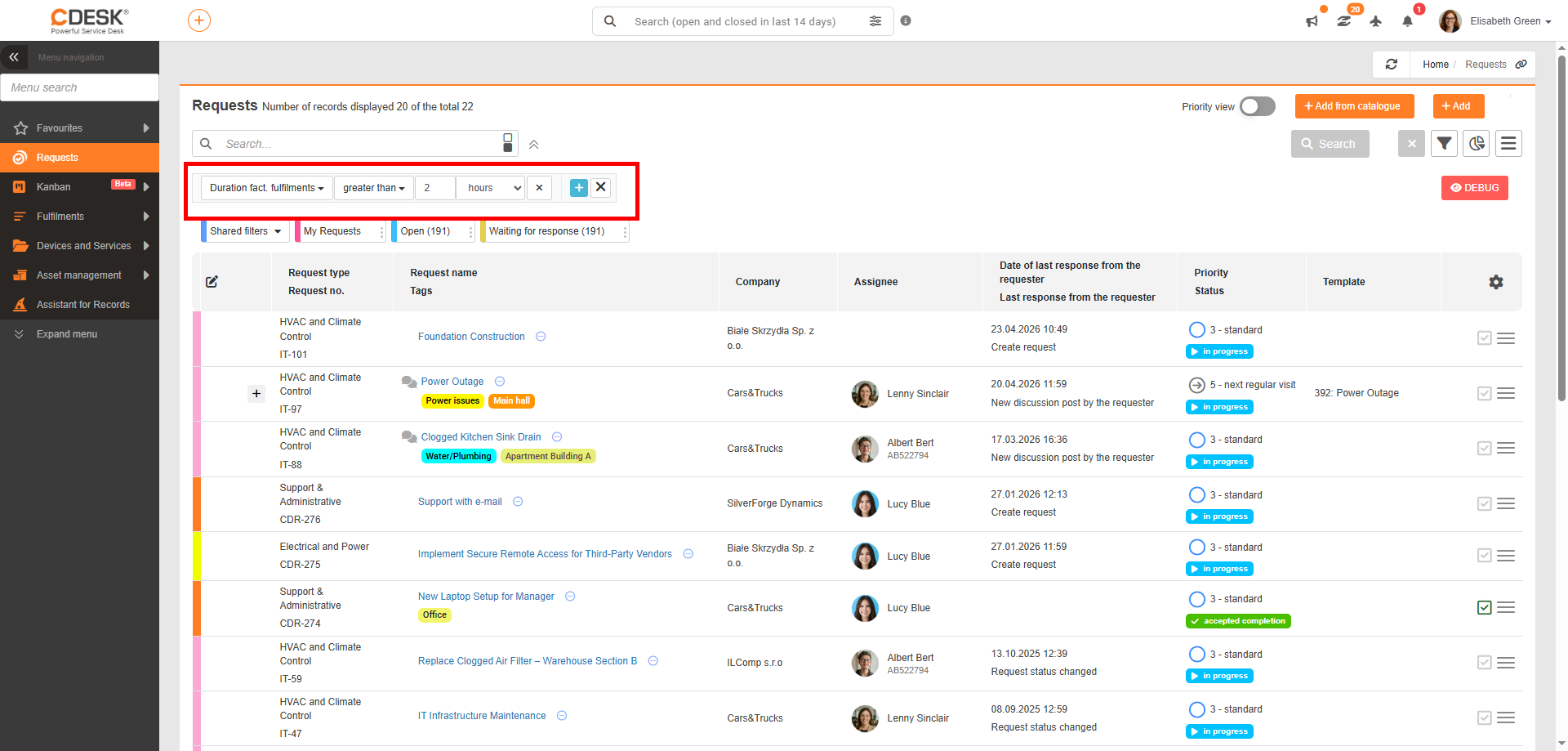
A new filter — Billing Fulfilment Duration — has been added to the request list.
The filter allows requests to be searched based on whether the billing fulfilment duration value is filled in or not:
- is filled in
- is not filled in
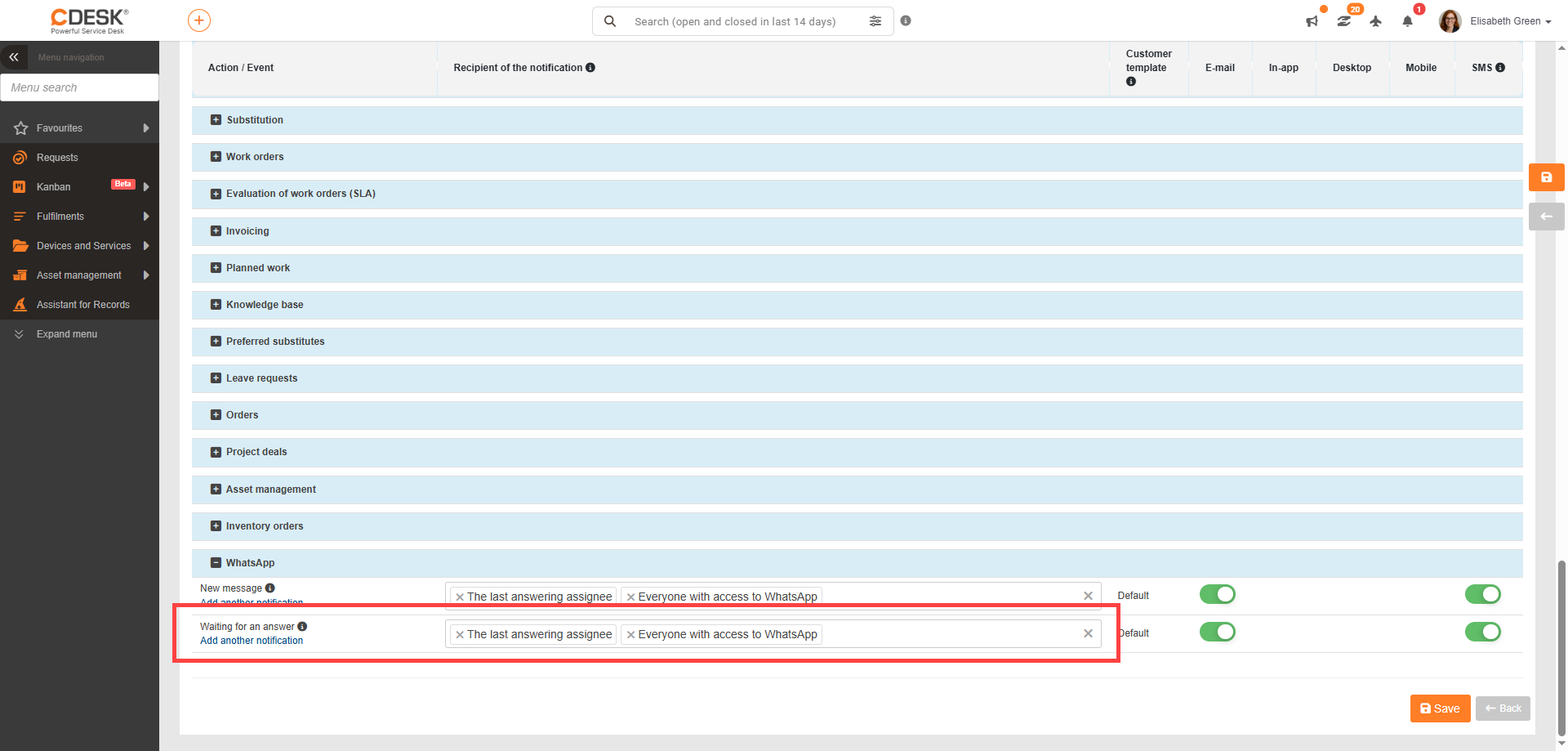
Addition of email notification for unanswered messages
Automatic notifications for unanswered messages have been added to WhatsApp communication in CDESK.
If no one responds to a received message within a defined period, the system automatically sends an alert to selected users. By default, these are:
- the last responding assignee
- users with access to WhatsApp
- or defined responsible assignees
Notifications can be configured at several levels (similar to SLA reminders), enabling escalation in the event of prolonged inactivity.
Each message has its own reminder timing, which is reset upon receipt of a new message. The notification contains basic information about the message and a link to open it in CDESK.
Connectors – print reports (via Netgrif)
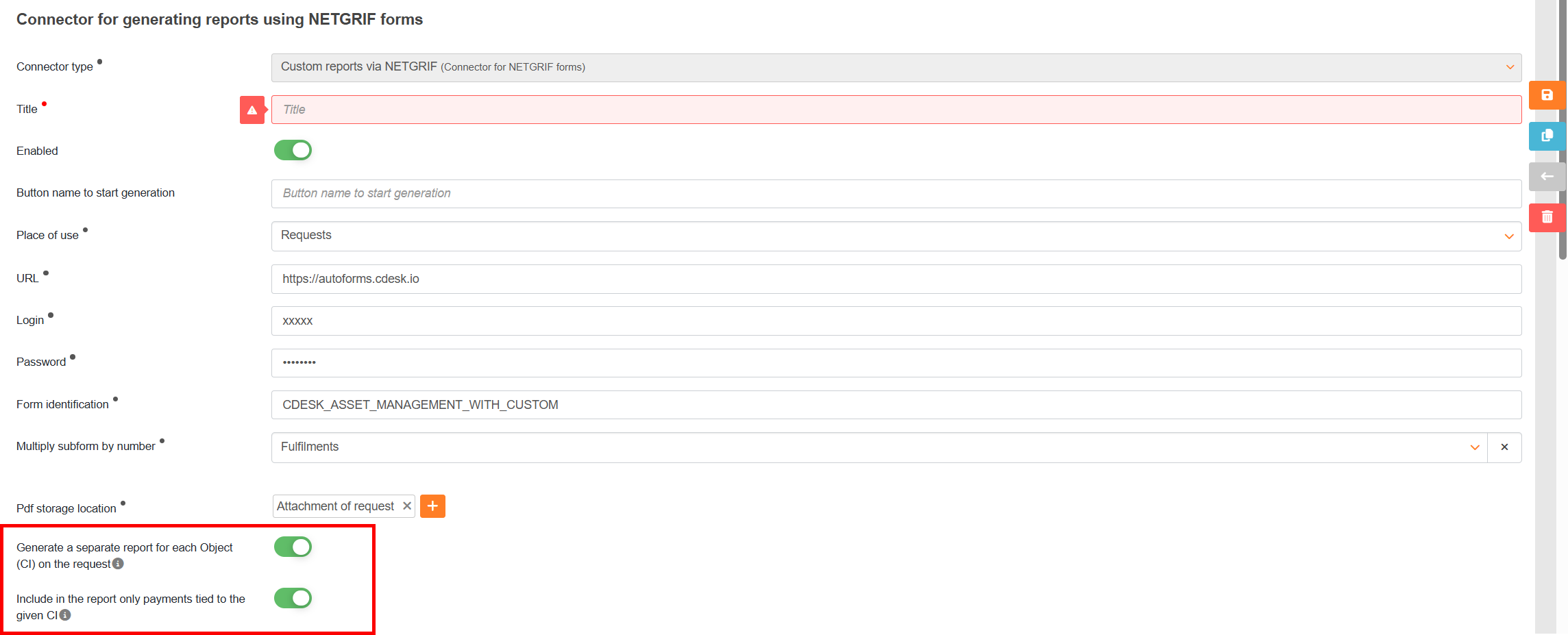
Generating separate reports for each device with the option to include only fulfilments linked to a specific item
The connector settings for print reports via Netgrif now include the option to generate a separate report for each CI item assigned to a request.
If multiple devices are recorded on a single request, the system will no longer create just one combined output, but a separate report for each CI item individually.
Each generated report contains:
- common data from the request
- common data from fulfilments on the request
- as well as unique data for the specific CI item
This feature is available when generating reports for requests or requests created from a selected template, provided the output is saved as a request attachment.
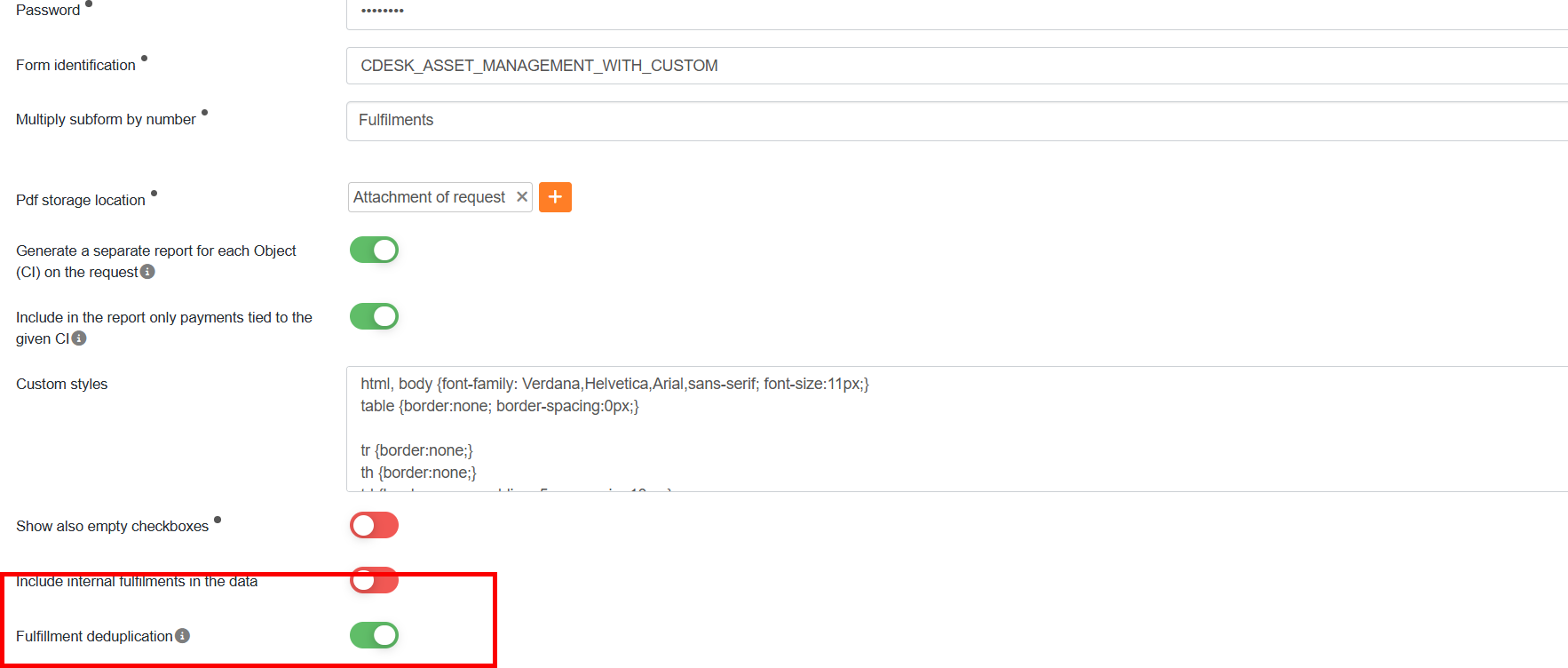
When generating reports for individual serviced devices (CIs), it is possible to include only fulfilments linked to the specific device. Additionally, an option has been added to disable the automatic assignment of fulfilments to all serviced devices and to require selection of the serviced device when recording a fulfilment.
Note: This functionality is only available if the Place of Use is set to “Requests” and the PDF Storage Location is set to “Request Attachment”.
Address Book
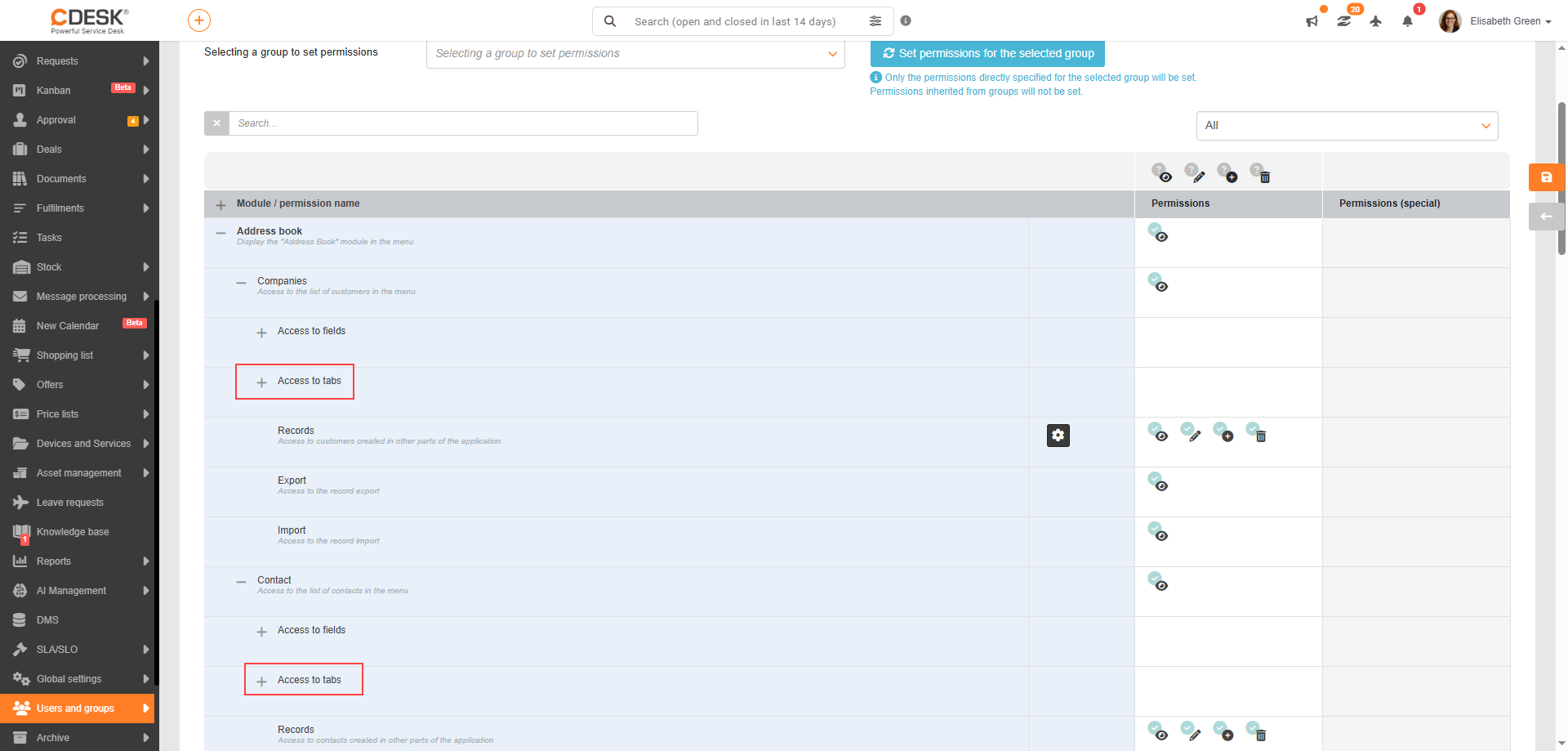
New permission settings for company and contact tabs
An administrator can now restrict access to the following tabs:
- “History” in the company detail
- “Contact settings” in the contact detail
The aim is to protect sensitive data from unauthorised persons. Permissions are configured as usual in the Users and Groups section.
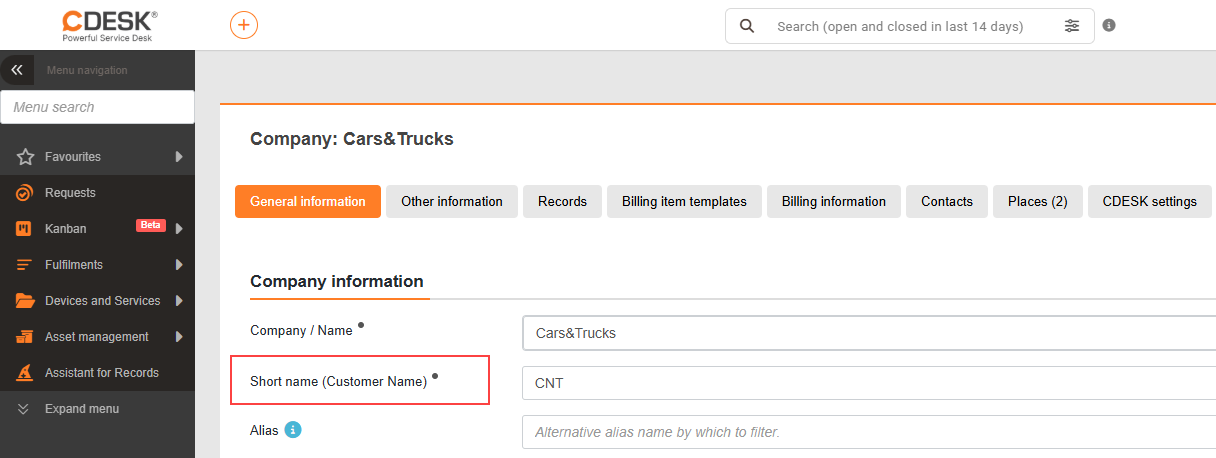
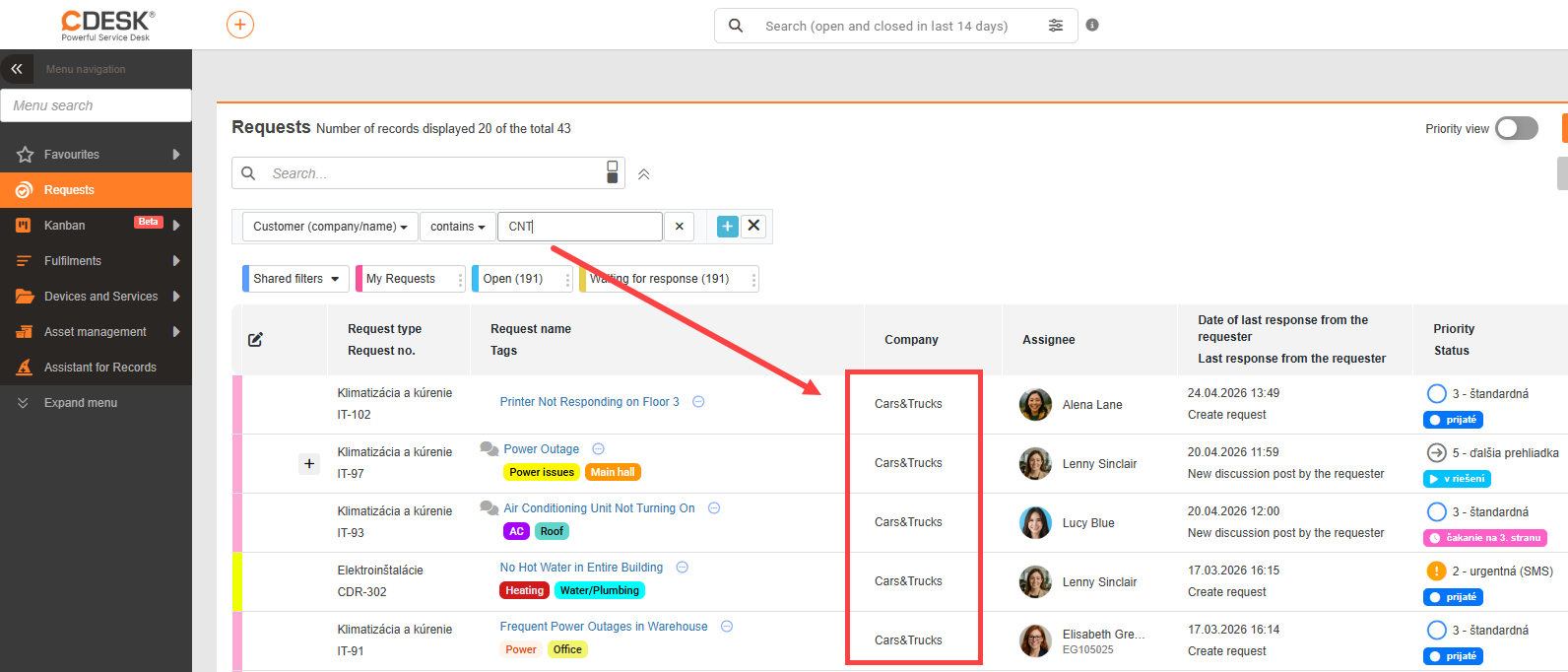
Extension of company search to include short names across all filters
Searching has been extended to support the short name of companies. When searching by company, you no longer need to enter its full name — the abbreviation entered in the company settings is now sufficient.
Approval
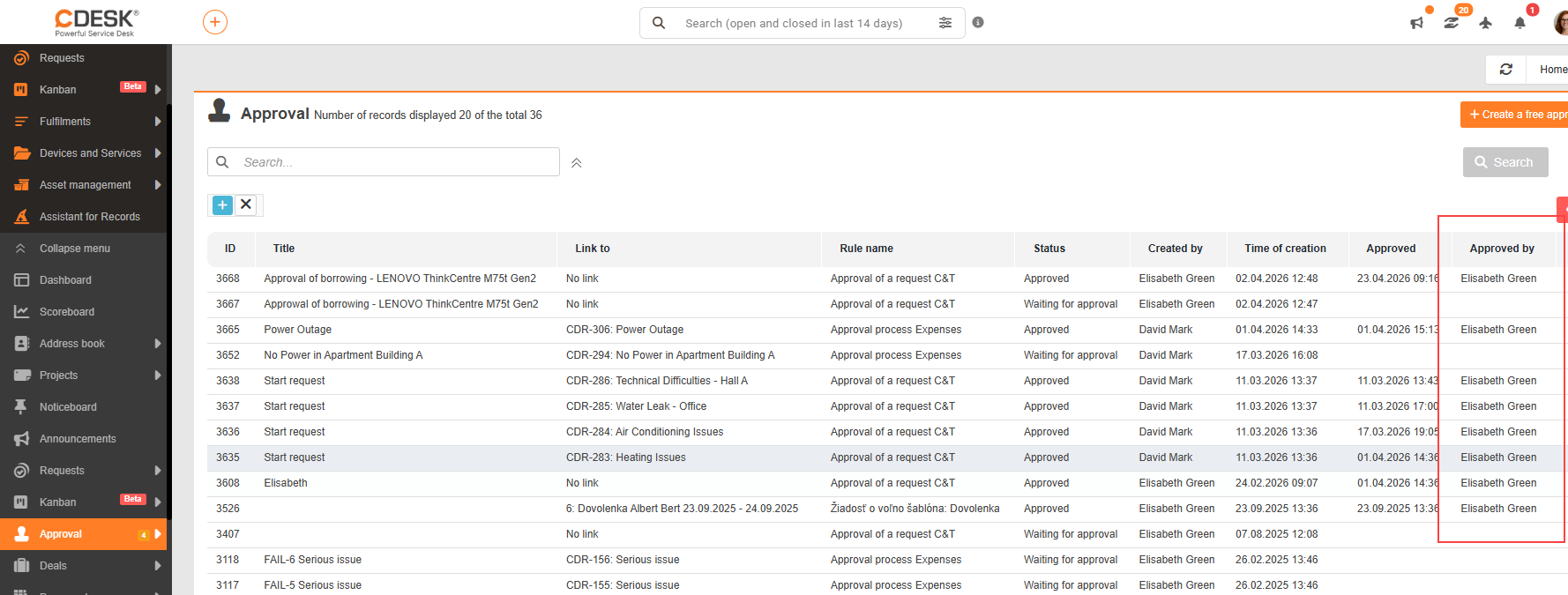
Faster identification of the approver – Added ‘Approved By’ column
A new ‘Approved By’ column has been added to the list of approval processes, displaying the user or users who carried out the approval.
For multi-step approvals, all approvers who were involved in the approval are displayed. If the approval is carried out by a user from a group, their name is shown together with the group name.
The change makes it easier to navigate approval processes and allows faster identification of who approved a specific request.
Addition of approval history
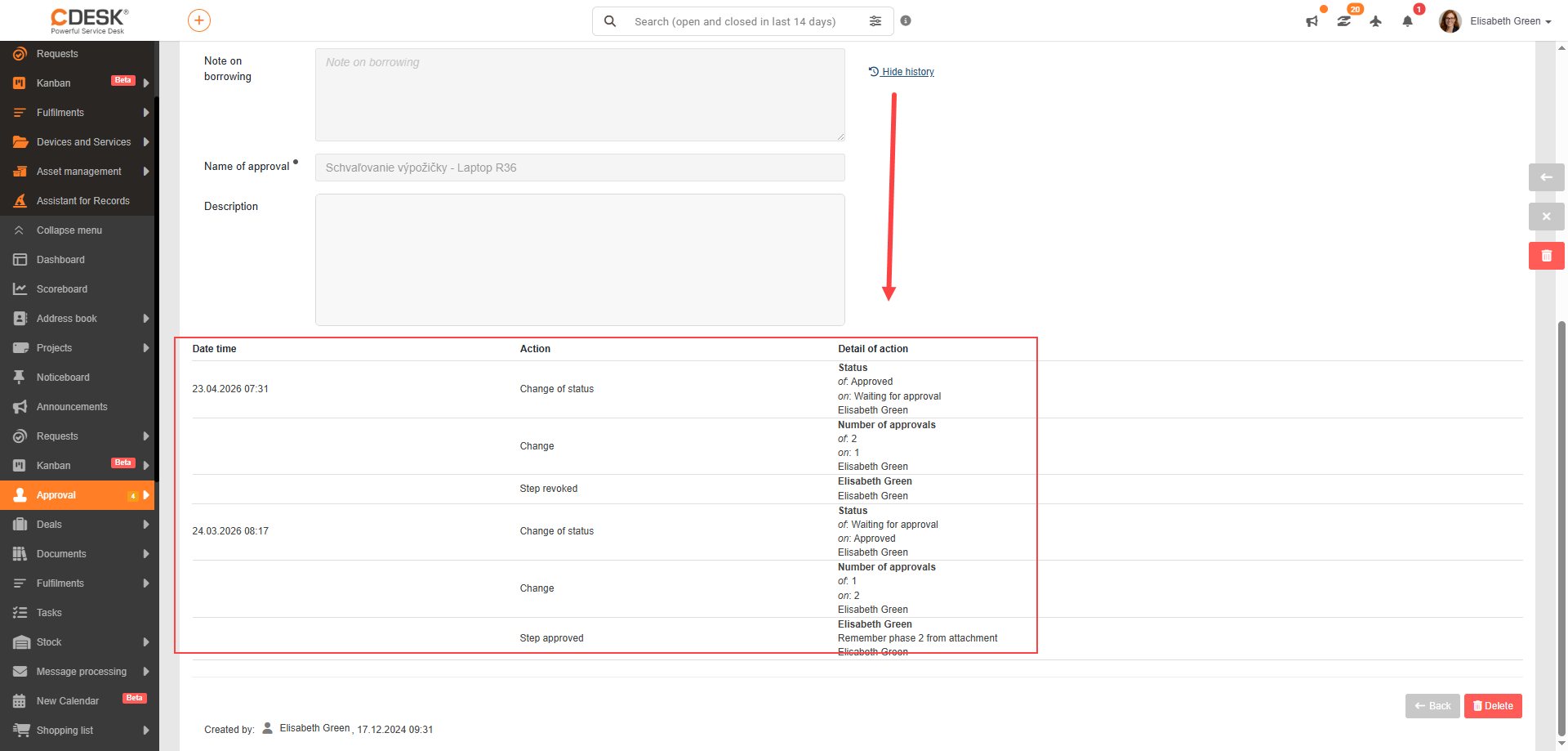
The approval detail now includes the option to view the history of the approval process.
Clicking the ‘View history’ link displays an overview of the individual approval steps, which includes:
- date and time of the action
- type of action performed
- detail of the action
The history provides a better overview of the approval process and allows individual steps and decisions to be traced retrospectively.
Projects
Transfer of hours worked from child records to parent project deals
Hours worked on a project are now aggregated across the entire hierarchy of project deals.
Previously, hours were transferred only one level up. Now, all fulfilments from the entire subordinate structure are counted towards parent project deals — including lower-level project deals, requests, and tasks.
The Fulfilments tab now also displays indirect fulfilments, i.e. those taken over from child records.

Notifications
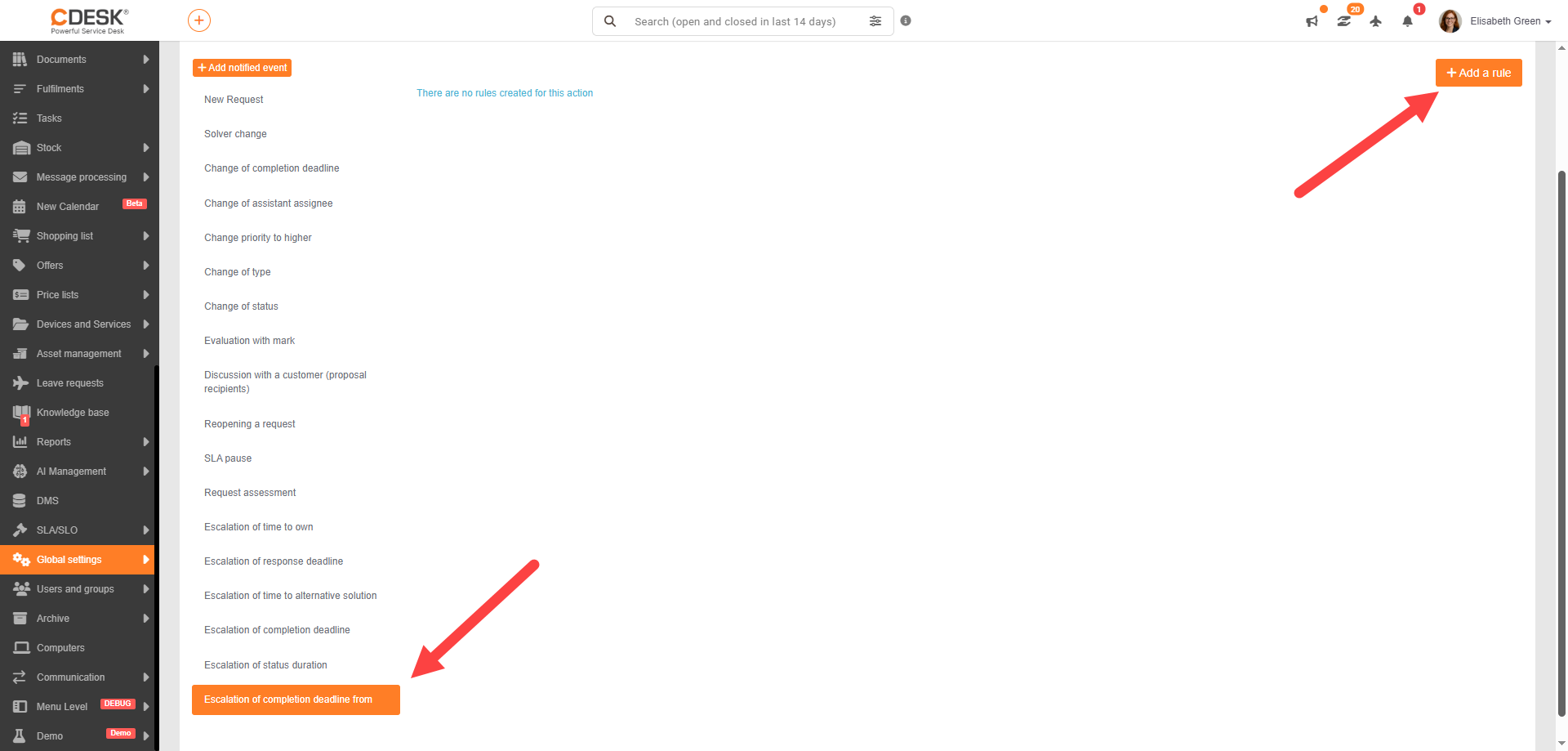
Addition of new notification event – “Escalation of Completion Deadline From”
We have added the option to send notifications about an approaching completion deadline from. This event applies to requests and rules for it can be added in Global Settings.
Extension of notification templates with user-defined fields from request templates
SMS notification templates can now be extended with values from user-defined fields in request templates.
When creating an SMS template, dynamic variables are available that are automatically loaded based on the selected request template. Specific data from the request (e.g. address, group, internal fields, etc.) can thus be inserted into the message text.
When the notification is sent, these variables are automatically replaced with the actual values from the relevant request.
General
Extended audit logging and SIEM integration
Audit logging in CDESK has been significantly expanded to improve integration with SIEM tools and meet enterprise security standards.
The system now records a wider range of security and system events, including:
- logins (including SSO – e.g. Azure, Google and others)
- changes to settings and permissions
- data operations (e.g. export, anonymisation)
- changes to integrations and connectors
At the same time, event logging has been refined (e.g. user identification, IP addresses, scope of changes made), thereby increasing the accuracy and usability of logs.
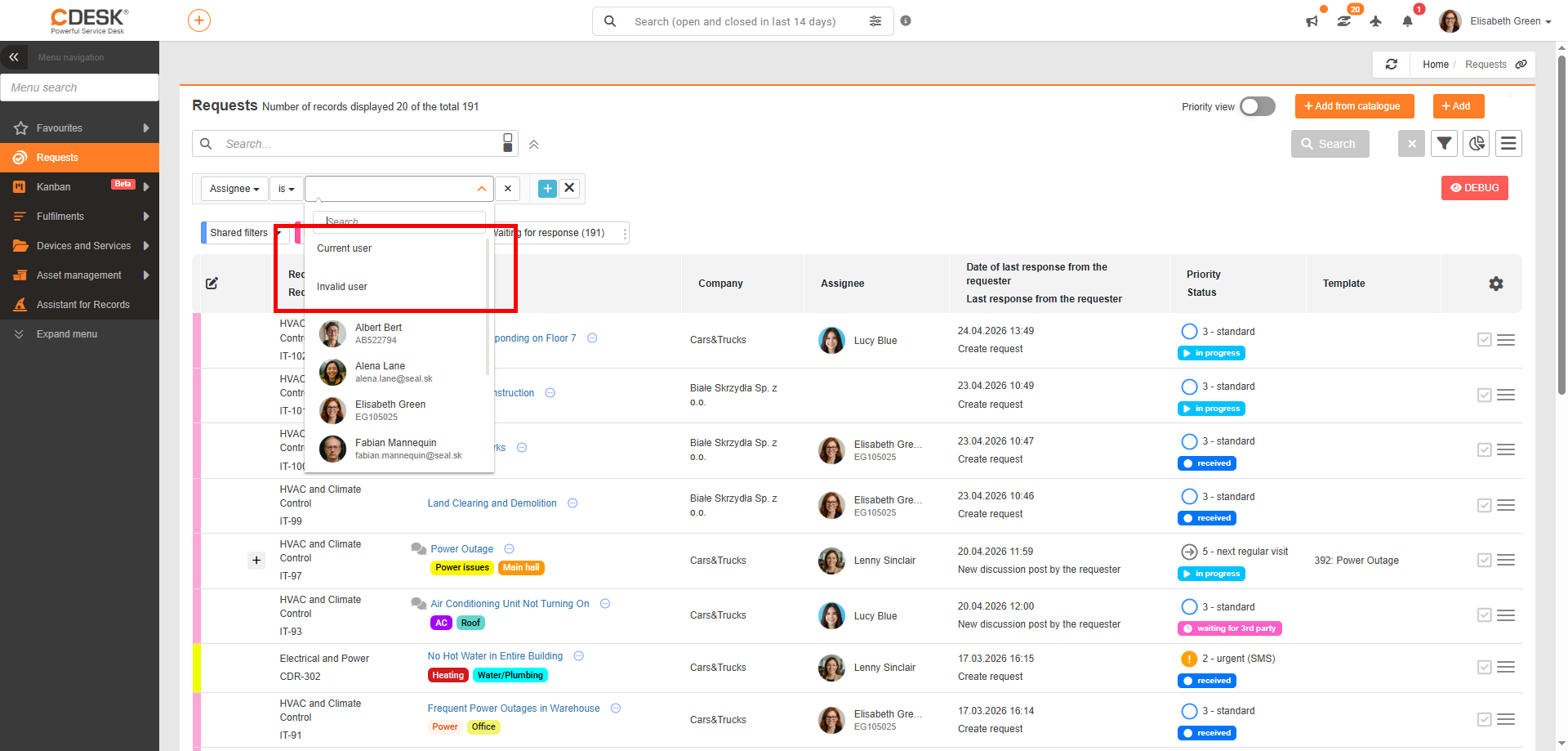
Addition of the following values to user filters: Current User and Invalid User
New system values have been added to filters working with users:
- current user
- invalid user
The Current User value allows you to quickly filter records for the logged-in user. The filter can be set as follows:
- assignee is current user
- created by is current user
- modified by is current user
The Invalid User value enables identification of records linked to inactive or deleted users. The extension is available in all lists and modules where filtering by users is used.