BILLING
A record of items prepared for billing to the customer or for invoicing via CDESK.
Accounting entity – if you wish to invoice the deal directly through CDESK, you first need to select an accounting entity defined in Global settings->Billing, in the Companies – accounting entities section
Work and flat rates
This table defines the types of work and flat rates that can then be selected in a fulfilment as a billing item. Within work and flat rates, you can create and record billing items of four types:
In addition to the item type, the table displays its name, price, tax, a summary of hours and units ready for invoicing and items already invoiced, the invoicing type and the validity. A flag at the beginning indicates the default item, which is pre-filled on new fulfilments for the deal and for requests linked to the deal.
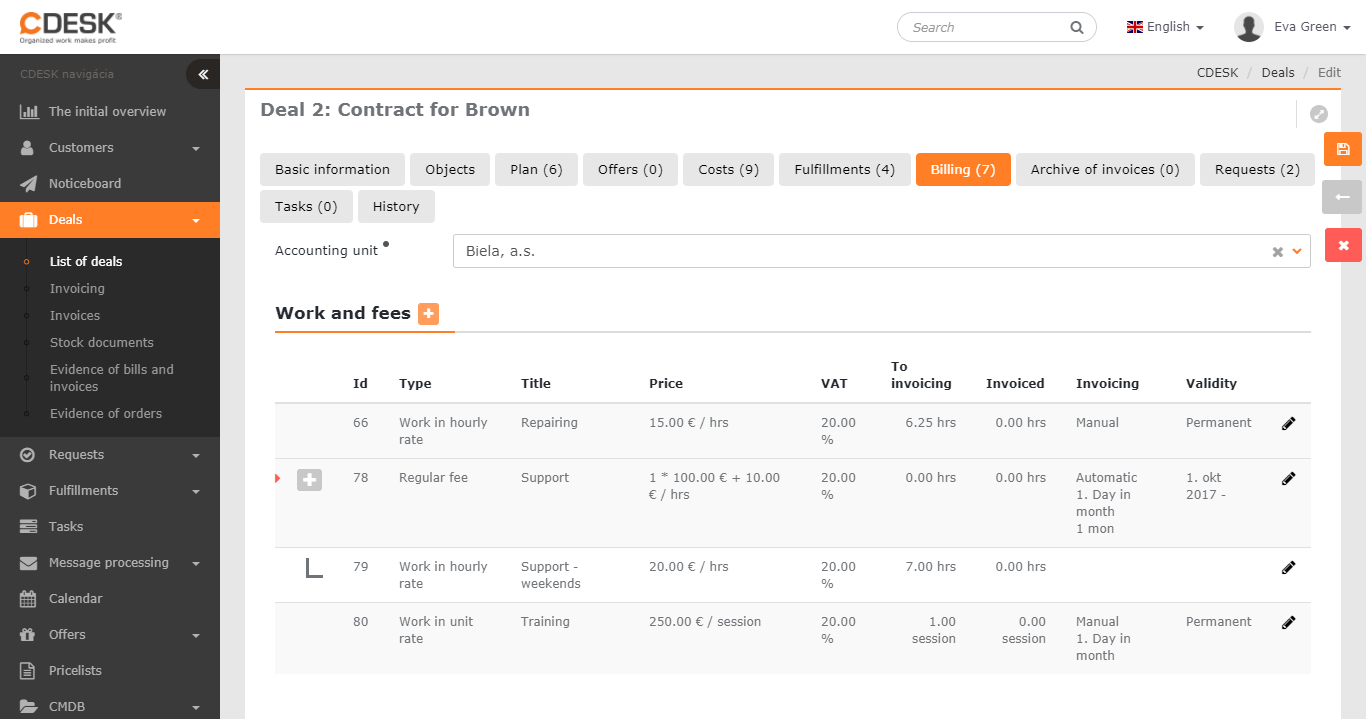
You create a new billing item by clicking the + button.
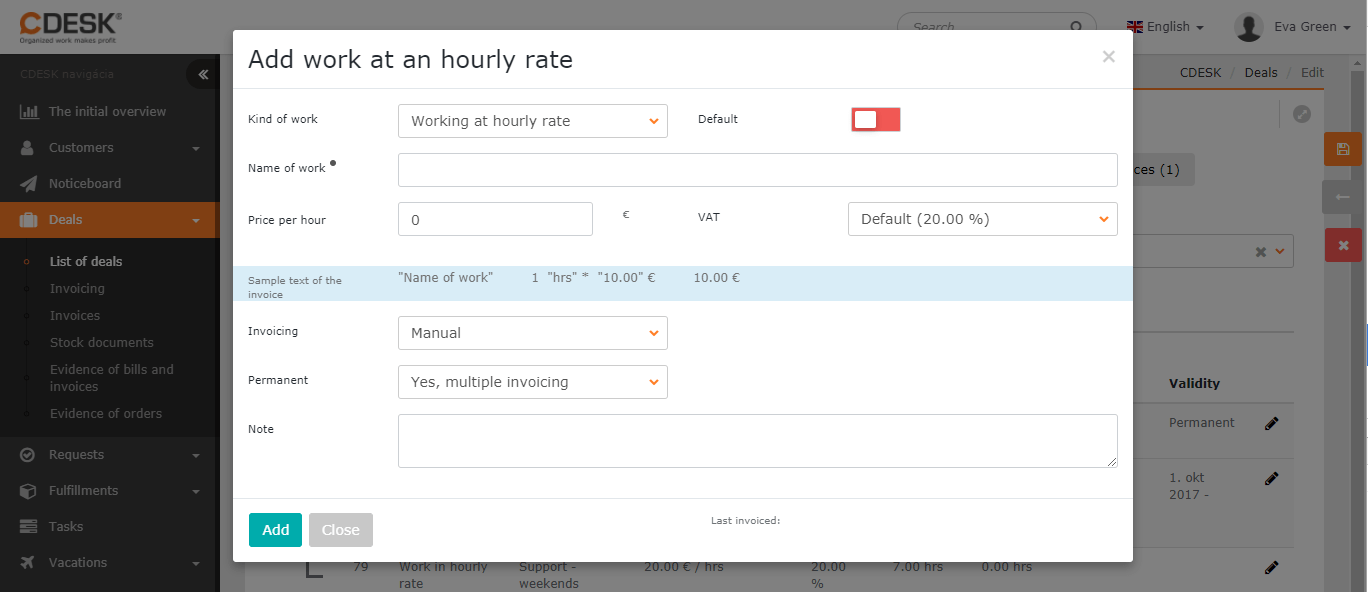
Work at an hourly rate
Type of work – work at an hourly rate
Default – by switching the toggle to the on position  , this billing item will be automatically pre-filled in newly added fulfilments for the deal and for requests under this deal.
Item text – the name of the item, which is shown in the fulfilment in the billing item selection, and also in billing and on the invoice
Hourly rate – the hourly rate in the currency set as default in Global settings->Billing in the Currencies section
VAT – the pre-filled default VAT, which can be changed according to the VAT levels defined in Global settings->Billing in the VAT rates section
Invoicing – choose how the item will be invoiced:
- Manual – the item can be invoiced manually from Deals->Invoicing
- Automatic – the item will be invoiced automatically on the selected invoicing day of the month
- Automatic with confirmation – an invoice preview is automatically created for the item in Deals->Invoicing on the selected invoicing day of the month; issuing the actual invoice must be confirmed
- Blocked – choose this if you do not wish to invoice the billing item; it is only meant for record-keeping in billing
Permanent – choose whether the item can be invoiced repeatedly:
- Yes, multiple invoicing – allows ongoing invoicing of hours worked under this billing item. Example: work on a deal may run over several months, but you need to invoice the customer for the hours worked on an ongoing basis at the end of each month
- No, one-off invoicing – once invoiced, it will no longer be possible to create fulfilments with this billing item, and at the same time the billing item is hidden in the list of work and flat rates – you will only find it in the invoice archive
Note – a note for the item; it is not shown on the invoice or anywhere else in the CDESK system.
Work at a per-unit rate
Type of work – work at a per-unit rate – after selecting the billing item in the fulfilment, a Quantity field is added – billing will be based on the specified quantity, not on the hours worked on the fulfilment
Default – by switching the toggle to the on position , this billing item will be automatically pre-filled in newly added fulfilments for the deal and for requests under this deal.
Item text – the name of the item, which is shown in the fulfilment in the billing item selection, and also in billing and on the invoice
Unit rate – the per-unit rate in the currency set as default in Global settings->Billing in the Currencies section
VAT – the pre-filled default VAT, which can be changed according to the VAT levels defined in Global settings->Billing in the VAT rates section
Unit – select the unit in which the item will be billed (for example pcs)
Invoicing – choose how the item will be invoiced:
- Manual – the item can be invoiced manually from Deals->Invoicing
- Automatic – the item will be invoiced automatically on the selected invoicing day of the month
- Automatic with confirmation – an invoice preview is automatically created for the item in Deals->Invoicing on the selected invoicing day of the month; issuing the actual invoice must be confirmed
- Blocked – choose this if you do not wish to invoice the billing item; it is only meant for record-keeping in billing
Permanent – choose whether the item can be invoiced repeatedly:
- Yes, multiple invoicing – allows ongoing invoicing of hours worked under this billing item. Example: work on a deal may run over several months, but you need to invoice the customer for the hours worked on an ongoing basis at the end of each month
- No, one-off invoicing – once invoiced, it will no longer be possible to create fulfilments with this billing item, and at the same time the billing item is hidden in the list of work and flat rates – you will only find it in the invoice archive
Note – a note for the item; it is not shown on the invoice or anywhere else in the CDESK system

Flat rate
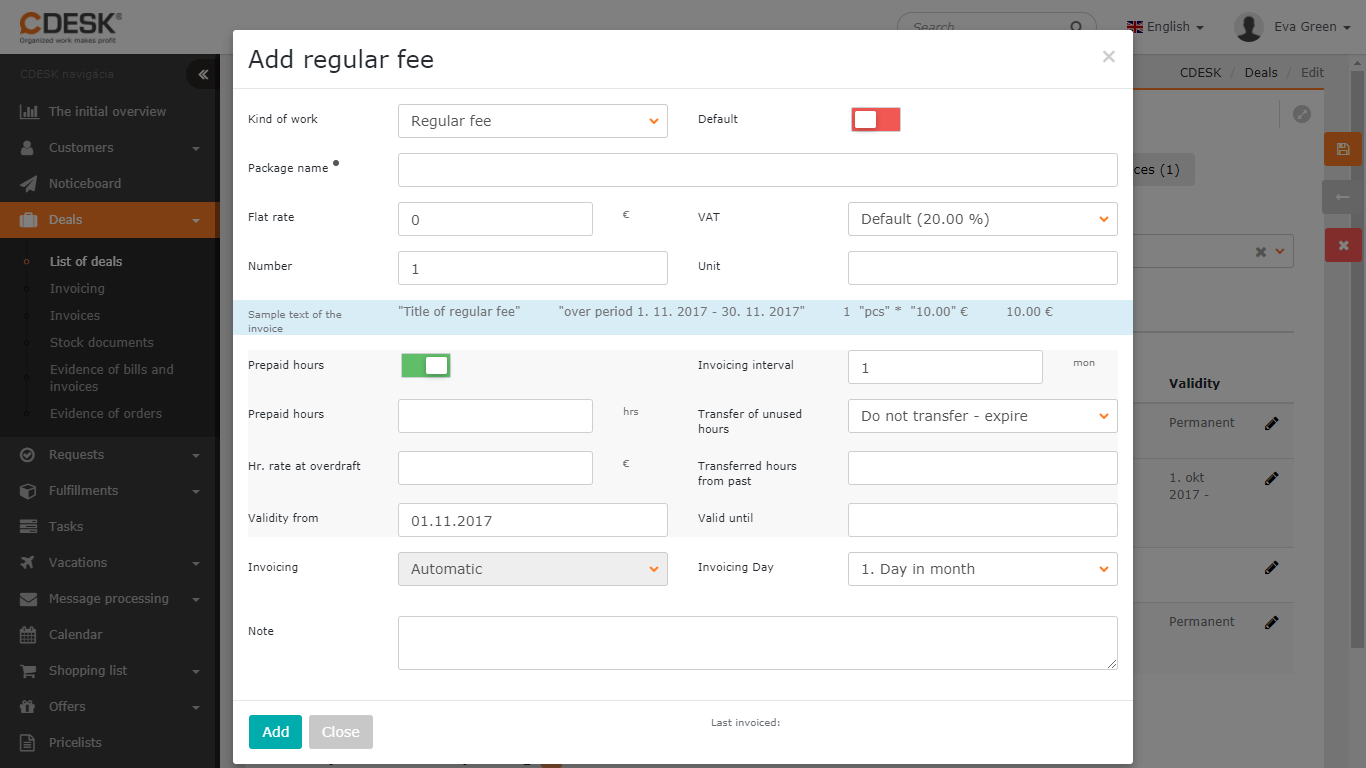
Type of work – flat rate – after selecting the billing item in the fulfilment, all hours worked on the fulfilment will be billed at the flat-rate price, or deducted from prepaid hours if any are entered
Default – by switching the toggle to the on position , this billing item will be automatically pre-filled in newly added fulfilments for the deal and for requests under this deal.
Flat-rate name – the name of the item, which is shown in the fulfilment in the billing item selection, and also in billing and on the invoice
Flat-rate price – the price in the currency set as default in Global settings->Billing in the Currencies section
VAT – the pre-filled default VAT, which can be changed according to the VAT levels defined in Global settings->Billing in the VAT rates section
Quantity – specify how many times the flat rate will be billed within the billing period
Unit – select the unit in which it will be billed (for example pcs)
Prepaid hours – by switching the toggle to the on position further options become available, and at the same time the hours worked on the fulfilment will be deducted from the fulfilment
- Prepaid hours – specify the amount of prepaid hours within the flat rate
- Carry-over of unused hrs. – choose whether unused hours should be Added to the next period, or Not carried over – forfeited
- Hourly rate when exceeded – specify the hourly rate once the prepaid hours are exceeded
- Hrs. carried over from the past – if the customer had unused hours from the past that they wish to carry over into the new flat rate, specify their amount
Invoicing interval – specify the interval, in months, at which the flat rate should be billed
Valid from – select the date from which the flat rate will be billed and invoiced
Valid to – select the date until which the flat rate will be billed and invoiced. If you leave the field empty, it will be billed until the deal is closed
Invoicing – Automatic – the flat rate will be invoiced automatically on the selected invoicing day of the month
Note – a note for the item; it is not shown on the invoice or anywhere else in the CDESK system
Hourly rate for the flat rate
Allows the use of different types of tasks within the flat rate, where each of the tasks can be priced at a different rate per hour. Tasks within the flat rate’s prepaid hours and within a flat rate without prepaid hours are billed at the flat-rate price; the rate per hour is applied only once the prepaid hours are exceeded.
You add a new hourly rate for the flat rate from the list of work and flat rates, by clicking + next to the name of the chosen flat rate:
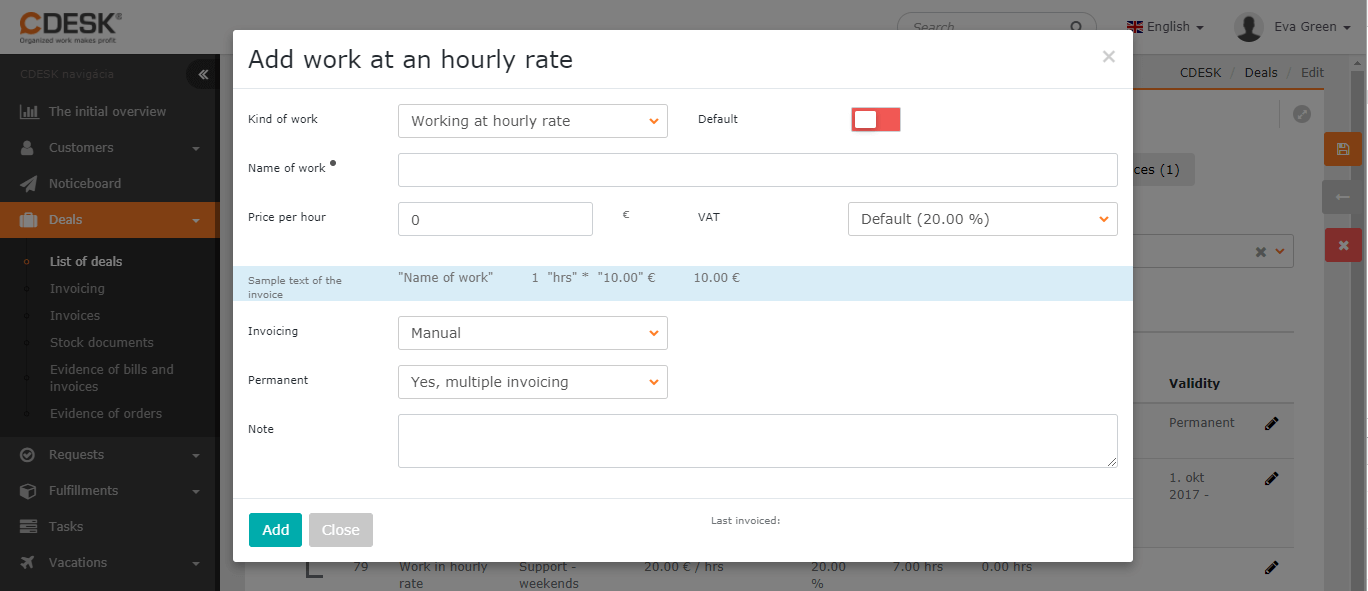
Type of work – work at an hourly rate
Default – by switching the toggle to the on position , this billing item will be automatically pre-filled in newly added fulfilments for the deal and for requests under this deal.
Item text – the name of the item, which is shown in the fulfilment in the billing item selection, and also in billing and on the invoice
Hourly rate – the hourly rate in the currency set as default in Global settings->Billing in the Currencies section
VAT – the VAT of the flat rate is used
Note – a note for the item; it is not shown on the invoice or anywhere else in the CDESK system
Travel and parking
This table defines the billing costs for travel and parking, which can then be selected in a fulfilment as a billing item. If you wish to edit the travel items, click the icon  – a form will appear whose fields are described below.
You add a new billing item in the Travel and parking category by clicking + .
Name – the name of the item, which is shown in the fulfilment in the billing item selection, and also in billing and on the invoice
Price per km – specify the price per kilometre that will be billed to the customer
Fixed price for travel – specify the price applied when you choose a fixed price for travel in the fulfilment
Price per hour – specify the price for travel per hour
Price for parking – specify the price for parking
VAT – the pre-filled default VAT, which can be changed according to the VAT levels defined in Global settings->Billing in the VAT rates section
Invoicing – choose whether travel will be invoiced Together with work/flat rate, or whether it will be Blocked if you do not wish to invoice travel, only record it in billing
Permanent – choose whether the item can be invoiced repeatedly:
- Yes, multiple invoicing – allows the item to be invoiced repeatedly, for example if the implementation of the deal requires repeated chargeable call-outs
- No, one-off invoicing – once invoiced, it will no longer be possible to select this item in a fulfilment, and at the same time the billing item is hidden in the travel and parking list – you will only find it in the invoice archive
Note – a note for the item; it is not shown on the invoice or anywhere else in the CDESK system
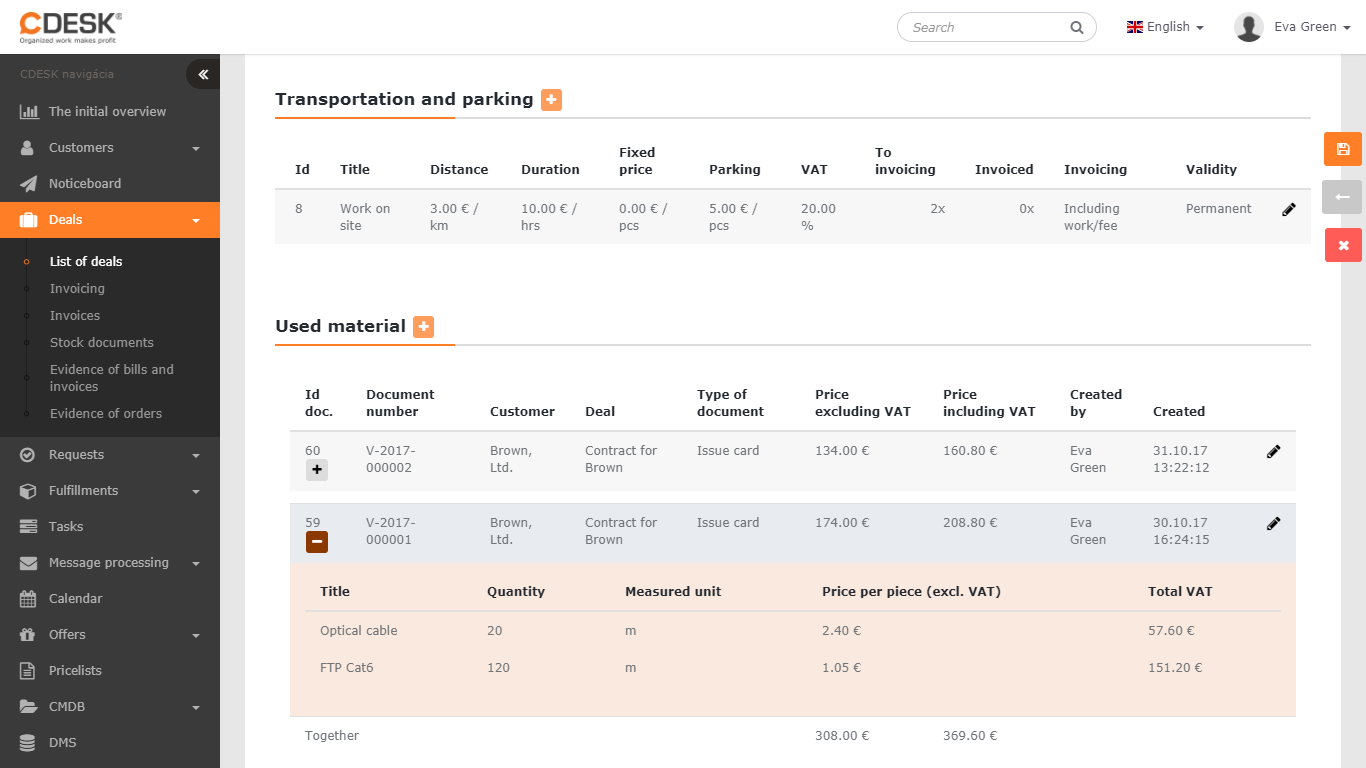
Material used
A list of delivery notes with the material used within the deal. To display the individual items of a delivery note, click + at the beginning of the delivery note row – a list of items will expand along with their billing prices.
If you wish to add new items to a delivery note, open the delivery note with a double click, or by using the icon . If you wish to add a new delivery note to the deal, use the + button. Working with the delivery note form and adding new items is described in the article Stock documents.