LIST OF ITEMS
Page contents
CMDB hierarchy
Configuration Item List (Configuration Item List) is a list of configurable items assigned to a main group and sorted by subgroups. In the configuration database hierarchy, they fall under Item Type:
- Main item groups – for example Devices, Locations, Vehicles…are further divided into subgroups; more about main groups in a separate article Main item groups
- Item types – the division of main groups into subgroups that distinguish sets of items with the same properties (for example, the main group of the IT devices category may contain the subgroups computers, printers, servers, network components…). More in the article Item types
- Configuration Item List – contains items sorted into subgroups (for example, specific devices from the computers subgroup). More in the article below
- Item types – the division of main groups into subgroups that distinguish sets of items with the same properties (for example, the main group of the IT devices category may contain the subgroups computers, printers, servers, network components…). More in the article Item types
You can display the list of all existing items via the main menu CMDB -> Configuration Item List. By selecting a Main group, or also a Type in the left part of the window, you narrow down the selection of displayed objects. If there are no main groups in the window, and therefore no CI Types either, you first need to define them in CMDB -> Main item groups and CMDB -> Item types.
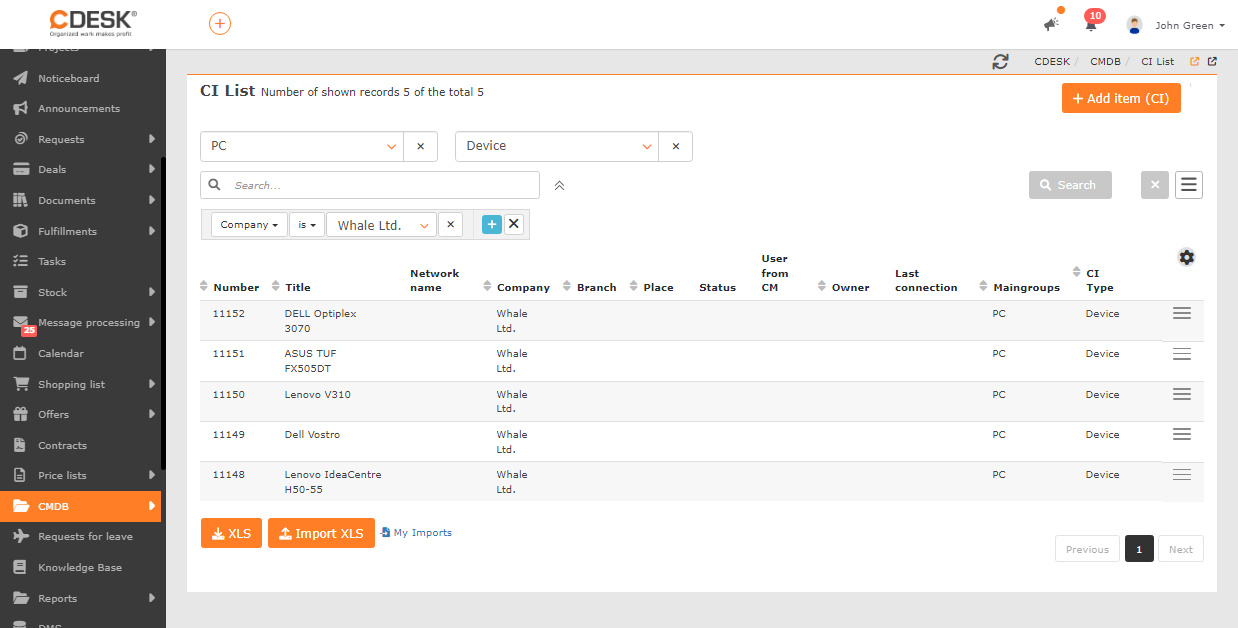
You can edit existing items by double-clicking the relevant row, or by selecting an option from the context menu  Edit. You create a new item by clicking +Add item (CI). Another option is to create a copy of an already existing item – by editing the existing item whose copy you wish to create. In the upper right part of the form there is a Action button. After pressing it, two buttons appear, namely for creating a copy and printing the item.
Working with items
If you are creating a new item in the Configuration Item List without first selecting a Main group and Type, in the first step select:
Main group – select from the groups defined in CMDB -> Main item groups
Item type – select from the defined subgroups belonging to the selected main group in CMDB -> Item types
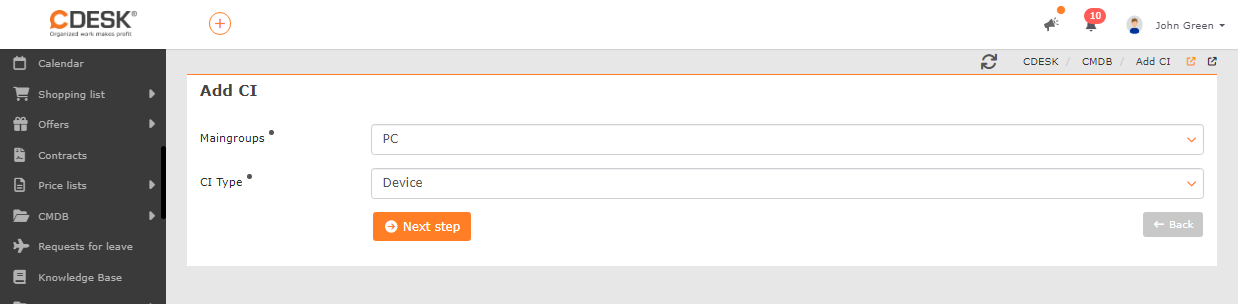
To continue, click Next step and further fields of the form for recording items will appear, which may differ from one another depending on:
- the category of the selected main group – more about group categories and their differences can be found in the article Main item groups
- the properties assigned in the item subgroup – more about assigning properties to items can be found in the article Item types
Table of available settings depending on the category:
|
Main group category |
Other |
|||||
| Devices |
• |
• |
• |
• |
• |
|
| Locations |
• |
• |
• |
• |
• |
Transport location |
| Branches |
• |
• |
• |
• |
• |
Locations |
| Catalogue of operated services |
• |
• |
• |
• |
• |
Contract |
| General category |
• |
• |
• |
• |
• |
|
| Consumables |
|
• |
|
|
• |
Devices |
| Persons |
• |
• |
|
• |
• |
|
| Vehicles |
• |
• |
|
• |
• |
|
| IT monitoring |
• |
• |
• |
• |
• |
Zones |
General information
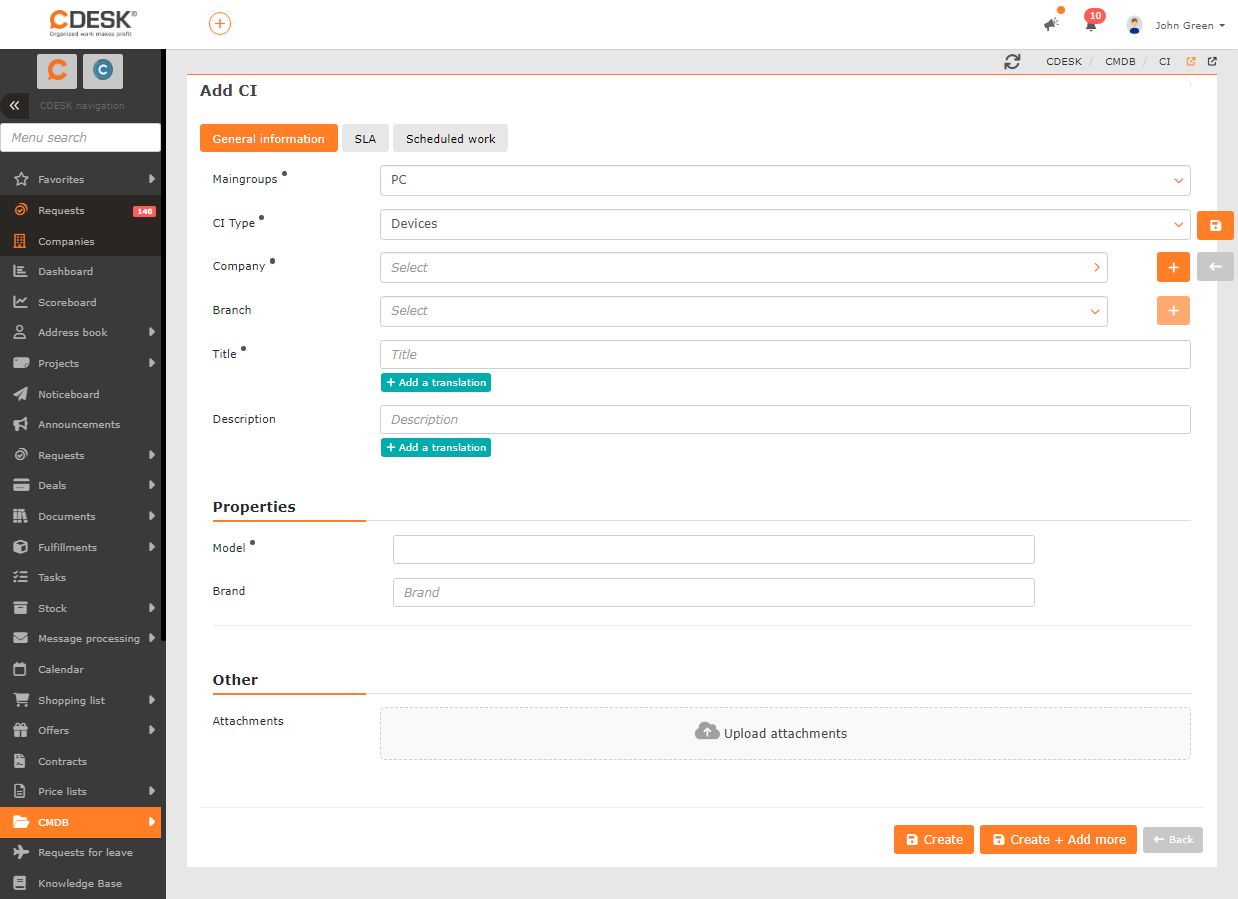
Main group – the option to assign a new item to a different main group defined in CMDB -> Main groups
Item type – the option to assign a record to a different subgroup defined in CMDB -> Item types
Company – select the company to which the item relates. Each item must have a specific company assigned. If you have not yet defined the required company, you can use + to add it.
Name – enter the name of the item (or service) under which the item will be displayed in lists. If the Automatic name generation option is enabled in Item type, the field will not be displayed and the name will be created automatically according to the settings of this option
Description – you can enter a description of the item, which will be displayed in the Configuration Item List. The field is not available in records of the Catalogue of operated services category
Properties
This section contains fields for recording data about the item, according to the properties selected in Item type. If you wish to record additional data for the selected subgroup (Item type ), edit the list of required properties in the item subgroup.
By clicking +Add property you add properties for recording supplementary data only for the selected item. More about working with properties can be found in the article General functions -> Optional properties
CDESK settings
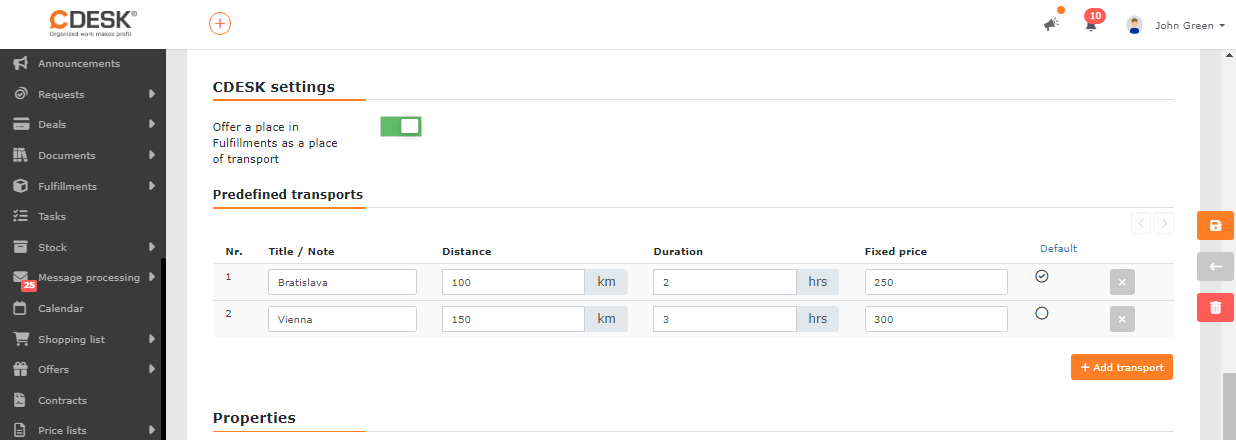
Offer the location in Fulfilments as a transport location – an option available only for items of the Locations category – by switching the toggle to the on position  the option to define transport becomes available:
- Name/Note – enter the name of the predefined transport, by which you will be able to select the transport when filling in Fulfilments
- Distance – enter the distance between your branch and the company’s location, which will be used automatically in the Fulfilment after selecting the company’s location
- Duration – enter the travel time between your branch and the company’s location, which will be used automatically in the Fulfilment after selecting the company’s location
- Fixed price – if the fixed price stated in the accounting item is to be used automatically when billing transport, switch the toggle to the on position
 (more about billing transport can be found in the article Billing)
 - Default – it is also possible to select one of several predefined transports as the default = it will be used on the Fulfilment automatically
Contract
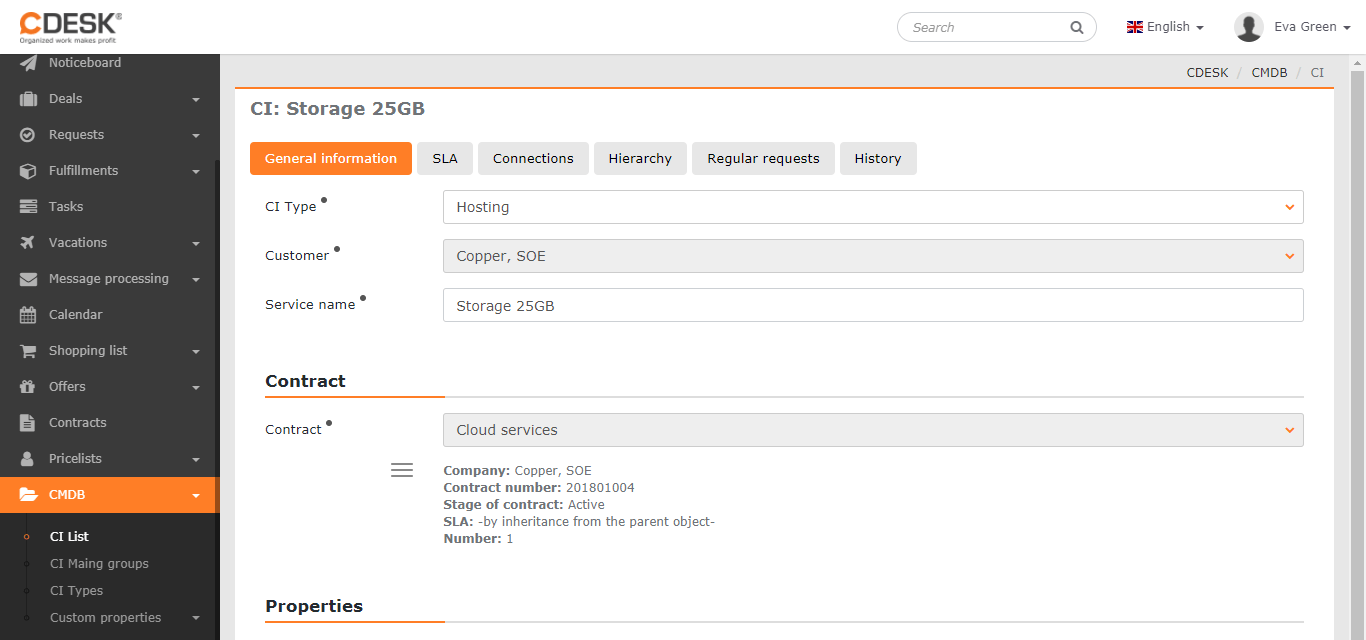
The Contract section is displayed only for Items of the Catalogue of operated services category, for those services that were set up by a contract.
Contract – displays the name of the contract under which the service is set up. Below the contract name is a listing of basic information about the contract: company, contract number and status, commitment, the SLA used on the contract and the quantity of the selected service on the contract. The contract can be displayed directly from the service by selecting the option from the context menu Contract.
SLA
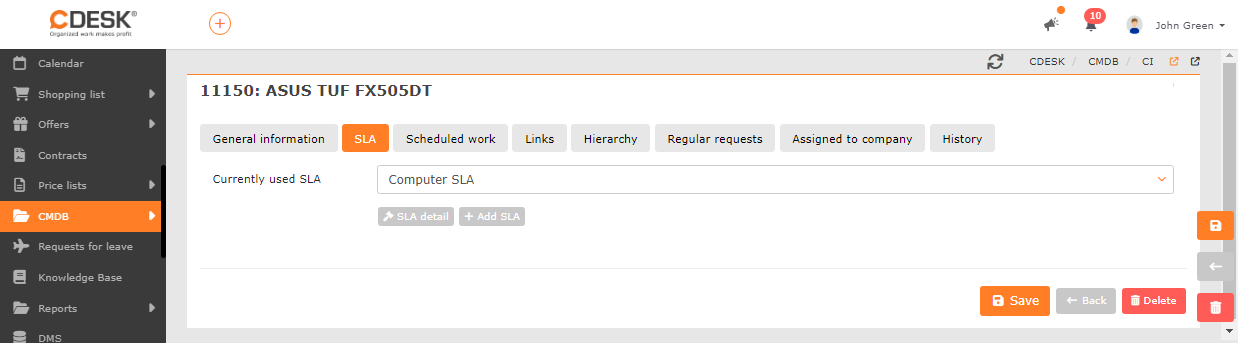
The SLA tab is available for items of the categories: Devices, Locations, Branches, Catalogue of operated services, General category, Persons, Vehicles, IT Monitoring
SLA currently in use – in order to be able to select an SLA, a company must be stated on the General information tab. If you do not select a user-defined SLA for the item, the SLA of the parent item will be used – the hierarchy of item SLAs is described in more detail in the article SLA
Links
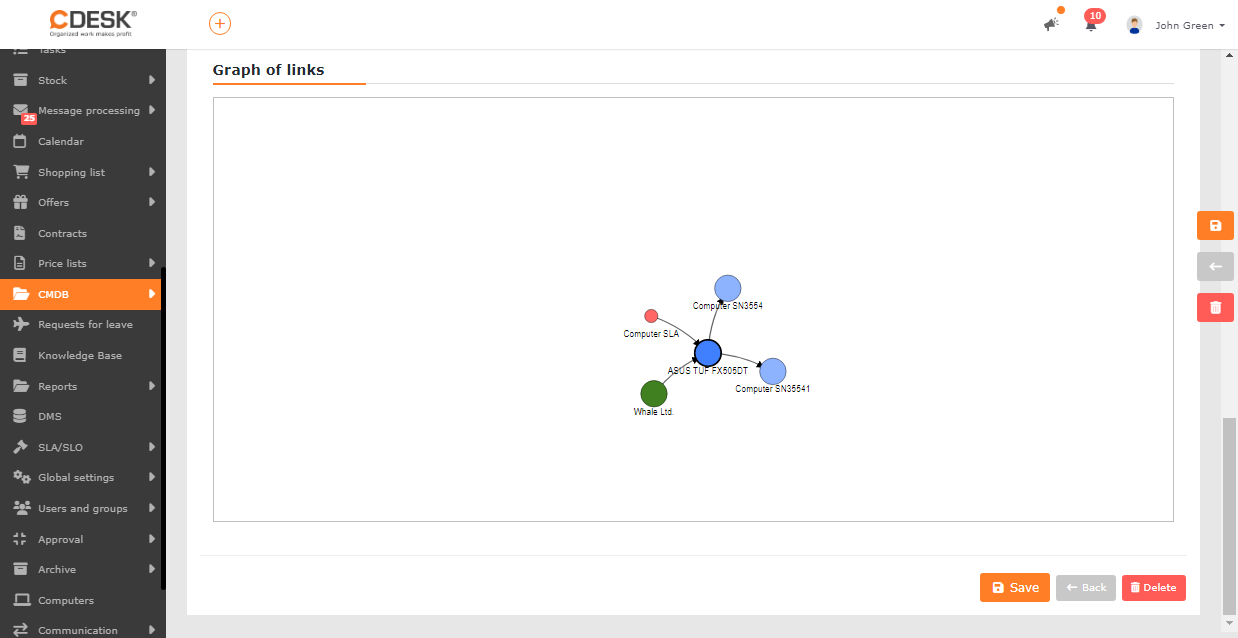
In the case of a newly created item, the Links tab is displayed only after it has been saved. It displays existing relationships between items, with the option to add your own relationships – by clicking +Add link. In the window, select the item you want to link with the item currently being edited – according to its main group and subgroup (Item type) and confirm by clicking Add.
Links can be edited by selecting the link type – the code list of used links can be edited in Global settings -> CMDB on the Common settings tab. The direction of the link can be reversed using the button  . By clicking × you remove the link.
The individual relationships are visually represented on the graph below. The graph is interactive; the arrangement of the “bubbles” representing the individual items can be adjusted by grabbing an item and moving it to another place within the graph.
Locations
The Locations tab is displayed in records of the main group of the Branches category, provided that at least one Item of the Locations category has been created.
Here you will find a listing of all locations assigned to the branch, with the option to assign additional company locations – after clicking Assign location. Because one location can only belong to a single branch at a time, a location assigned to another branch of the company is thereby removed from it.
Hierarchy
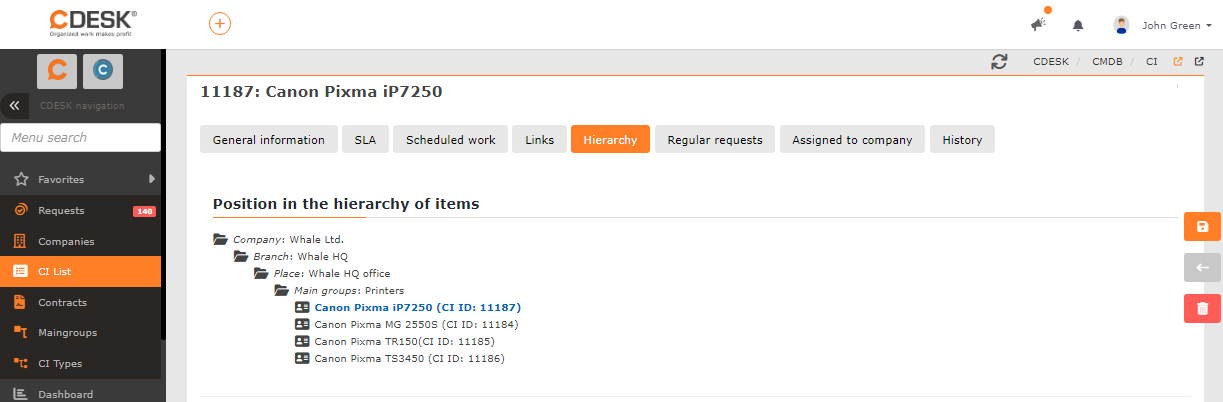
In the case of a newly created item, the Hierarchy tab is displayed only after it has been saved, for items of the categories: Devices, Locations, Branches, Catalogue of operated services, General category, IT Monitoring. It displays the position of the item in the item hierarchy according to customer, branch, location and main group.
Regular requests
In the case of a newly created item, the Regular requests tab is displayed only after it has been saved, for items of the categories: Devices, Locations, Branches, Catalogue of operated services, General category, Persons, Vehicles, IT Monitoring, provided that you have the Requests module enabled in Global settings -> Requests. This section contains a list of regular requests for the selected item, which can be Edited or Deleted via the context menu Edit or Delete. You can create a new regular request for the edited item by clicking + . A form for creating a regular request will open, whereby the edited item and the customer assigned to it are automatically assigned to the request. More about working with regular requests can be found in the article Regular requests.
Regular requests over items will remind you, for example, of regular servicing and inspections of devices, replacement of filters and other consumables, scheduling technical inspections of vehicles and many other use-case scenarios.
History
In this section you will find the complete history of changes relating to the selected item, divided by:
Item – displays a list of all changes made in the item record
Requests – displays a list of all requests where the item was used
Fulfilments – displays a list of all fulfilments where the item was used
Zones
It is displayed only for items of the IT Monitoring category and requires having the CM IT Monitoring functionality enabled in Global settings->CM IT Monitoring. In a compact form, it offers information about the selected registered item via Customer Monitor. More about the options of Customer Monitor can be found at www.customermonitor.sk.