CDESK SCRIPT EXAMPLE
WITH ESET PROTECT(DOCKER VERSION)
Page contents
Overview
This Python script can be used to import data about computers (PC/Notebook/Server) from ESET PROTECT via the Cloud API.
It should serve as an example of how to retrieve and process external data and how to create a CDESK object from it. In this case, information about devices is retrieved from ESET PROTECT, which is then processed and used to create a related CI object in CDESK representing this ESET device.
A similar scenario can be implemented with any other data source, such as your local database, the API of other websites, or data stored in local files (.xlsx or .json for example).
Files
main.py
This is the main entry point of the script. It initialises the connection to CDESK and ESET, loads the devices, processes them by creating/updating their CI representation in CDESK, and ensures the session is closed once finished.
LoggerController.yml
Used to write log messages to the logs of the Docker container and, if enabled at initialisation (enabled by default), to write log messages to a specified location (volume mapping in the docker-compose file). From this directory all .log files can be visualised using the logs app for easier work with them.
ci_external_id_filter_sb.json
sb filter to retrieve a CI by the device’s external ID.
ci_oject_template.json
JSON template of the request body for creating a CI, which is modified/extended during the script run.
docker-compose.yml
Defines the Docker environment for running the email processing script. It sets the necessary environment variables for connecting to CDESK and specifies the network configurations.
Prerequisites
Before running the logic app, the target CDESK environment is expected to have a CI type under the Main groups that contains the following subfields:
- Device model: string
- Serial number: string
- External number: string
- Operating system (OS): string
- Device type: string
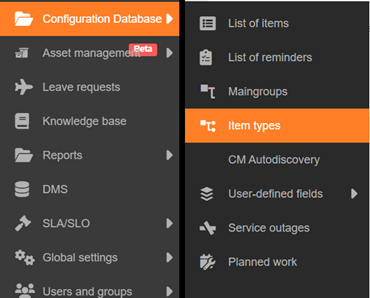
Step-by-step guide to creating such a CI type (“Computers from ESET console”):
Step 1
Step 2
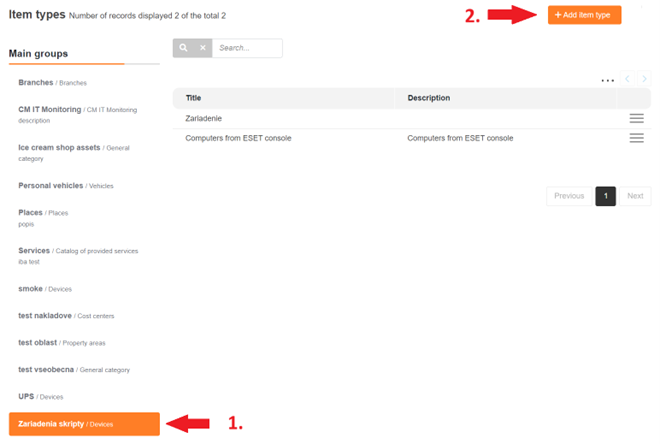
Step 3

Step 4

Step 5

Step 6

Script setup
The script has a dockerfile with environment variables that need to be set before running (the docker-compose.yml file). These environment variables are:
ESET_LOGIN – your login name for the ESET PROTECT account
ESET_PASSWORD – your password for the ESET PROTECT account
CDESK_LOGIN – your login name for the CDESK account
CDESK_PASSWORD – your password for the CDESK account
CDESK_SERVER – your CDESK server (e.g. ‘cdeskportal.eu’)
MAINGROUP_ID – ID of the main group of the created CI type
TYPE_ID – ID – of the created CI type (‘Computers from ESET console’)
COMPANY_ID – ID of your company in CDESK
CATEGORY_ID – ID of the category related to the main group
PROPERTY_GROUP_ID – ID of the custom fields group of the given CI type
PROPERTY_TYPE_ID – ID of the type (boolean, integer, string, …) of the custom field of the given CI type
DEVICE_MODEL_ID – ID of the ‘Model’ custom field
DEVICE_MODEL_BASEPROPERTY_ID – ID of the base ‘Model’ custom field
DEVICE_SN_ID – ID of the ‘Serial number’ custom field
DEVICE_SN_BASEPROPERTY_ID – ID of the base ‘Serial number’ custom field
DEVICE_PN_ID – ID of the ‘External ID’ custom field
DEVICE_PN_BASEPROPERTY_ID – ID of the base ‘External ID’ custom field
DEVICE_OS_ID – ID of the ‘Operating System’ custom field
DEVICE_OS_BASEPROPERTY_ID – ID of the base ‘Operating System’ custom field
DEVICE_TYPE_ID – ID of the ‘Device type’ custom field
DEVICE_TYPE_BASEPROPERTY_ID – ID of the base ‘Device type’ custom field
SCRIPT_NAME – Name of the script that will be used in the logs
To visualise the logs created by this script, you need to set up a volume mapping to a directory on the local PC/server. This directory can be, for example, /logs in the logs app, specially created for this purpose.
Usage
Once all the environment variables are set, the Docker container should be created using the command docker-compose up –build –force-recreate. The script runs automatically when the container starts. If you want to run the script again in the future, you just need to start the already existing Docker container again. You will find the result of the script (the created CI) in the Configuration database (or CMDB) -> List of items, under the categories we created earlier.
Workflow
