SIMPLE FILTER
Page contents
Simple vs. advanced filter
Thanks to its interactive graphical display, the simple filter offers fast and intuitive filtering of records in lists. To keep things simple, it contains only the conditions that users use most often. At the same time, the conditions of the simple filter are bound by the AND operator. In addition to the AND option, the advanced filter also offers OR, and conditions can be grouped. An overview of the differences between the simple and advanced filter can be found in the following table.
| Property | Simple filter | Advanced filter |
| Filtering conditions | Most frequently used conditions | All conditions |
| Way of binding conditions | AND | AND, OR |
| Adding conditions by clicking on the column name | YES | YES |
| Grouping conditions in the sense of using brackets | NO | YES |
| Transferring conditions from the simple filter to the advanced one | YES | – |
| Transferring conditions from the advanced filter to the simple one | Only conditions that were created by the simple filter mechanism are transferred | – |
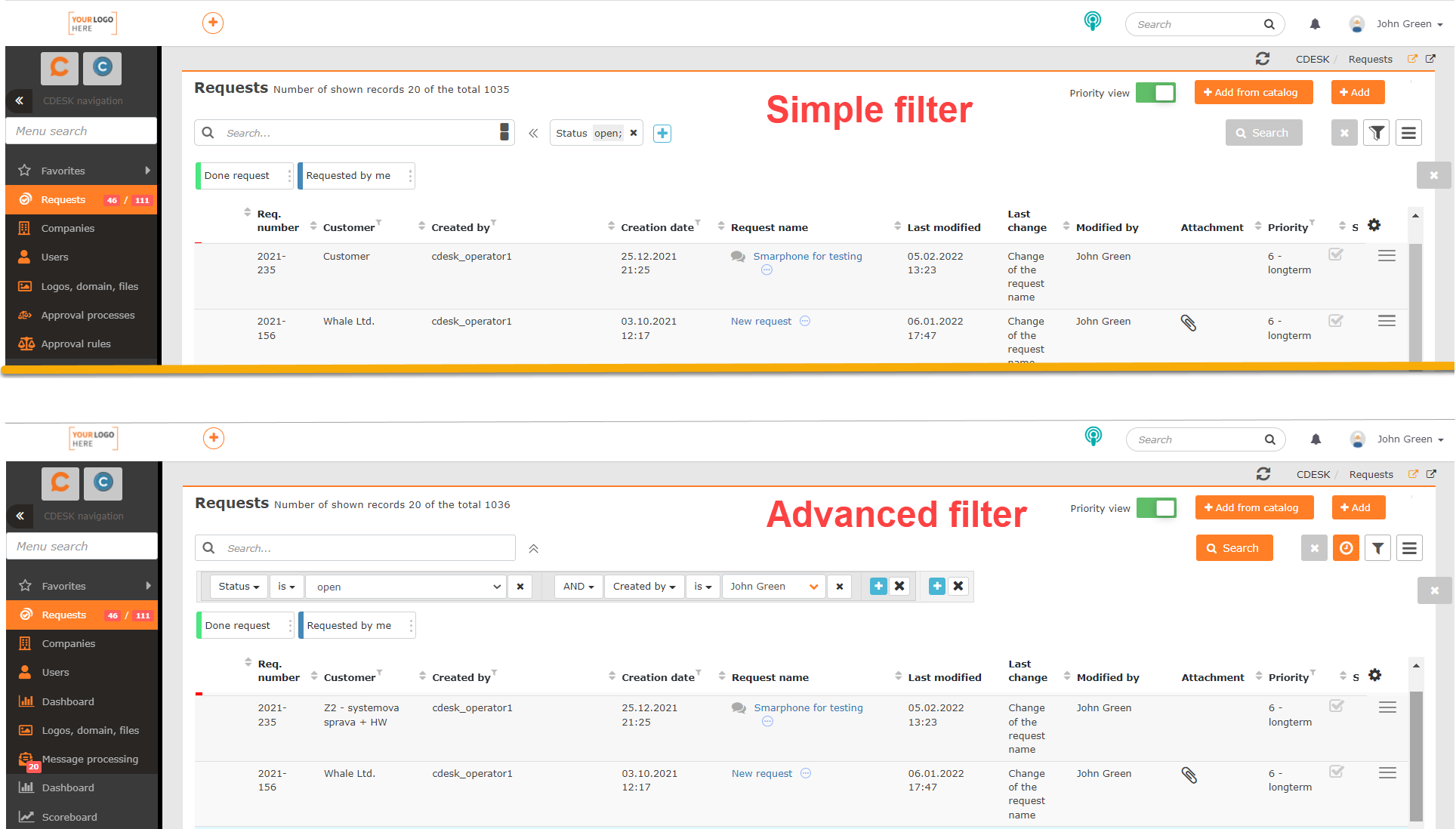
Using the simple filter
Currently, the simple filter is located only in the list of requests, but in the future we plan to extend it to other CDESK modules where list searching is used. In the other modules, the advanced filter is currently used.
CDESK allows the simple filter for the list of requests to be displayed by default. This setting can be configured in Global settings -> Requests -> Basic settings in the section Default setting of the request list. The setting is applied separately to assignees and separately to other accounts, e.g. customer accounts. This setting is described in more detail in a separate article.
If the simple filter is not enabled, click the filtering icon  located above the list. When the simple filter is active, a + icon appears next to the search field, allowing filtering conditions to be added.
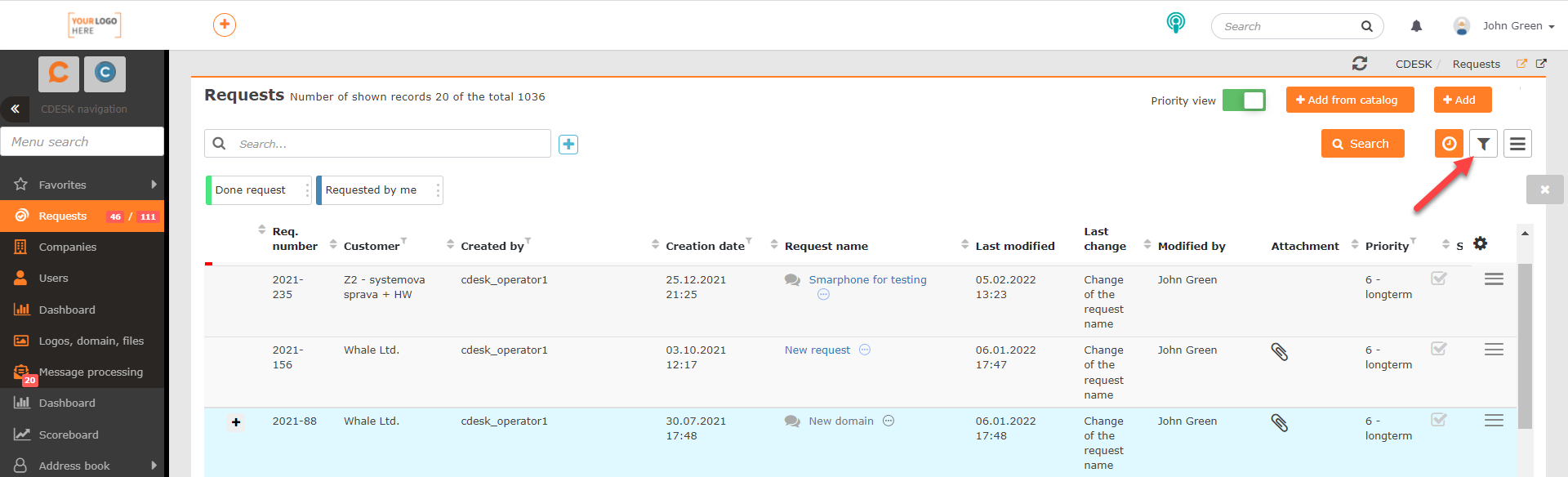
After clicking the + icon, the filtering conditions are displayed. The following options are available for the list of requests:
- Request number
- Completion deadline
- Assignee
- Status
- Priority
- Creation date
- Response deadline
- Created by
- Company / Customer
- Service area
- Request type
- Tags
- Rating score
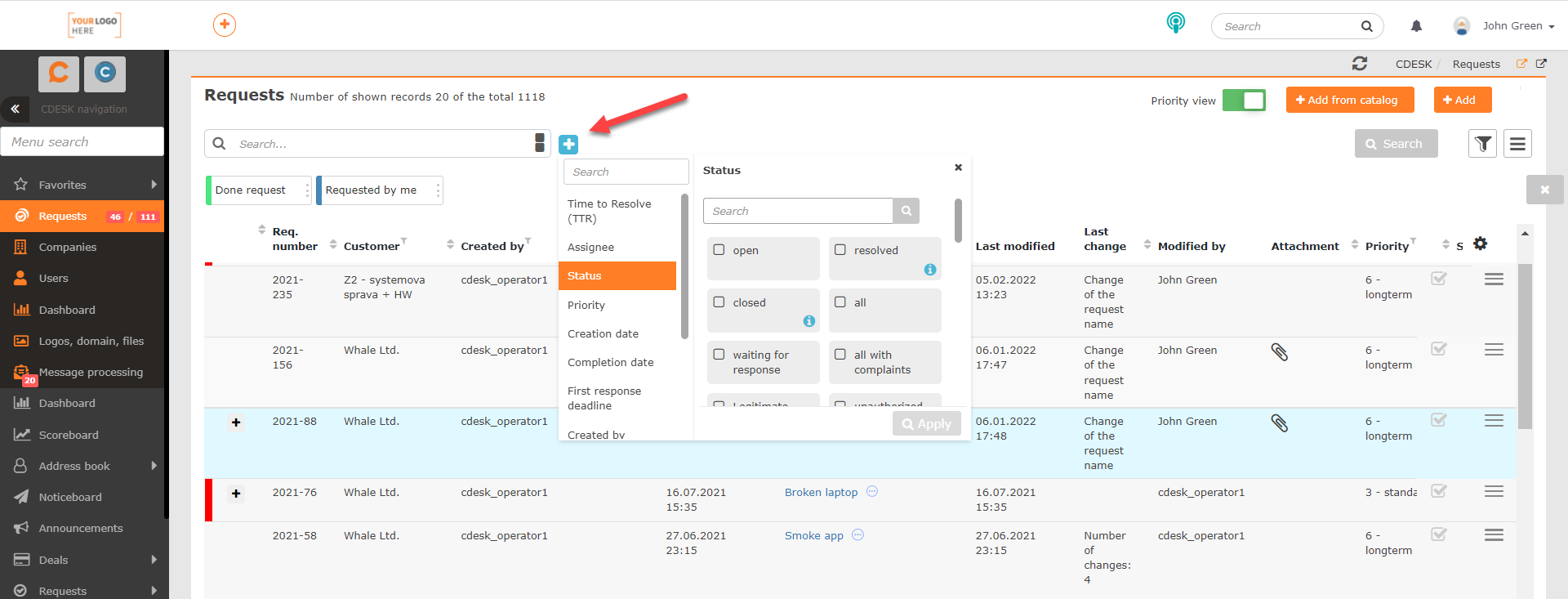
After clicking on a condition, a field for further configuration of that condition is displayed. For example, clicking on the Status condition displays a list of all statuses. To apply the condition, click the Apply button located in the bottom right corner.
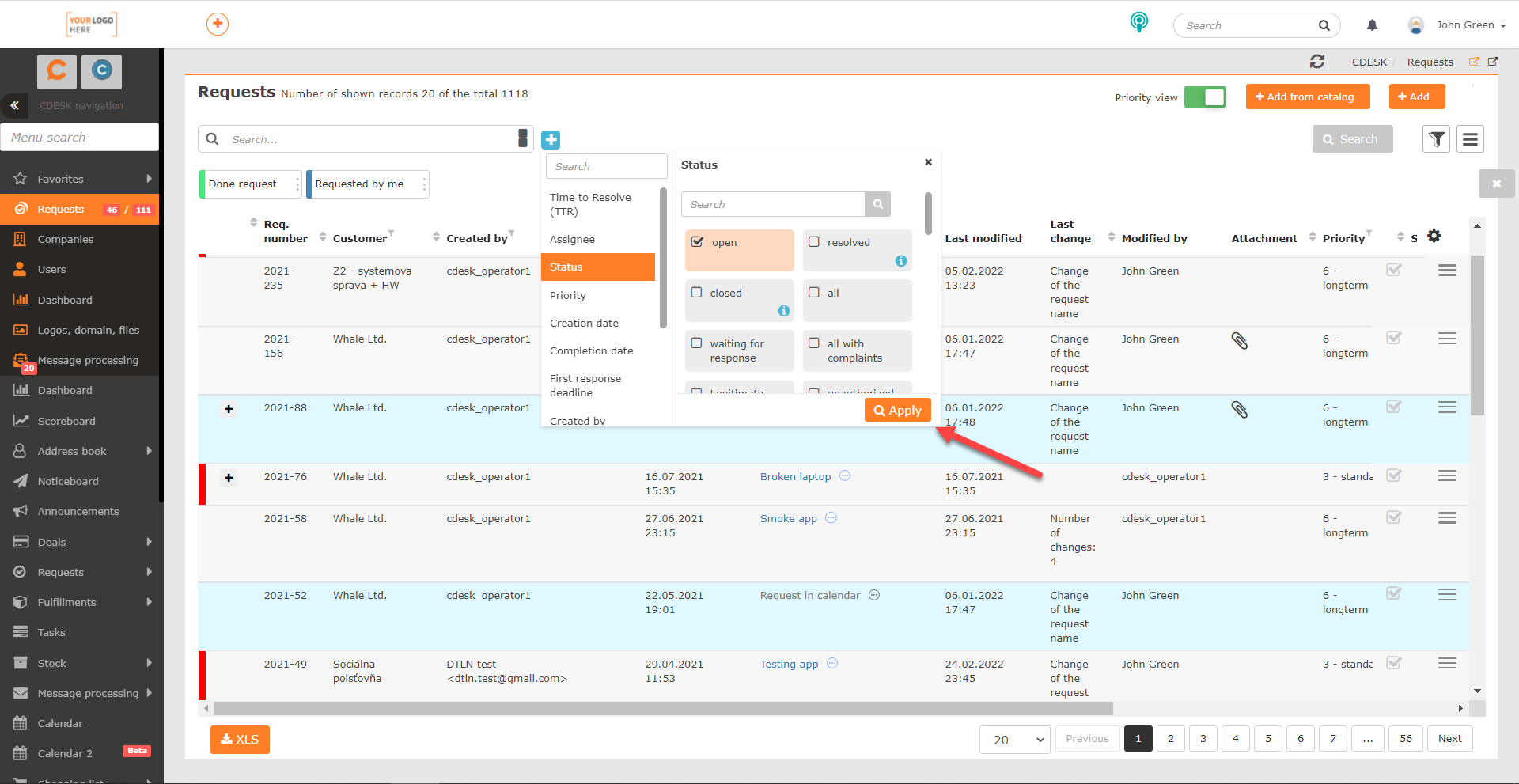
When a condition is active, it is displayed above the list. Another condition can be added by clicking the + icon again. In the simple filter, a group of conditions is always bound by the AND operator.
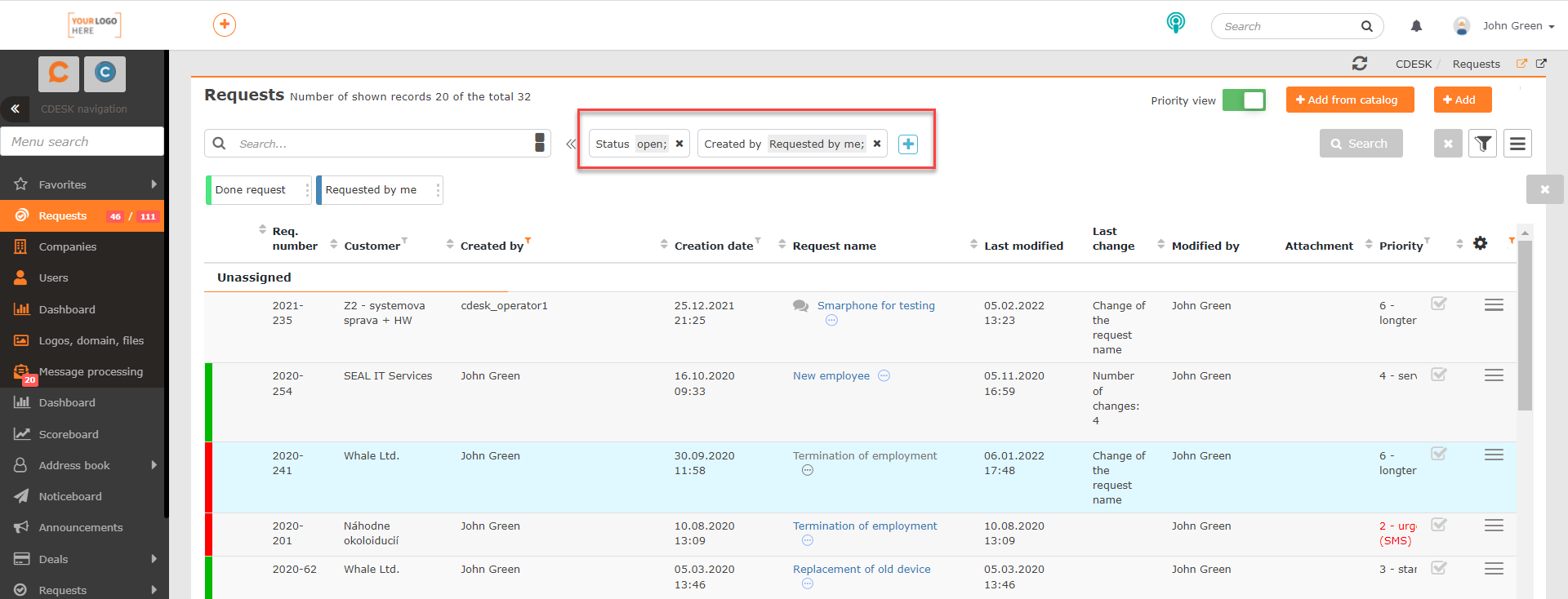
The conditions of the simple filter can be saved, deleted and sent in the same way as the settings of the advanced filter. The procedure for all these actions is described in this text.
Filtering results by column names directly in the list
With the arrival of the simple filter, the option to filter results in the list based on the column name was added. To use this feature, there is no need to enable the simple or the advanced filter.
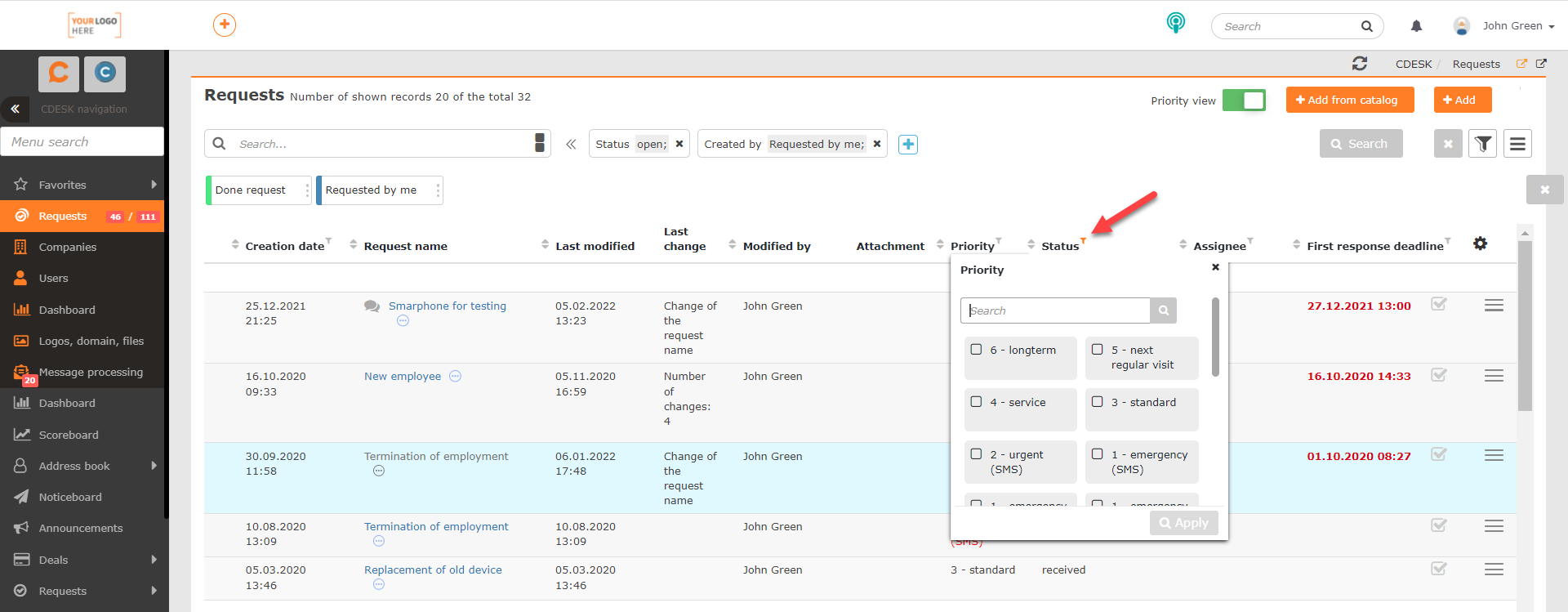
A small filter icon is displayed next to the column names. After clicking it, a window for setting conditions is displayed, as with the simple filter. The condition is activated by clicking the Apply button located in the bottom right corner of the window. This type of filtering is only possible for those columns that are present in the simple filter.
Linking with the advanced filter
If you need to further configure the conditions set in the simple filter for specific needs, they can be transferred to the advanced filter, which allows such settings.
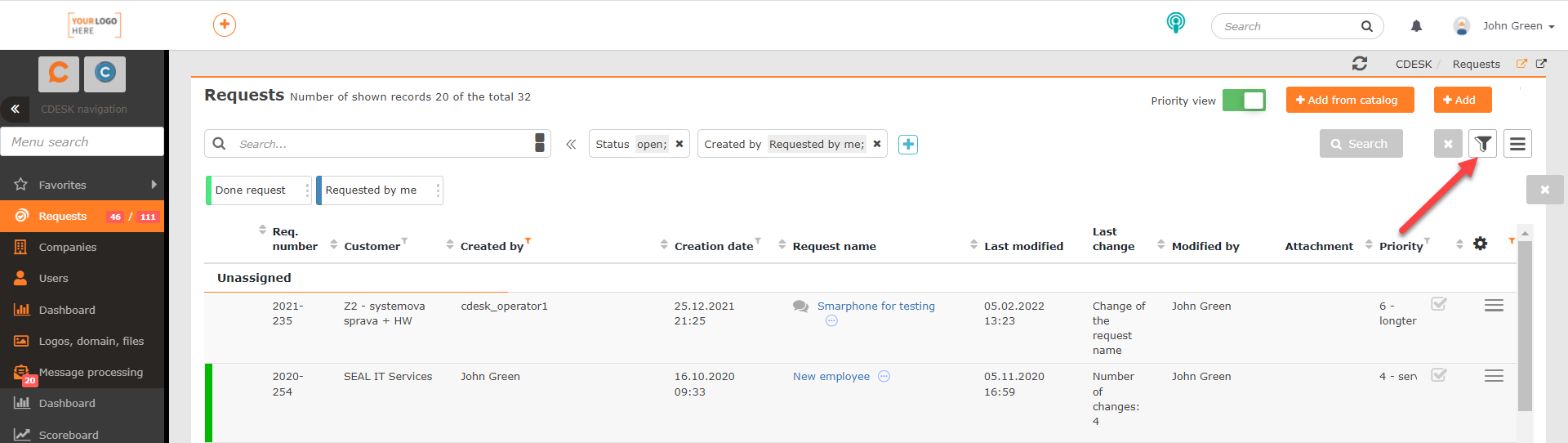
The first step is to activate the simple filter, for example by clicking the button with saved filtering conditions, or using the procedure described in the section Setting up the simple filter. When the simple filter is active, click the advanced filter icon located in the top right corner of the window. After clicking, the conditions of the simple filter are displayed in the advanced filter, allowing their further configuration. Working with the advanced filter is described in more detail in a separate text Searching and advanced filters.
Transferring conditions back from the advanced filter to the simple one also works. However, only those conditions that were set by the simple filter mechanism are transferred. If the advanced filter contained conditions that were not created by the simple filter mechanism, the icon  is displayed. You decide whether to return to the advanced filter, or, if you enter another simple filter condition, the subsequent search will use only conditions of this filter type.
Limiting the search of results in the main search field
After activating the simple filter, an icon  appears at the end of the search field, allowing you to limit which columns the entered term will be searched in. After clicking the icon, the following column names are displayed:
- Request name
- Request description
- Request number
- Company name
If the icon  is displayed next to a condition name, the entered term will be searched in that column. Clicking the condition removes the marking, which means the column will not be searched.
