STOCK DOCUMENTS
Page contents
Stock documents are part of the Deals module; they are located in the main menu under Deals->Stock documents. If they are not in the menu, make sure you have the Deals module enabled in Global settings->Deals->Deals and that you have been granted the necessary permissions for the Deals module in Users and groups->Users.
List of stock documents
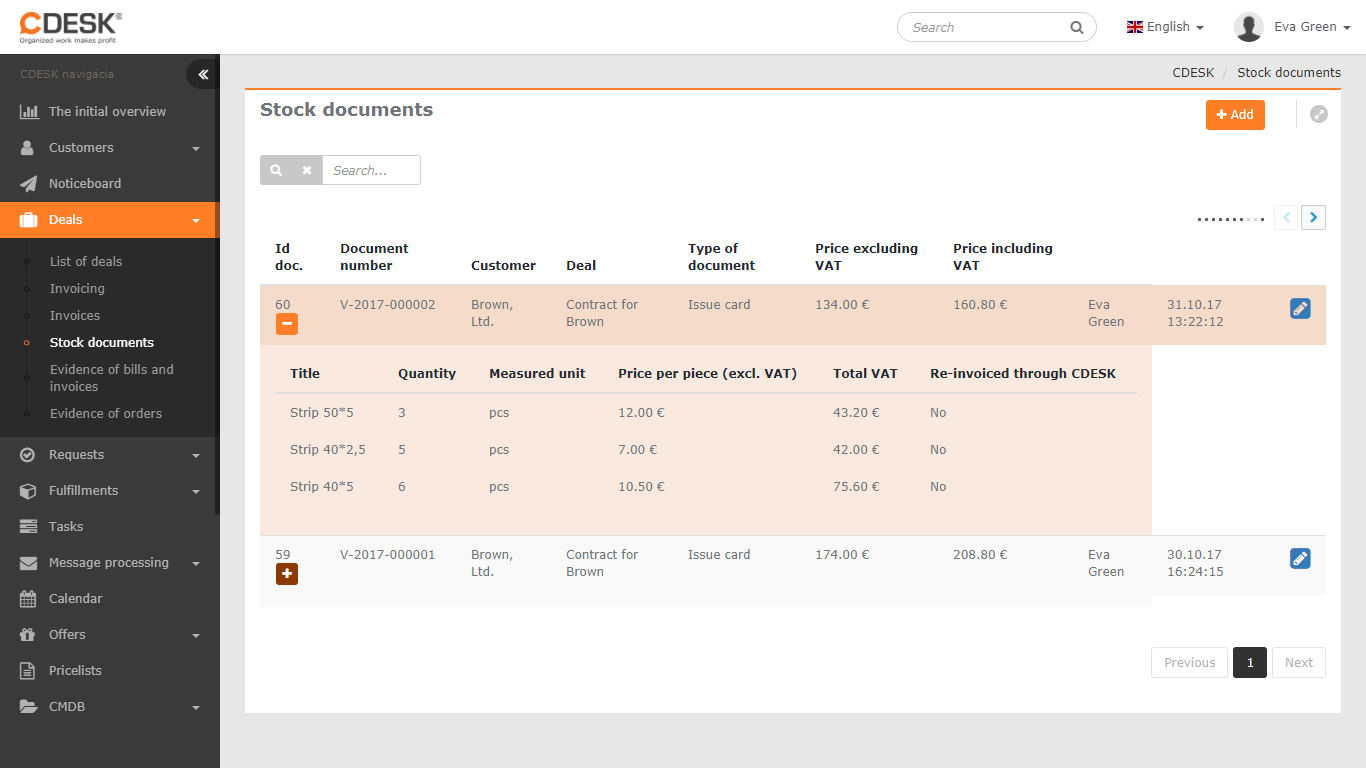
The list shows the issue notes of material used in deals, with the option to search by customer and deal name, as well as by the items themselves. To display the items under a deal, use the + button in the row of the selected issue note – a list of items with quantities and prices will expand. The Re-invoiced via CDESK column contains information on whether the material has already been invoiced to the customer. To edit an issue note, select Edit from the context menu  in the issue note row – the changes made will also be reflected in the deal’s costs and in billing. A description of the issue note form is provided below in the New issue note section.
You create a new issue note by clicking the +Add button.
New issue note
Basic details
Document name – enter a descriptive name so the document can be found easily
Document number – generated automatically
Document ID – generated automatically
Issued by – select the person responsible for issuing the material. By default, the logged-in user is selected
Date of issue – select the date the material was issued
Purchase price excl. VAT – calculated automatically as the sum of the purchase prices of the items
Purchase price incl. VAT – calculated automatically as the sum of the purchase prices of the items
Price excl. VAT – calculated automatically as the sum of the prices of the items
Price incl. VAT – calculated automatically as the sum of the prices of the items
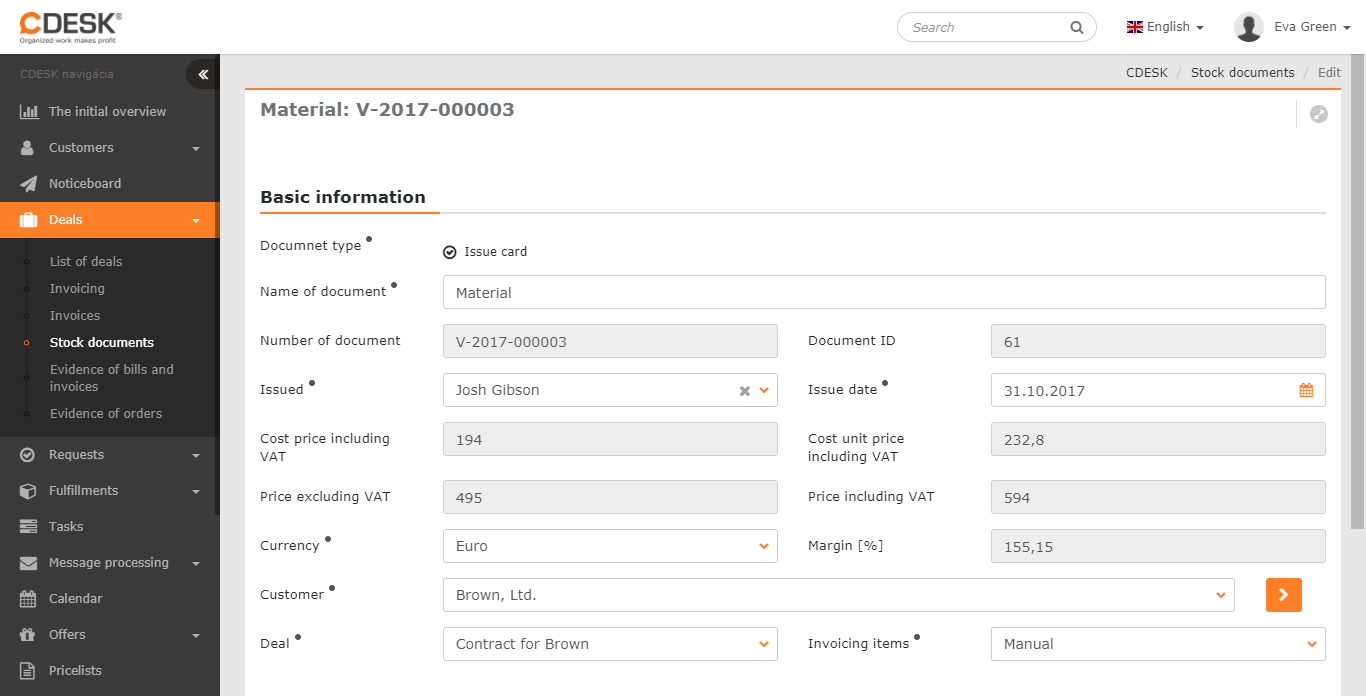
Currency – select the currency in which the material will be charged on the deal. The list of available currencies can be edited in Global settings->Billing
Margin [%] – total margin – calculated automatically based on the margins of the issue note items
Customer – select the customer to whom you are issuing the material. By clicking > you open the list of customers with advanced filtering
Deal – select the deal assigned to the customer. The field becomes available only after a customer is selected
Item invoicing – choose how the items will be invoiced to the customer via CDESK:
- Manual – the item can be invoiced from Deals->Invoicing manually
- Automatic – the item will be invoiced automatically on the selected invoicing day of the month
- Automatic with confirmation – an invoice preview for the item is created automatically in Deals->Invoicing on the selected invoicing day of the month; issuing the final invoice must be confirmed
- Blocked – select this if you do not wish to invoice the accounting item; it is only intended for record-keeping in billing
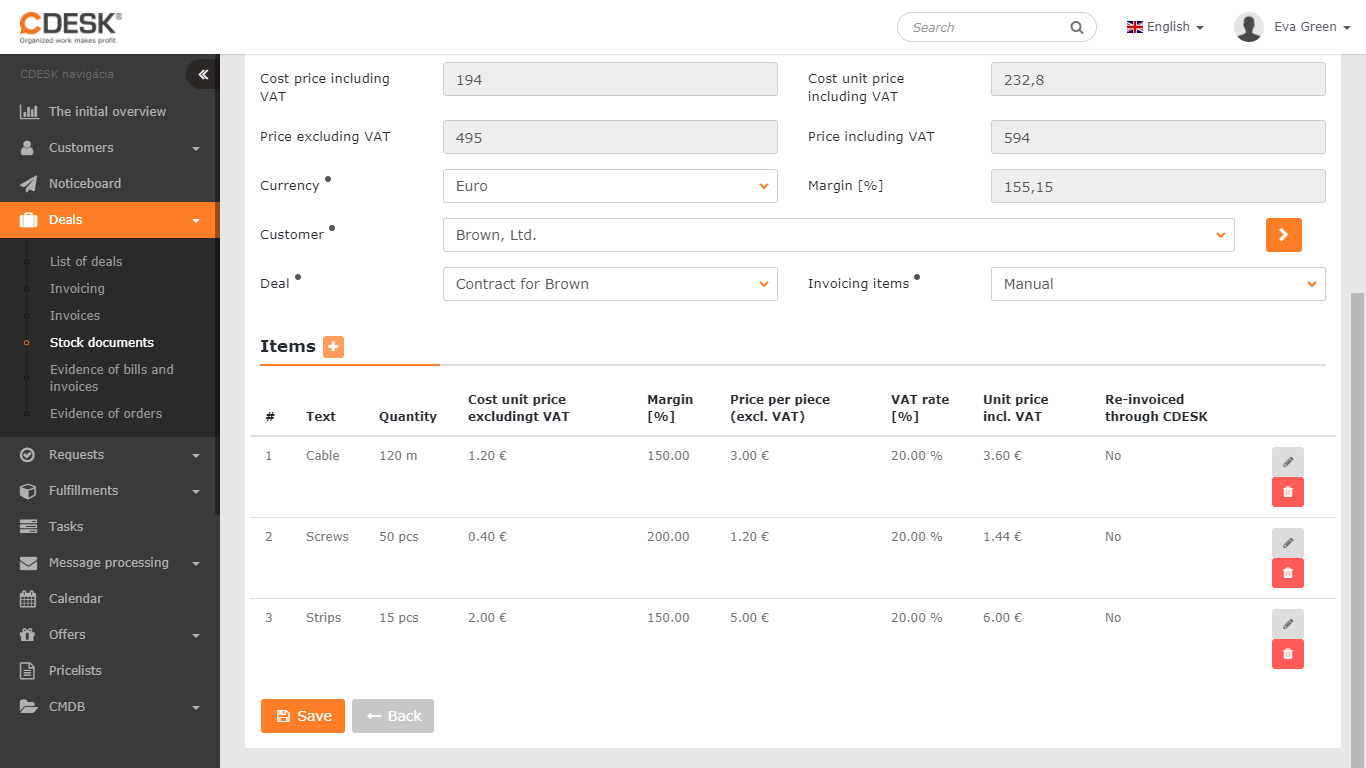
Items
You add a new item by clicking + . The item-adding form opens:
Name – enter the name of the item, which will appear in billing and on the invoice
Quantity – enter the quantity
Unit of measure – select the unit
Purchase unit price – enter the price you bought the material for
Margin – enter the margin with which you will charge the material. It is calculated automatically if the unit price is filled in
Unit price – the price excl. VAT at which you will sell the material; it is calculated automatically if you have filled in the margin. By filling in the unit price, the margin is calculated automatically
VAT rate – enter the VAT rate that applies to the items
Unit price incl. VAT – calculated automatically based on the unit price and VAT
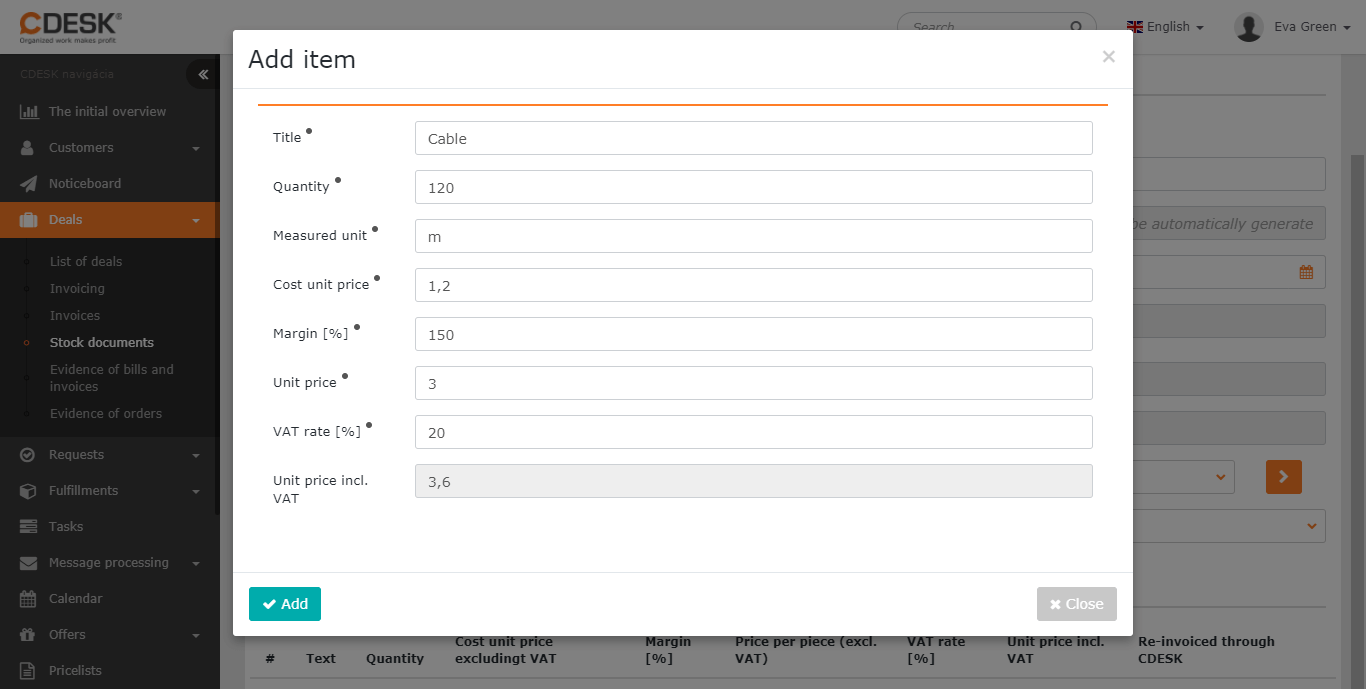
Confirm the creation of the item with the Add button.
Individual items can be edited by clicking the  icon, or removed using
  – as long as they have not yet been re-invoiced via CDESK.
To save the issue note, click Save . The issue note is tied to the deal, where the saved changes will be reflected in costs and in billing.